Power Status (System Program)
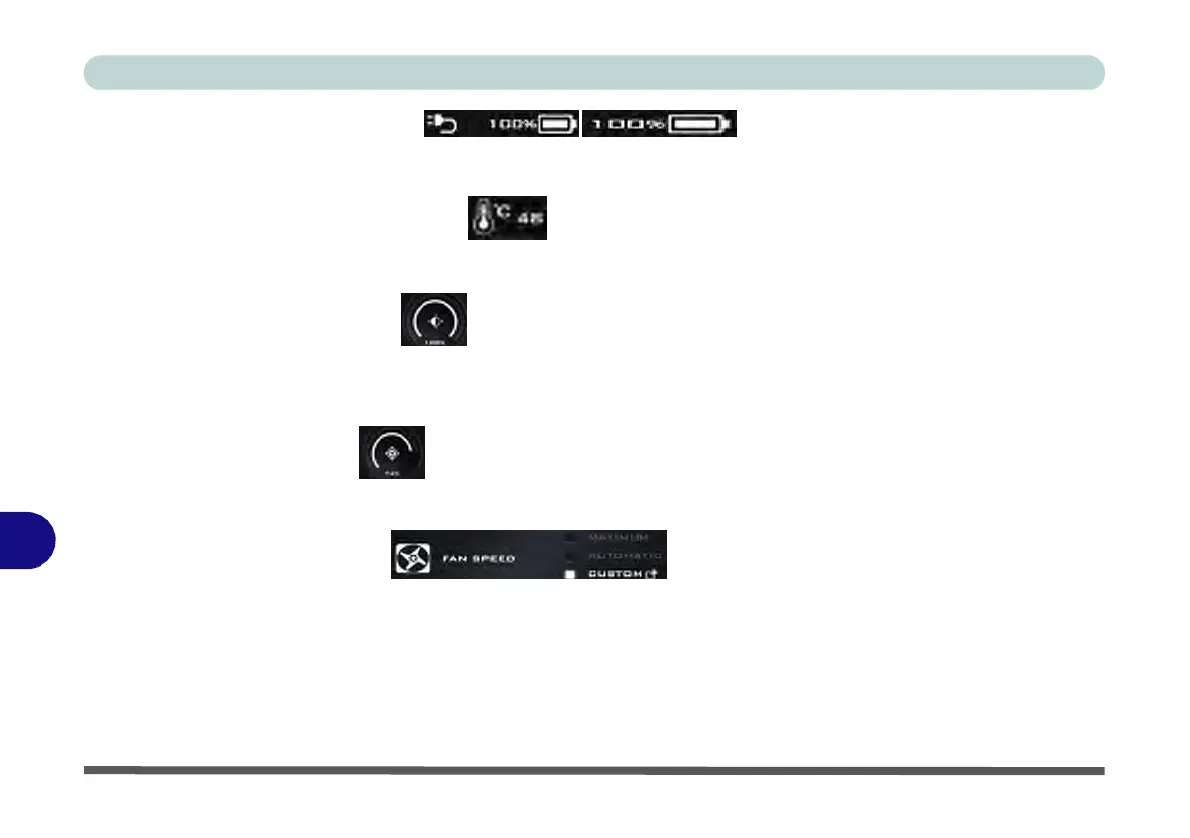
The Power Status icon will show whether you are currently powered by the battery, or by the AC/DC adapter
plugged in to a working power outlet. The power status bar will show the current battery charge state.
CPU
Temperature
(System
Program)
The temperature icon will display the current CPU temperature. Click the icon to have the temperature dis-
played in either degrees Celsius or Fahrenheit.
Brightness (System Program)
The Brightness icon will show the current screen brightness level. You can use the slider to adjust the screen
brightness
or the Fn + F8/F9 key
combinations,
or use the Fn+ F2 key
combination
to turn off the LED backlight
(press any key to turn it on again).
Volume (System Program)
The Volume icon will show the current volume level. You can use the slider to adjust the Volume or the Fn +
F5/F6 key combinations, or use the Fn+ F3 key combination to mute the volume.
B
Fan
Speed
(System
Program)
You can set the fan speed to
Maximum
(full power),
Automatic
or Custom from this menu item. The fan speed
will adjust itself automatically to control the heat of the CPU. However you can adjust the setting to maximum
if you prefer. Select Custom and click on the sliders to adjust the settings to your preference, however these set-
tings can be overridden by the system, as a safety precaution, if it requires heavier use of the fan (see over).


 To Next Page
 Loading...