Custom Settings
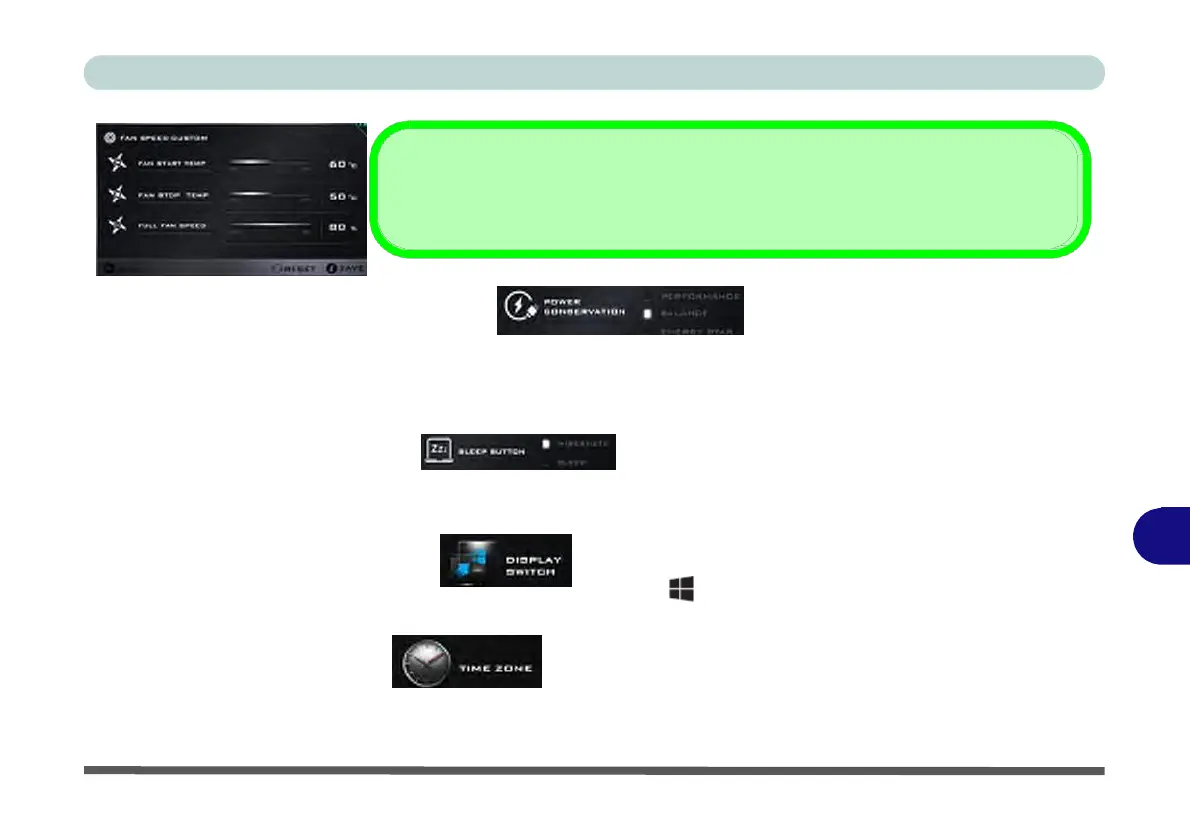
Click Save to retain customized settings, or Reset to select default settings.
Power Conservation (System Program)
This system supports Energy Star power
management features that place computers (CPU, hard drive, etc.) into a low-power sleep modes after a desig-
nated period of inactivity (see “Power Conservation Modes” on page 3 - 12). Click either the Performance,
Balanced or Power Saving button.
Sleep Button (System Program)
Click either the Hibernate or Sleep buttons to have the computer enter the selected power-saving mode when
the Fn + F4 key combination is pressed (see “Power-Saving States” on page 3 - 7).
B
Display Switch (System Program)
Click the Display Switch button to access the menu (or use the + P key combination) and select the appro-
priate attached display mode.
Time
Zone
(System
Program)
Clicking the Time Zone button will access the Date and Time Windows control panel.


 To Next Page
 Loading...