Storage Devices, Mouse, & Audio
Optical (CD/DVD) Device 2 -
35
Optical (CD/DVD) Device
There is a bay for a 5.25" optical (CD/DVD) device (12.7mm height). The actual de-
vice will depend on the module you purchased (see “Storage” on page D - 2). The
optical device is usually labeled “Drive D:” and may be used as a boot device if
properly set in the BIOS (see “Boot Menu” on page 5 - 15).
Loading Discs
2
Sound Volume
Adjustment
How high the sound vol-
ume can be set depends
on the setting of the vol-
ume control within Win-
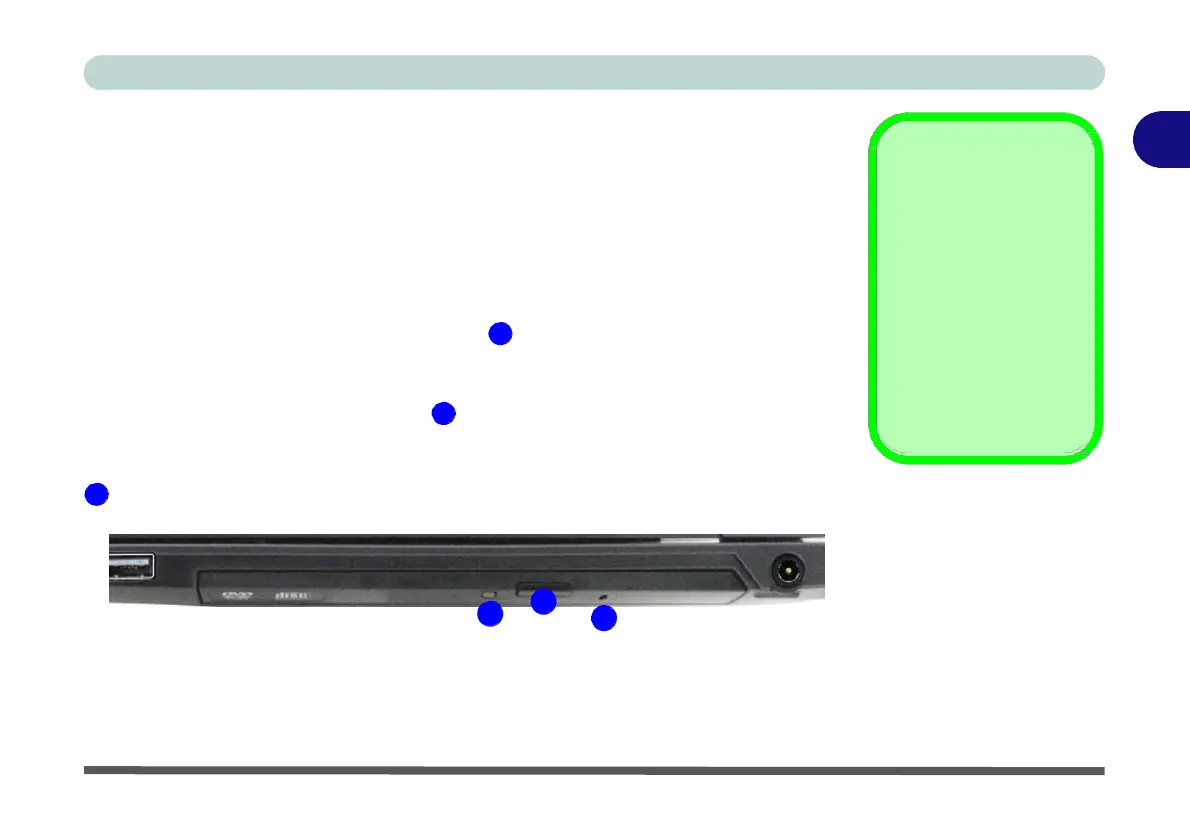
To insert a CD/DVD, press the open button 1 and carefully place a CD/DVD onto
dows. Click the Volume
the disc tray with label-side facing up (use just enough force for the disc to click onto
the tray’s spindle). Gently push the CD/DVD tray in until its lock “clicks” and you
icon on the taskbar to
check the setting (see
“Audio Features” on
are ready to start. The busy indicator 2 will light up while data is being accessed,
page 2 - 7).
or while an audio/video CD, or DVD, is playing. If power is unexpectedly interrupt-
ed, insert an object such as a straightened paper clip into the emergency eject hole
3 to open the tray.
Figure 2 - 1
Optical
Device
2
1
3


 To Next Page
 Loading...