Storage Devices, Mouse, & Audio
Touchpad Configuration 2 - 43
Touchpad
Configuration
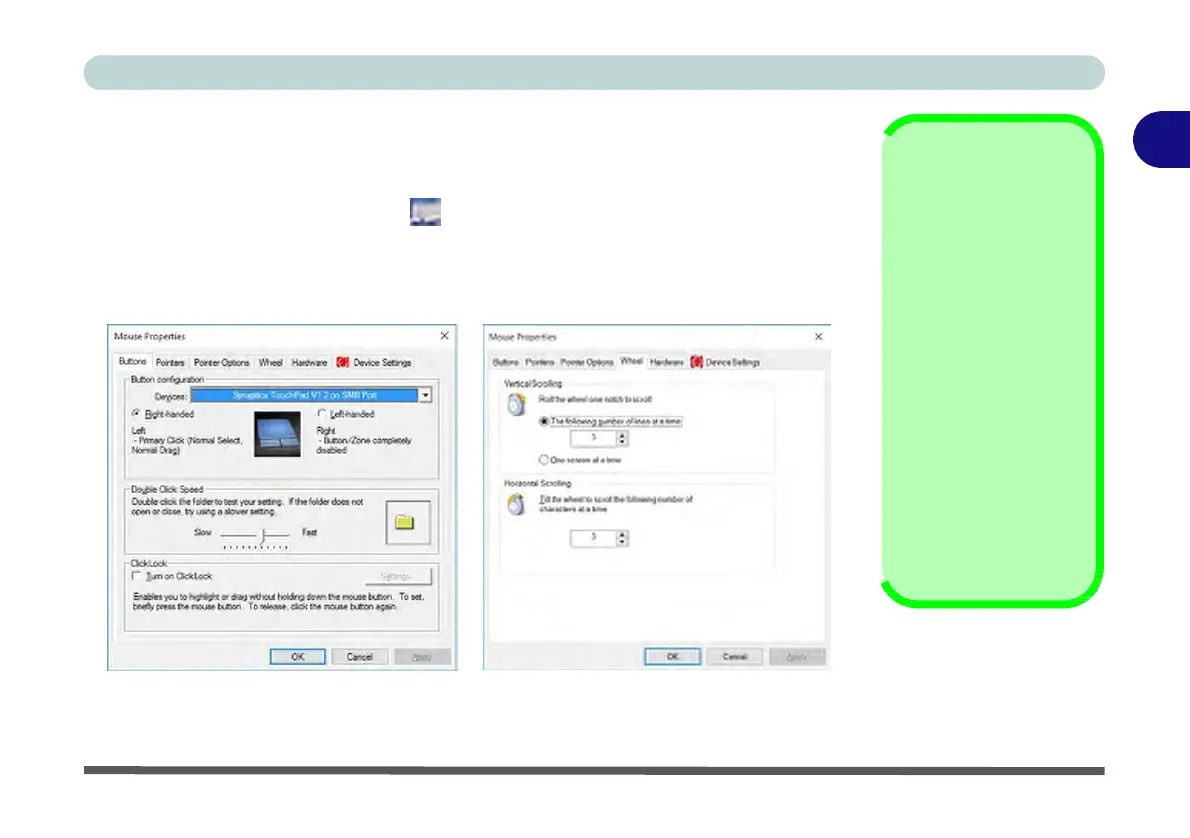
Once you have installed the TouchPad driver (see “Touchpad” on page 4 - 7) you
can configure the functions from the Mouse control panel in Windows, or by double-
clicking the TouchPad driver icon in the notification area of the taskbar in the
Desktop app. You may then configure the TouchPad tapping, buttons, scrolling,
pointer motion and sensitivity options to your preferences. You will find further in-
formation at www.synaptics.com.
2
TouchPad Scrolling
This computer model se-
ries may feature different
TouchPad versions.
These TouchPads may
differ in their vertical
scrolling function in most
scrollable windows.
Some TouchPads require
sliding the finger up and
down on the right of the
TouchPad to scroll the
window. Other versions
require tapping/holding
down the finger at the top
right or bottom right of the
TouchPad to scroll the
window.
Figure 2 - 7
Mouse Properties


 To Next Page
 Loading...