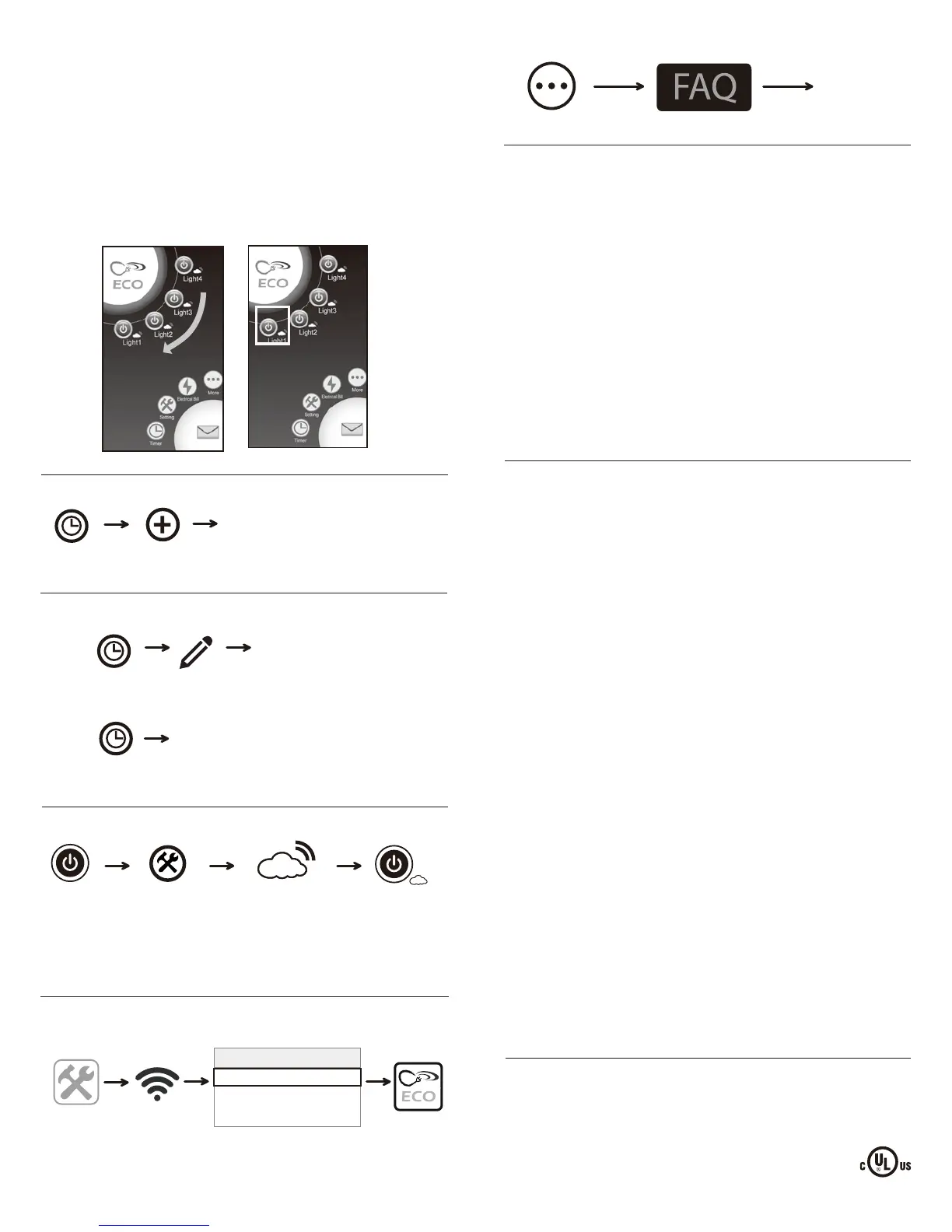
SELECTING WHICH DEVICE TO CONTROL: If you have multiple ECO
Smart Boxes connected to the app, you can choose which device you
want to access (such as Master Bedroom, Home Office, etc.).
To select the device, slide the desired icon to the lower left position. The
ECO Smart Box name (such as “Master Bedroom,” below), will change
color from white to green. Chosen device is now able to be programmed or
edited, such as changing timer settings, updating cloud service, etc.
Note: You can connect to a maximum of twelve (12) ECO Smart Boxes via
the app. You can expand your system to include ECO surge protectors,
indoor or outdoor switches, and more!
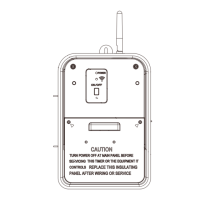
TO RESET THE ECO SMART BOX: If you decide to connect this device to
a new router, or are having trouble setting up this device after multiple
attempts, try resetting the ECO Smart Box.
• Press and hold the Power button while at the same time pressing the
Reset button with the tip of a toothpick or similar non-conductive item.
Continue holding the Power button for 3-5 seconds until the Wi-Fi Status
Indicator light turns off.
• When the Wi-Fi Status Indicator light turns off, release the Power button
and the ECO Smart Box has been reset.
• After a few seconds the Wi-Fi Status Indicator light will begin blinking
and the ECO Smart Box is ready to be reconnected to the Wi-Fi router via
the app.
This process removes any programmed settings, disconnects the app
connection to the Wi-Fi router, and restores the ECO Smart Box to the
factory default setting.
FEDERAL COMMUNICATIONS COMMISSION INTERFERENCE STATEMENT
INDUSTRY CANADA STATEMENT
• Reorient or relocate the receiving antenna
• Increase the separation between the equipment and the remote receiver.
• Connect the equipment into an outlet on a circuit different from that to which the
receiver is connected
• Consult the dealer or an experienced radio/TV technician for help.
This device complies with Part 15 of the FCC Rules.
Industry Canada Statement: This Class B digital apparatus complies with Canadian
ICES-003. This device complies with Industry Canada license exempt RSS standard(s).
Operation is subject to the following two conditions: (1) This device may not cause
interference, and (2) this device must accept any interference, including interference
that may cause undesired operation of the device.
FCC Caution: Any changes or modifications not expressly approved by the party
responsible for compliance could void the user's authority to operate this equipment.
FCC and IC Radiation Exposure Statement: This equipment complies with FCC and
IC RSS-102 radiation exposure limits set forth for an uncontrolled environment.
This equipment should be installed and operated with a minimum distance of 20cm
between the radiator and your body.
Contains FCC ID: PAGECO-PLUG
Contains IC: 4494A-ECOPLUGS
CAN ICES-3(B)/NMB-3(B)
This equipment has been tested and found to comply with the limits for a Class B
digital device, pursuant to part 15 of the FCC Rules. These limits are designed to
provide reasonable protection against harmful interference in a residential installation.
This equipment generates, uses, and can radiate radio frequency energy, and if not
installed and used in accordance with the instructions, may cause harmful inter-
ference to radio or television reception, which can be determined by turning the
equipment on and off. The user is encouraged to try to correct the interference by
one or more of the following measures:
Apple is a registered trademark of Apple Inc.
Android is a registered trademark of Google Inc.
iOS is a trademark or registered trademark of Cisco in
the U.S. and other countries and is used under license.
Wi-Fi™ is a trademark of Wi-Fi Alliance
®
Tap the More icon
FREQUENTLY ASKED QUESTIONS
Or send your
question
via email
Tap the FAQ link
TO ADD MULTIPLE USERS TO THE ECO OUTLET (Repeat steps below for
each additional user):
Link to the same home router
as used by first smartphone
or tablet
Tap the
ECO icon
Tap Settings
icon of
additional
user’s
smartphone
Tap the
Wi-Fi
icon
Choose a Network
Home Router
Other Router A
Other Router B
Add device
to the cloud
TO ACTIVATE CLOUD SERVICE
Tap
Settings
icon in the app
Cloud
status
inactive
Cloud status
activated
PROGRAMMING THE TIMER
Tap the
Timer icon
• Select the timer function from the list
• Select on/off times for desired hours,
minutes and days
• Tap the checkmark to accept
Click the arrow that appears on the
right of that setting to enter editing
mode.
EDITING THE TIMER PROGRAM
Tap the
Add icon
Tap the
Timer icon
Tap the
Edit icon
iOS:
Select the program to edit, tap and hold
until the edit pop-up window appears.
Tap the
Timer icon
Android:
Note: To remove cloud service, follow the same steps and tap Remove
device from the cloud.


 To Next Page
 Loading...