Outdoor Wi-Fi Smart Box
CAUTION!
For outdoor use. For installation, rain-tight or
wet location conduit hubs that comply with requirements of
UL 514B Conduit, Tubing, and Cable Fittings must be used.
Note:
Installation should be made by a licensed electrician.
Turn power OFF at the circuit breaker before installation.
READ ALL INSTRUCTIONS before using the ECO Smart Box.
!
Power Button
Press this
button to
manually
override the
ECO Smart
Box and turn
the unit ON/OFF.
TO CONNECT THE ECO SMART BOX TO A WI-FI ROUTER
• With the ECO Smart Box installed, if the blue light is blinking you can
proceed to the next step to begin the smart phone setup. If not blinking,
you must reset the ECO Smart Box as described in the FAQ section on
the reverse side of this sheet. Make sure the controlled device(s) are
switched ON. Note: the blue light will continue blinking until the setup
is finished via the smartphone app.
• Once you are finished connecting the ECO Smart Box to a Wi-Fi router,
the blue light will remain on continuously to indicate that Wi-Fi connection
has been established and the ECO Smart Box is accessible via the app.
Power Indicator
Select the Wi-Fi router that you want to
link to the ECO Smart Box. (Note: It may
take a few seconds for network communication).
Tap the
ECO icon
STEP 3: Fill in the information (Note: US
residents enter your five-digit ZIP code,
Canadian residents enter your three-digit
telephone number area code). When
finished filling in the information, click
the SAVE SETTINGS or JOIN button.
(In iOS: if you can't find the JOIN
button, click in the “Password” box).
STEP 2:
TO ADD ADDITIONAL ECO SMART BOXES TO THE APP: Repeat steps
1-3 for each additional ECO Smart Box. Remember to give each box a
different name (for example, Master Bedroom, Home Office, etc.).
Note: Each ECO Smart Box can be wired to control one or two circuits.
To control more than two circuits, add additional ECO Smart Boxes.
ECO Status Indicator
Blinking Light: Ready to
connect to Wi-Fi router.
Light continuously ON:
Connection to Wi-Fi
router is complete and
the ECO Smart Box is
ready for use via the app.
Light OFF: Check your
internet connection or
review the app FAQ.
Reset Button
IMPORTANT:
Please refer to INSTALLATION INSTRUCTION SHEET
before proceeding with Wi-Fi router connection. ECO Smart Box
must be installed before connecting to Wi-Fi router.
Usage: Function is not available
on this device.
More: Learn more about this app,
including an FAQ section.
Settings: To set your Wi-Fi Smart Box,
transfer local Wi-Fi to cloud mode, or to
rename the ECO Smart Box.
Timer: To set ON/OFF programs (up to a
maximum of 12 Custom ON/OFF events).
Cloud Icon: Activates remote access
function of device through 3G, 4G, LTE,
public Wi-Fi network, or other Wi-Fi router.
Mailbox: To email consumer service or
share app feedback.
Programmable Timer: To set custom
ON-OFF events.
Countdown Timer: The controlled device
will turn off after selected time.
Astronomic Timer: The controlled device
will turn on or off at sunset or sunrise.
Vacation Random: The controlled device
will turn on or off randomly between one
of three time frames (night, day, all day).
Security Random: The controlled device
will turn on and off randomly between
chosen start and end times.
N.O. Contacts:
40A Resistive, 120~277VAC
1HP, 16A FLA, 96A LRA, 120VAC
2HP, 10A FLA, 60A LRA, 277VAC
30A Ballast, 120VAC
20A Ballast, 277VAC
15A Tungsten, 120VAC
30A Resistive, 28VDC
N.C. Contacts:
30A Resistive, 120~277VAC
1HP, 16A FLA, 96A LRA, 120VAC
2HP, 12A FLA, 72A LRA, 240VAC
2A Tungsten, 120VAC
10A Ballast, 120VAC
10A Ballast, 277VAC
20A Resistive, 28VDC
Tap Smartphone’s
Settings icon
Tap the
Wi-Fi icon
Select the
ECO Smart Box
STEP 1:
Choose a Network
Device [ECO-XXXXXXXX] Ver: XXX
Home Router
Other Router A
Other Router B
(such as lamp or fan)
Enter Zip Code:
Name Device:
Enter Wi-Fi Router Password:
DOWNLOAD
THE ECO APP:
(iOS 7 or higher)
(Version 4 or higher)

 Need help?
 General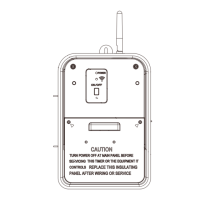

 To Next Page