USING YOUR CAMERA
VIEW THE CAMERA
IMAGE ON YOUR CTS
1. Power your CTS device.
2. Touch the MAIN MENU
icon on the main gauge screen.
3. Touch the View Camera.
Your camera image should ap-
pear.
9. Now, plug the RCA EXTEN-
SION into the remaining RCA
jack located on the JUNCTION
CABLE.
10. Route the RCA EXTEN-
SION cable along the same path
as the current CTS cable(s), and
up to the CTS Device. Use any
leftover ZIP-TIES to fasten if
needed.
11. Plug the RCA connector
into the backside of your CTS.
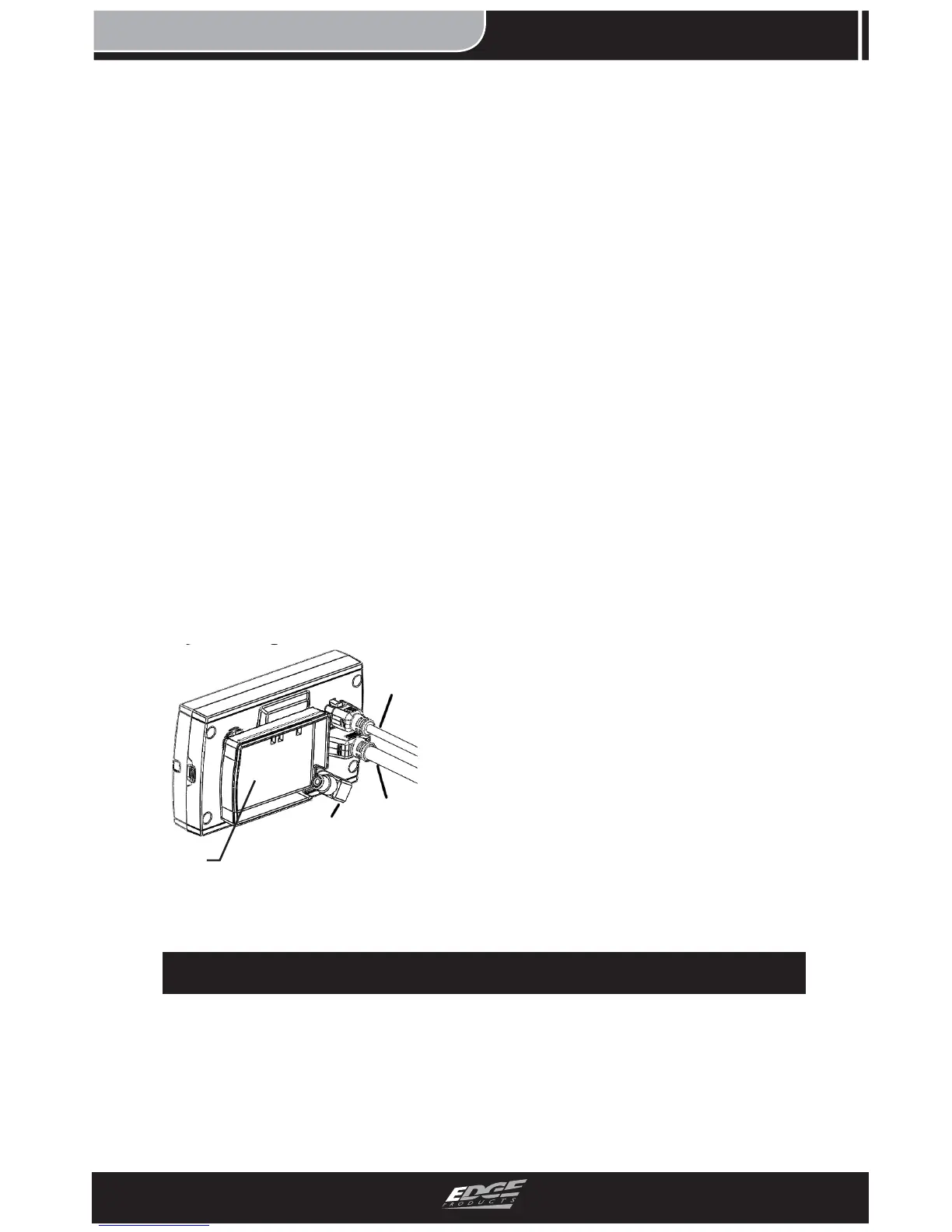
(NOTE: If you own an Edge
Products dash pod, you may
need to use the right angle
adapter for a lower profi le fi t.
Refer to Figure 11.)
FIGURE 11
12. Plug the RIGHT ANGLE
ADAPTER into the back of the
CTS, then the cable into the
adapter. This will allow the
connector to sit tight against the
inside of the pod adapter and
eliminate interference with your
dash.
The pod and pod adapter are
not part of your camera kit. For
more information on how to
purchase one, log on to:
www.edgeproducts.com
EAS
CABLE
OBDII
CABLE
RIGHT
ANGLE
ADAPTER
POD
ADAPTER


 To Next Page