34
Getting connected and installing drivers (Windows)
fig.2-22b
16
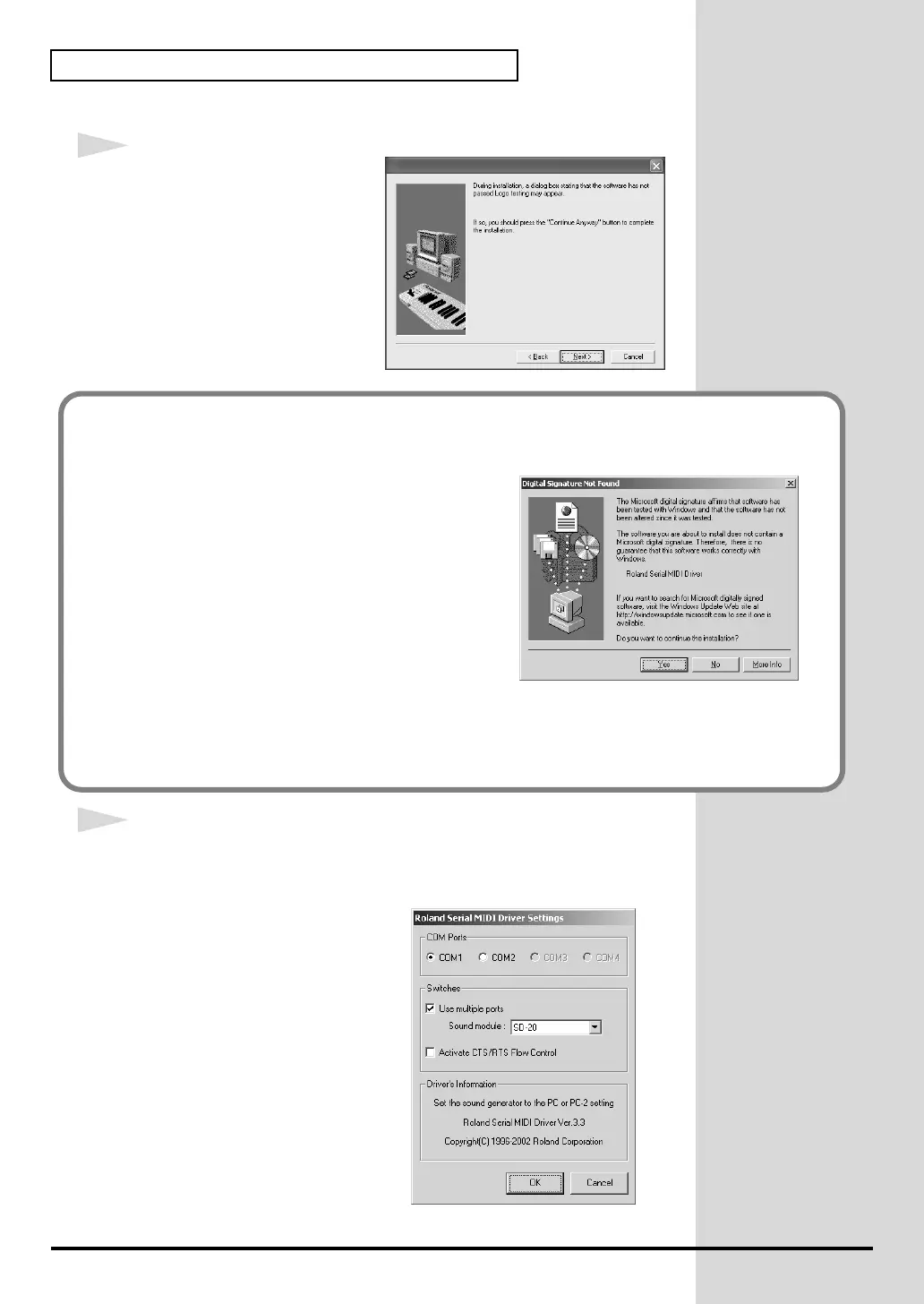
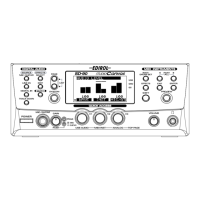
A dialog box like the following
will appear.
Click [Next].
4
The Roland Serial MIDI Driver Settings dialog box will appear.
Set the following items. Click [OK].
fig.2-23b_40
COM Ports
Select the serial port (COM
port) to which the SD-20’s
serial port is connected.
Switches
Check “Use multiple ports.”
Click the ▼ symbol at the right
of the [Sound module] field,
and select SD-20.
* Do not check “Activate CTS/RTS
Flow Control.”
If in step ? the “File signature verification” setting was not set to “Ignore”, a “Digital
signature not found” dialog box will appear.
fig.2-16b_40
If “File signature verification” is set to
“Warn,”
1. Click [Yes].
2. Continue the installation.
If “File signature verification” is set to
“Block”
1. Click [OK].
2. When the “New hardware detection wizard” appears, click [Finish].
3. Perform the installation as described in the “Troubleshooting” section on Device
Manager shows “?”, “!”, or “USB Composite Device” (p. 60).


 To Next Page