41
Getting connected and installing drivers (Windows)
Checking for sound output
Now let's play back the sample data to verify that connections, driver
installation, and settings were made correctly.
■ Playing back the sample data
Here we will use standard Windows functionality to play the sample data.
The sample data is found on the CD-ROM.
1
Prepare the CD-ROM.
Insert the CD-ROM into the CD-ROM drive of your computer.
2
From the DemoSong folder of the CD-ROM, drag Jazz(.MID) to your
desktop, copying it.
fig.2-31_80
3
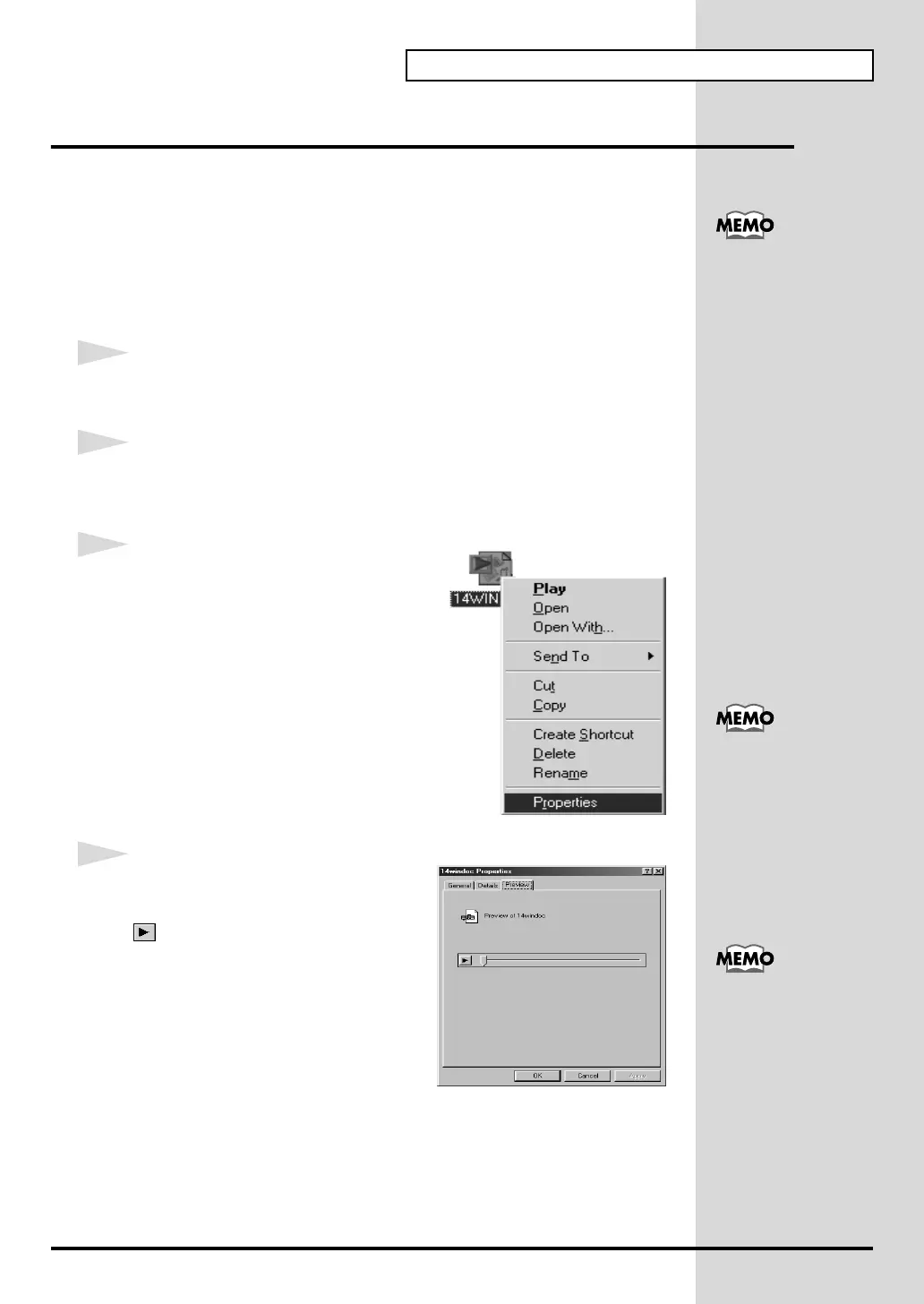
Right-click the copied file Jazz(.MID),
and select Properties (Play for
Windows XP/2000/Me).
fig.2-32_30
4
Play back the sample data.
Click the Preview tab, and then click the
button.
The music starts playing.
Use of the song data
supplied with this
product for any
purpose other than
private, personal
enjoyment without the
permission of the
copyright holder is
prohibited by law.
Additionally, this data
must not be copied, nor
used in a secondary
copyrighted work
without the permission
of the copyright holder
What you actually see
on your computer
screen may be different,
depending on your
computing
environment and the
operating system you're
using.
If it did not play back
correctly, refer to
Troubleshooting (p.
57) to determine the
reason. This section
contains information on
how to solve problems
such as no sound, or
failure to play back
correctly.


 To Next Page