40
Getting connected and installing drivers (Windows)
Enabling background services
In Windows XP, perform these settings to make MIDI processing occur more
smoothly. These settings are unavailable in Windows 2000/Me/98.
1
Click the Windows start button, and from the menu that appears, select
Control Panel.
2
In "Pick a category," click "Performance and Maintenance."
3
In "or pick a Control Panel icon," click the System icon.
4
Click the Advanced tab.
5
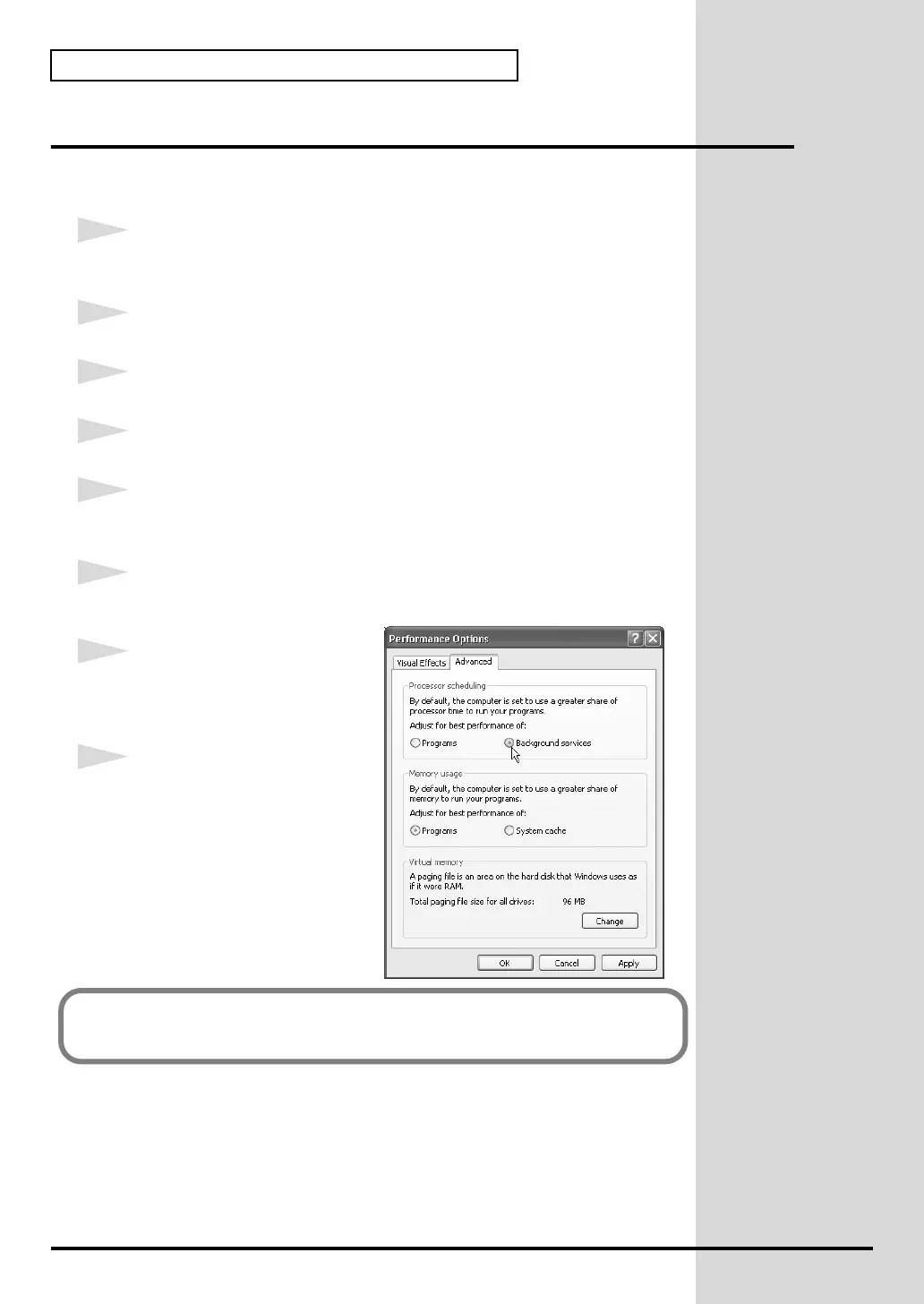
At the right of the Performance field, click [Settings]. The Performance
Options dialog box will appear.
6
Click the Advanced tab.
fig.2-30
7
In the Processor Scheduling
field, select "Background
services," and click [OK].
8
In the System Properties dialog
box, click [OK].
The System Properties dialog
box will close.
Proceed to the following page.
(-> Checking for sound output (p. 41)


 To Next Page