Did you know?
Intelligent wireless
Improvesyourwirelessbroadbandsignalinthehome.
Computers,TV’sandallyourlovelygizmosgiveoffsignals
thatcanaffectyourwirelessconnection.It’sagoodthing
thatyourrouterisallsetuptohelpyouavoidthesesignals
andgiveyoubetterperformance.
Toimproveyourwirelesssignalathome,pressthe
‘intelligentwireless’buttononthetopoftherouter.Allyour
deviceswillbemovedautomatically.
Yourusernameandpasswordcanbe
foundonyour‘KEEPMEE’card.
Don’tforgettoputitsomewheresafe.
Intelligent
wireless
Support
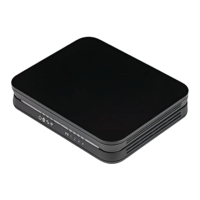
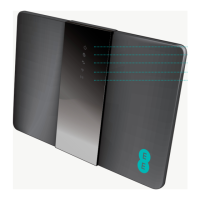
WehopeyoulikeyournewBrightBox2WirelessRouter.
ThisguideshouldhaveyouallsetforEEBroadband.
Ifyou’restillhavingproblemsthengiveusacallandwe’ll
giveyouahand.
Go online
my.ee.co.uk
ee.co.uk/brightbox
ee.co.uk/help
ee.co.uk/education
ee.co.uk/safety
Or call us on
08448738586*
orcall150fromyourEE,T-MobileorOrangemobilephone
#
.
Business customer?
Asabusinesscustomeryouhaveaccesstoourdedicated
BusinessCustomerServicesteam24hoursaday,every
day.ContactyourcompanyITAdministratortoobtainEE
support.
* Calls to 0844 873 8586 from an EE Home Phone are free of charge. Charges
from mobiles and other networks will vary.
# Calls to 150 from EE, T-Mobile or Orange mobile phones are charged as per
your price plan. Please see ee.co.uk for more information.
Your Bright Box 2 wireless router
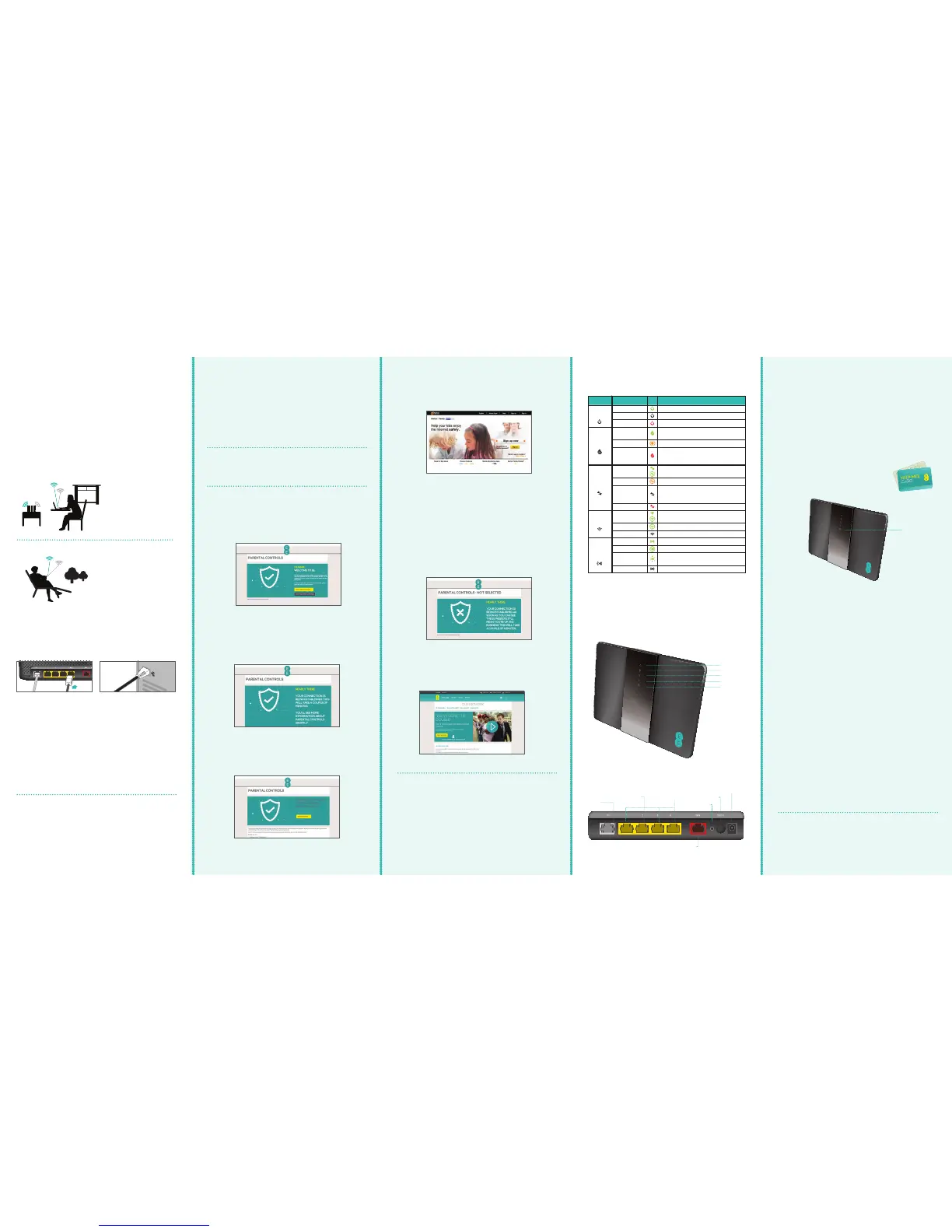
STAT US DESCRIPTION
Power
Solid green The router is on.
Off The router is not receiving power/switched off.
Red The router is powering up, rebooting or is faulty.
Broadband
Solid green The router is functioning correctly, and is
connected to broadband.
Flashing orange The router is synchronising with broadband.
Red The router can’t detect a broadband signal. Check
that the grey broadband cable is connected to the
DSL/fibre port.
Internet
Solid/flashing
green
Internet is connected and traffic is being sent
between the router and the Internet.
Flashing orange Internet connection is trying to be established.
Off The Internet connection process hasn’t begun.
Check that the grey broadband cable is
connected to the DSL/fibre port.
Red The Internet connection is down.
Wireless
Solid/flashing
green
Wireless is enabled.
Flashing green Data is being sent via wireless.
Off Wireless has been disabled.
Intelligent
Wireless
On A successful WPS connection has been made.
Fast flashing The WPS function is running.
Slow flashing Intelligent wireless is searching for a new wireless
channel.
Off WPS or Intelligent Wireless are not running.
Power
Broadband
Internet
Wireless
Intelligent
wireless
GigE
Reset
Power
Fibre / DSL
port
Reset button
Ethernet
ports
ON/OFF
Power socket
GigE port
WAN port
4
Parental controls
Parentalcontrolspreventageinappropriatecontent
beingaccessedonyourdevices,we’vepartneredwith
Norton™ Familytoofferyoupeaceofmindaboutchild
safetyonline.
Important
You must select your parental controls settings
before you can browse the web.
If you DO want parental controls
Connectyourrstdevicetotherouter(eitherwirelessor
wired)andopenyourinternetbrowseri.e.Firefox,Safari,
ChromeorInternetExplorer.At this stage only connect
1 device.
If you DO NOT want parental controls
Select‘Idonotneedparentalcontrols’andyou’llsee
thismessageforacoupleofminutes.DON’T close this
window until the process is complete.
Select‘Ineedparentalcontrols’andyou’llseethis
messageforacoupleofminutes.Please don’t close
this window.
Whenyou’vemadetheconnection,choose
‘GetNortonFamily’andyou’llberedirectedtothe
NortonFamilyhomepage.
Hereyoucansignup,downloadandallocateusers.
Youonlyneedtosignupatthisstage,youcancome
backlaterandcompletethedownloadanduser
allocationprocess.
You’renowupandrunning.FollowSTEP3,
‘GettingConnected’toconnectyourremaining
devicestotherouterandyou’regoodtogo.
You’renowupandrunning.FollowSTEP3,
‘GettingConnected’toconnectyourremaining
devicestotherouterandyou’regoodtogo.
ReadytodownloadNorton™ Antivirus Software?
It’sinclusivefor12-months.
Visit www.ee.co.uk/norton360whenyou’reconnected
totheEEBroadbandnetworkandinstallthesoftware
onupto3PCs.
Antivirus software
Or wired?
YoucanconnectwiththesuppliedEthernetcable.You’ll
hearaclickwhenthecableisconnected.
Great,yourBrightBox2WirelessRoutershouldnowbe
connectedtoyourdevice.Younowneedtoselectyour
parentalcontrolsbygoingtoSTEP4.
Note:Togetthefastestpossiblespeedsplugyour
compatiblecomputerdirectlyintothe‘GigE’portof
therouter.
Plugoneendoftheblack
Ethernetcableintoany
oftheyellowEthernet
socketsonthebackof
your Bright Box 2 Wireless
Router.
Ifyoucan’tconnectorarehavingproblems,repeat
allofthestepsagainandcheckthatallplugsare
connectedproperly.
Ifthisdoesn’tworkyoucancontactusinanumberof
ways.Justhavealookatthesupportpageandwe’ll
helpgetyouupandrunning.
Plugtheotherendinto
theEthernetsocketon
yourdevice(yourlaptop
orPCforexample).
WirelessorWi-Fi,allowsyoutoconnecttotheinternet
withoutneedingcablesbetweenyourcomputersordevices
andyourBrightBox2WirelessRouter.
TheBrightBox2Wirelessrouterhasdualbandwirelesswhich
meansithastwowirelessnetworksavailable,onetransmitting
at2.4GHzandoneat5GHz.
The5GHznetworktypicallyprovidesa‘cleaner’frequency
asitismuchlessaffectedbycongestionandinterference
comparedto2.4GHz.Thismeansthatyoushouldexperience
betterwirelessperformance,especiallyifyouliveinadensely
populatedareaorareaffectedbyinterference,asthe2.4Ghz
networkisusedbymanyotherwirelessdevices.
What WiFi Network is best...
Inthelivingroom
whenyouareclose
totherouter,you
willreceiveamore
powerfulconnection
byconnectingtothe
5Ghznetwork.
Whenyouarefurther
fromtheBrightBox2
Wireless Router you
mayneedtoconnect
tothe2.4Ghznetwork
to get the best
performance.
5GHz
5GHz
2.4GHz
2.4GHz
Living Room
2.4GHz
5GHz
Garden


 To Previous Page
 Loading...