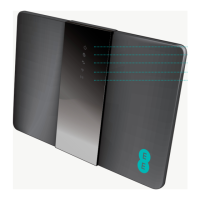
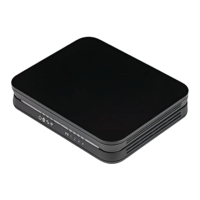
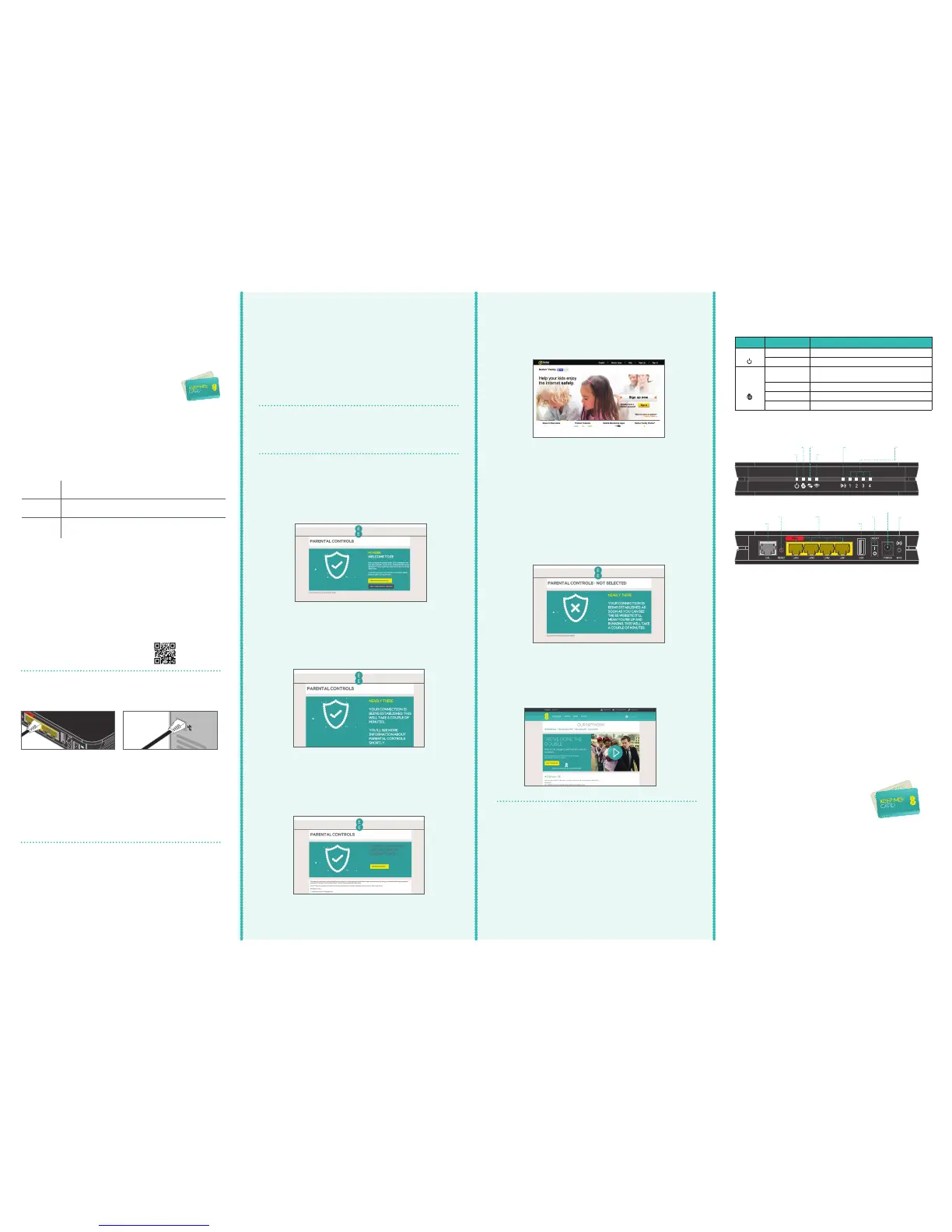
Your Bright Box wireless router
Data*
Power
Broadband
Wireless
Intelligent
wireless/WPS
Ethernet
Connections
ADSL port
Reset button
Ethernet
Ports
USB port
ON/OFF
Power socket
Intelligent
wireless/WPS
*Not applicable when connected to fibre broadband
STATUS DESCRIPTION
Power
Solid green The router is on.
Off The router is not receiving power/switched off.
Broadband
Solid green The router is functioning correctly, and is connected to
EE broadband.
Off The router can’t connect to EE broadband.
Fast flashing Something is causing interference.
Slow flashing The router can’t connect to the internet.
Did you know?
Intelligent wireless
Improves your wireless broadband signal in the home.
Computers, TV’s and all your lovely gizmos give off signals
that can affect your wireless connection. It’s a good
thing that your router is all set up to help you avoid these
signals and give you better performance.
To improve your wireless signal at home, press the
‘intelligent wireless’ button on the back of the router.
All your devices will be moved automatically.
Your username and password can be found
on your ‘KEEP MEE’ card. Don’t forget to
put it somewhere safe.
4
Parental controls
Parental controls prevent age inappropriate content
being accessed on your devices, we’ve partnered with
Norton™ Family to offer you peace of mind about child
safety online.
Important
You must select your parental controls settings
before you can browse the web.
If you DO want parental controls
Connect your first device to the router (either wireless or
wired) and open your internet browser i.e. Firefox, Safari,
Chrome or Internet Explorer. At this stage only connect
1 device.
If you DO NOT want parental controls
Select ‘I do not need parental controls’ and you’ll see
this message for a couple of minutes. DON’T close this
window until the process is complete.
Select ‘I need parental controls’ and you’ll see this
message for a couple of minutes. Please don’t close
this window.
When you’ve made the connection, choose
‘Get Norton Family’ and you’ll be redirected to the
Norton Family homepage.
Here you can sign up, download and allocate users.
You only need to sign up at this stage, you can come
back later and complete the download and user
allocation process.
You’re now up and running. Follow STEP 3,
‘Getting Connected’ to connect your remaining
devices to the router and you’re good to go.
You’re now up and running. Follow STEP 3,
‘Getting Connected’ to connect your remaining
devices to the router and you’re good to go.
Ready to download Norton™ Antivirus Software?
It’s inclusive for 12-months.
Visit www.ee.co.uk/norton360 when you’re connected
to the EE Broadband network and install the software
on up to 3 PCs.
Antivirus software
3
Getting connected
Your wireless network name and wireless
password can be found on the ‘KEEP MEE’
card or on the bottom of the router.
Connect using a wireless connection
Connecting wirelessly to your EE router is really easy.
If you’re using a wireless adaptor, make sure it’s installed
correctly and turned on.
To connect to your wireless network:
Look for your wireless network name in the list of
networks.
Windows
Apple Mac
Other devices
The list can usually be found in the settings
menu next to ‘wireless’, ‘manage connections’, or ‘networks’
Click the ‘AirPort’ icon in the menu bar
Click the network icon in your device’s notification area. If you’re
using Windows Vista you’ll need to choose ‘connect to network’
Join the wireless network
Choose ‘connect’, or ‘join’ wireless network and when
you’re prompted type in your password.
Great, your Bright Box Wireless Router should now be
connected to your device. You now need to select your
parental controls by going to STEP 4.
Wireless...
Or wired?
You can connect with the supplied Ethernet cable.
You’ll hear a click when the cable is connected.
Plug one end of the black
Ethernet cable into any
of the yellow Ethernet
sockets on the back of
your EE Bright Box.
Plug the other end into
the Ethernet socket on
your device (your laptop or
PC for example).
Great, your Bright Box Wireless Router should now be
connected to your device. You now need to select your
parental controls by going to STEP 4.
If you can’t connect or are having problems, repeat
all of the steps again and check that all plugs are
connected properly.
If this doesn’t work you can contact us via the
options shown on the support page and we’ll help
get you up and running.
Need help connecting your
devices wirelessly?
Visit: ee.co.uk/brightbox


 To Previous Page
 Loading...