XX-553 IB_back Printing color: Black
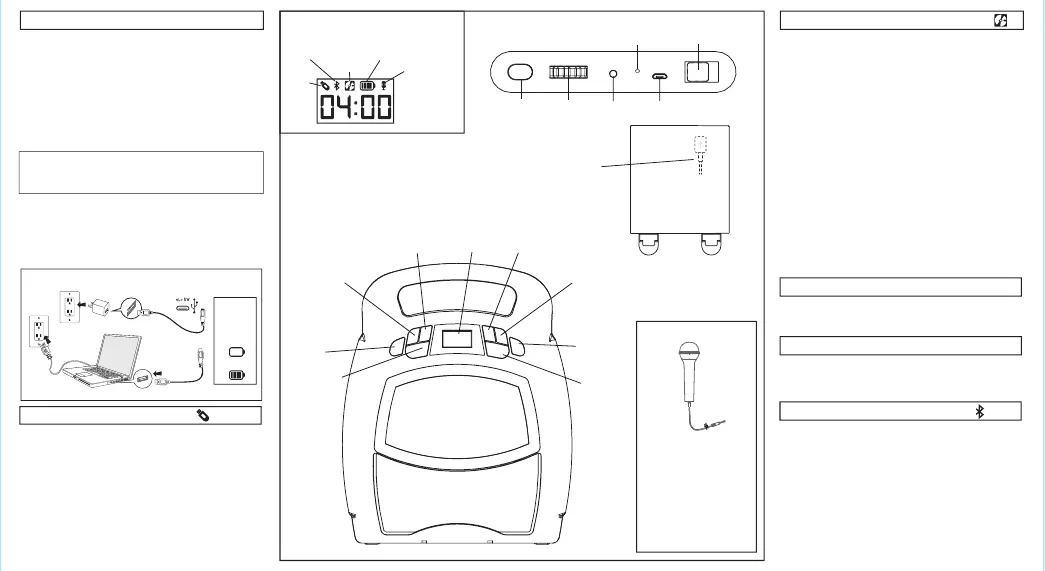
Charging The Unit
1. Connect the included micro USB cord to the micro USB
charging port on the back of the unit.
2. Connect the standard USB plug end of the cord to a power
USB port on a computer or other USB charging device.
For first time use, charge unit for about 5 hours.
Power
ON/OFF
Make sure the Mode Switch is set to USB.
•
When the unit is OFF, connect a USB flash drive to the
USB port on the back of the unit.
•
Press and hold the Power Button to turn the unit ON. The
“USB” icon will show on the top left of the display.
• When a USB drive is detected, the number of files on the
USB drive will appear on the LCD display.
• Press Play, then use the ”Forward” and “Reverse” buttons
to advance through the numbers of files on the USB drive.
• Pressing “Play” will change the display to show a countdown
time of the selected song file. After pressing “Play”, the
automatic play-all function will activate, and songs will play
in the order they were stored. Press again to pause.
There are three ways to listen to music with this unit:
• In USB Mode you can connect a flash drive to the unit and
listen to your stored songs.
• In MP3 Mode you can transfer music from your computer to
the unit via the micro USB Data Transfer port. The music
will save to internal memory and you can listen to it directly
from the unit itself.
•
In Bluetooth Mode you can stream music from your
smartphone or other Bluetooth device.
Note: When using USB Mode or Internal Memory Mode, this
unit is compatible with .mp3 and .wav files ONLY.
iTunes music files are saved by default in .m4a format, and
must be converted to .mp3 format to play on the unit in MP3
mode. Check the Help section in iTunes (or other music
software program) to learn how to convert to .mp3 format.
Charge via USB AC adaptor, computer USB port, or other powered USB port
Computer connected
to working outlet
Computer USB port
OR
USB Adaptor
(not included)
Recharge
when empty
battery icon
flashes
Using USB Mode
Getting Started
Using MP3 Mode
Converting Files to MP3
Using Play/Pause/Shuffle
Make sure the Mode Switch is set to MP3 Mode and your
USB flash drive is disconnected from the unit.
Storing Songs:
• Turn the unit ON, connect the micro USB cord to the Data
Transfer port on the back of the unit. Connect the other
end to a USB port on your computer.
• The unit should show up on your PC or Mac as a ‘drive’ or
‘device’.
• Locate your music files on your PC or Mac (typically in
the ‘My Music’ folder). Note: on some computers, your
music files may be located elsewhere. Check your user
manual for details.
• Select your desired songs ( .mp3 and .wav files are
compatible) and drag them onto the connected drive.
When you are finished transferring files, ‘eject’ the device
from your computer and disconnect the USB from the unit.
Playing Songs:
• The LCD display on the unit will show the number of
songs stored. (ex: 100 songs would appear as “01:00”).
• Use the “Foward” and “Reverse” buttons to advance
through the numbers of files stored on the unit.
• After pressing “Play”, the automatic play-all function will
activate, and songs will play in the order they were stored.
• Select the “Bluetooth” position on the Mode Switch. The
Bluetooth Mode icon will appear and ‘bt’ will flash on the
LCD display while in pairing mode. Turn on your
Bluetooth device and make it “discoverable” by turning on
Bluetooth mode (check in Options or Settings).
•
“BT-553” should appear in your device’s Bluetooth menu.
If “Not Connected” or a similar message appears, select
“BT-553” to connect it.
•
A voice prompt will confirm once your device is paired.
Put your Bluetooth device in play mode to begin
streaming music.
•
Use the “Forward” “Reverse” and “Play/Pause” buttons
on the unit to navigate tracks.
• Pairing automatically occurs in Bluetooth mode. Press the
Bluetooth Pairing button on the back of the unit to re-pair.
Using Bluetooth Mode
Light
Modes
Volume Up
Volume
Down
LCD
Display
Forward
Reverse
Play/Pause/
Shuffle
Microphone
ON/OFF
Inside the compartment:
USB port
(for USB Mode)
Press and hold to shuffle songs while playing music in USB
Mode or MP3 Mode. ‘SHU on’ will flash on the display. Press
and hold to disable shuffle. ‘SHU off’ will flash on the display.
DISPLAY ICONS
USB
Mode
Bluetooth
Mode
MP3
Mode
Battery
Level
Microphone
ON/OFF
Mode Switch
Mic
Volume
Reset
USB Charging/Data Transfer
Bluetooth
Pairing
BACK OF UNIT
Mic
Jack
USING THE MICROPHONE
• Connect the microphone
to the Mic Jack on the
back of the unit.
• Press the Microphone
ON/OFF button on the
front of the unit.
• Control mic volume using
the rotary dial on the back
of the unit.
This unit ships in Demo Mode for in-store demonstration
purposes. Slide the Mode Switch to USB, MP3, or Bluetooth
Mode to exit Demo Mode.


 To Previous Page
 Loading...