K nowing what commands to use
At this point, you’re probably wondering how on earth
you are supposed to know what commands
and what flags you can use for a task.
Well, there’s good news and bad news.
The good news is that it’s usually not too
difficult to find out the flags for a command.
Most commands support the -h or --help
flags, which should give some information
about what flags a command can take
and how to use it. For example, if you
run ls --help, you’ll see a long list of
flags and what they all do, including:
-a, --all do not ignore
entries starting with .
…
-l use a long listing format
The second way of finding information on
a command is using
man. This is short for
manual. It takes a single argument, that is, a
word after the command that isn’t preceded
by a hyphen. It then displays information on
the command given as an argument. Tosee
the man page for
ls, type man ls. You can
navigate through the page using the up
and down arrows, or the page up and page
down keys to scroll faster. To search for a
word or phrase inside the man page, type
/, then the phrase. For example, /-l will
find all occurrences of -l. You can use the
N key and Shift+N to scroll forwards and
backwards through the occurrences of-l.
As we introduce more commands, it’s
good to take a look at the help and the
man page to familiarize yourself with
what they do. Of course, you can always
Google a command if you find the text-
based help a little off-putting, but staying
in the terminal will help you become more
familiar with the command line interface.
Tab completion
When you’re dealing with
long filenames, it can be very
annoying to have to type them
out every time you want to run
a command on them. To make
life a bit easier, the terminal uses
tab completion. This means that
if you start typing a filename
and press the Tab key, the
system will try to fill in the rest
of the name. If there’s only one
file that fits what you’ve typed
so far, it will fill in the rest of the
name for you (try typing
cd /h
then pressing Tab). If there are
more than one, it will fill in as far
as the two are the same, If you
press Tab again, it will show
the options (try typing
cd /m,
and then pressing Tab twice).
■
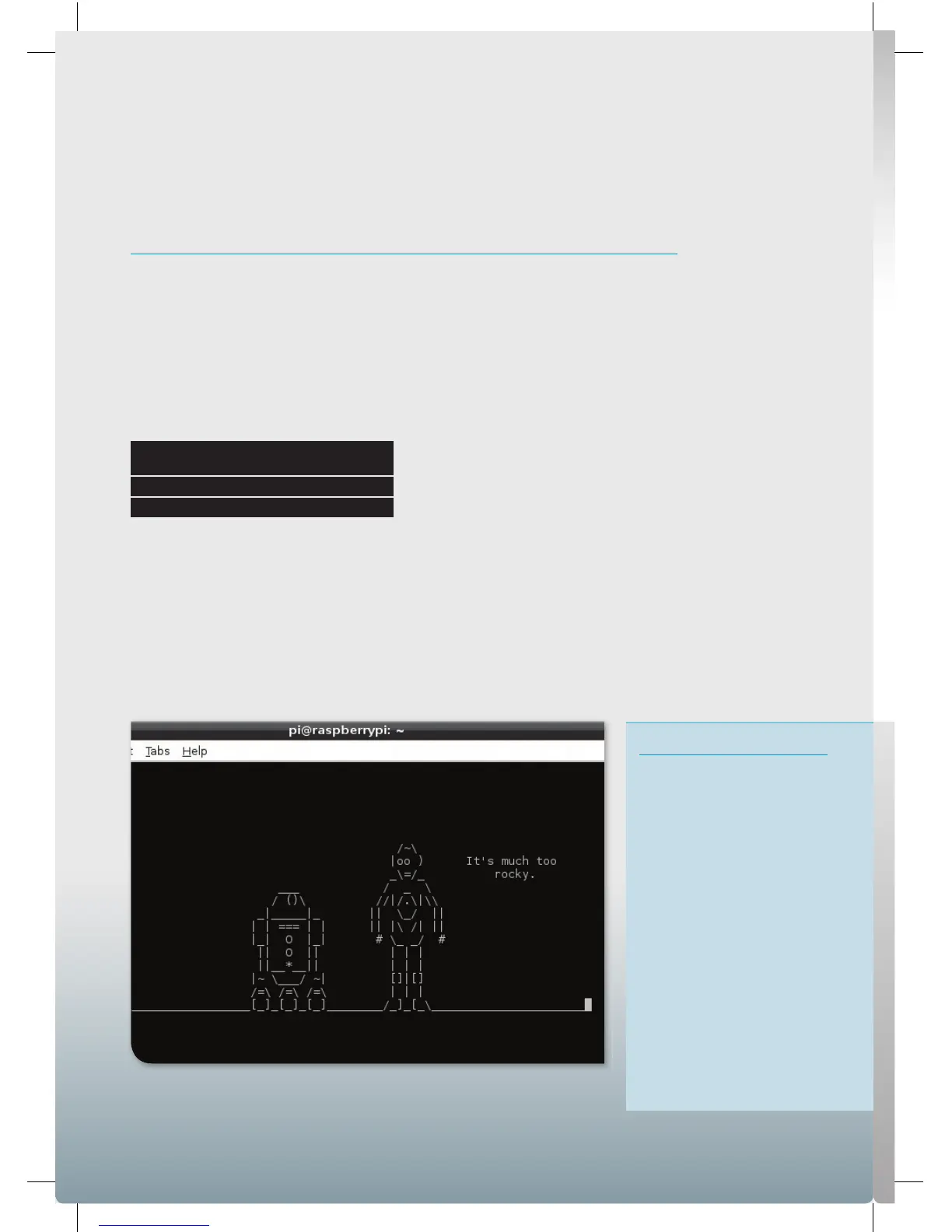
You can even watch movies in the command line. To stream the classic,
just enter telnet towel.blinkenlights.nl and put somepopcorn on.
12
Raspberry Pi User Guide.indd 12 08/07/2014 14:44


 To Next Page
 Loading...