EasyManua.ls Logo

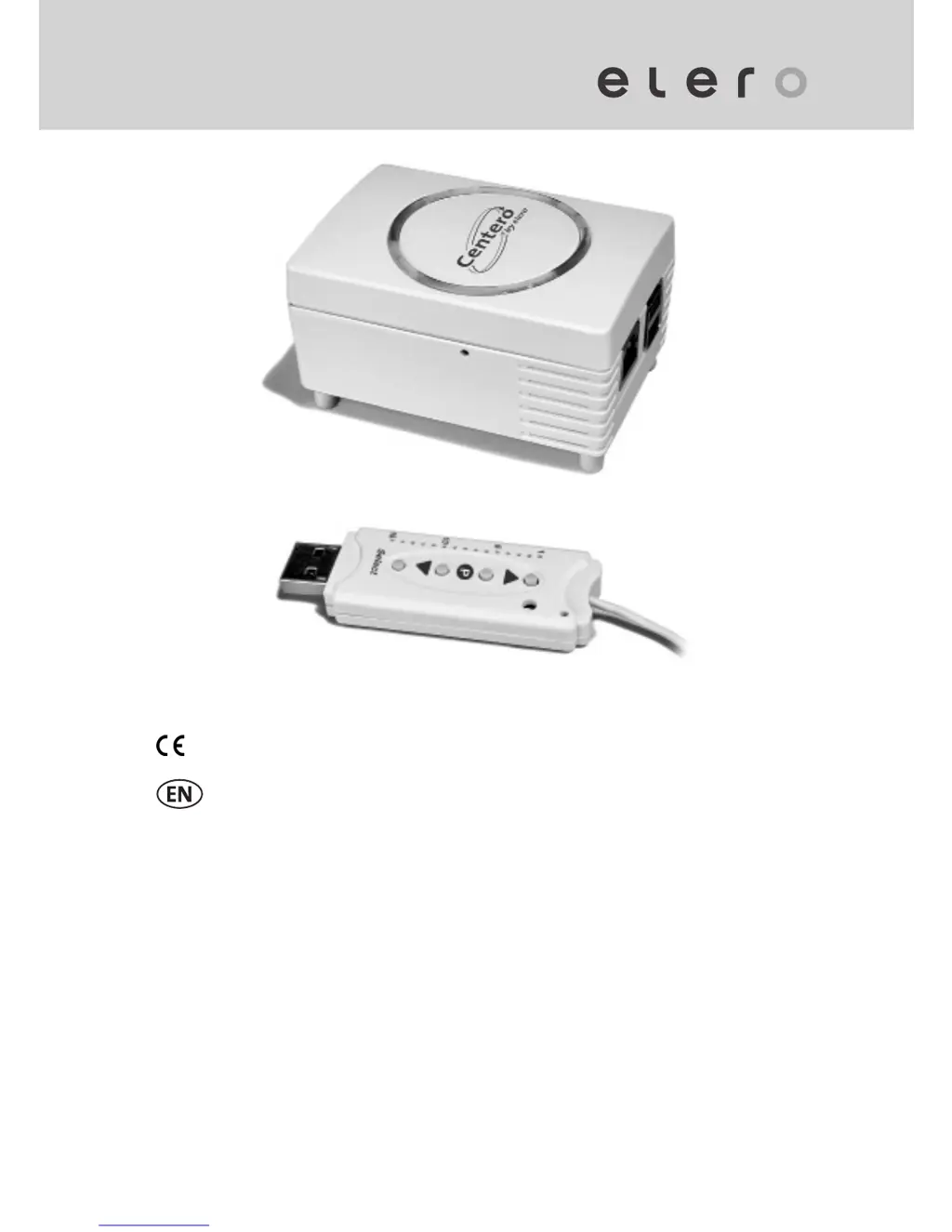
elero Centero - User Manual

elero Centero
34 pages
Print Icon
To Next Page IconTo Next Page
Loading...
2011569_EN_0913
0682
Operating instructions (translation)
Keep the operating instructions in a safe place!
Centero

Questions and Answers

  • B
    Brianna ScottJul 26, 2025
    What to do if my elero Network Router Centero Transmitter Stick status indicator is not lit and the buttons do not respond?
    • D
      Dr. Jason GregoryJul 27, 2025
      If the status indicator on your Centero Transmitter Stick isn't lit and the buttons aren't responding, it's likely that the stick isn't getting power. It needs to be connected to a power supply at all times, as it doesn't have a battery. Try using the USB extension cable that came with it.
  • M
    Michelle ByrdJul 31, 2025
    Why can't I add new elero devices in the elero Network Router app Centero?
    • V
      Victoria HowardJul 31, 2025
      You can't add new elero devices directly within the app Centero. elero devices can only be taught-in using the buttons on the stick. Teach in the elero devices using the stick. Then plug the stick into Centero Server.
  • A
    Andrea WilsonAug 6, 2025
    What to do if the elero Centero Network Router receiver cannot be taught-in?
    • L
      larry40Aug 6, 2025
      If a receiver cannot be taught-in, consider these potential causes: 1. Check the receiver's power supply. 2. The receiver might be too far from the stick; reduce the distance between them during the teach-in procedure. 3. The receiver may not support bi-directional radio operation; if it's moving but cannot be taught in, it cannot be operated with the app Centero.
  • J
    James CookeAug 11, 2025
    What to do if elero Network Router app Centero does not connect to the Centero Server?
    • M
      Ms. Alyssa HamiltonAug 11, 2025
      If the app Centero isn't connecting to the Centero Server, ensure your iPhone or iPad is connected to the same WLAN as the router that the Centero Server is plugged into. Select the appropriate WLAN on your device.
  • J
    Jennifer PayneAug 16, 2025
    What to do if the elero Network Router shows an unexpected icon after the teach-in procedure?
    • T
      tiffany52Aug 16, 2025
      If you see an unexpected icon after the teach-in procedure, it's likely because the receiver hasn't been prepared for the app Centero. You can easily change the icon within the app by selecting "Edit" and then tapping the icon you want.
  • C
    Courtney SanchezAug 20, 2025
    What happens if I press the P button repeatedly on my elero Network Router, and all receivers stop and are not in teach-in mode anymore?
    • J
      Jerome VaughnAug 20, 2025
      Since the STOP and P buttons are combined, pressing "P" again during the teach-in procedure cancels it. To resolve this, teach in the receivers which are moving. Then start a new teach-in procedure by pressing the P button.

Summary

Safety

General safety instructions

Key safety information for handling the device and its components to prevent inherent dangers.

Requirements for the personnel

Specifies that personnel must read and understand instructions and dangers before operating the device.

Product Description

Teaching-in the Centero Transmitter Stick into one or multiple receivers

Guides on teaching-in transmitter sticks into receivers, including programming intermediate positions and deleting channels.

App Centero

Information on downloading, installing, and logging into the Centero app for controlling home automation devices via the Centero Server.

Menu structure of the app Centero

Details the app's main menus (Rooms, Devices, Scenes, Settings) for managing and controlling registered receivers.

Specifications

Troubleshooting

elero Centero Specifications

General IconGeneral
Brandelero
ModelCentero
CategoryNetwork Router
LanguageEnglish