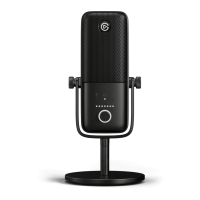
USING YOUR FAVORITE APPS
Wave:3 works seamlessly with apps like Zoom and Microsoft Teams to provide crystal clear
audio input with just a few clicks of a mouse. To enable your Wave:3 microphone in Zoom
and Teams, rst make sure it‘s plugged in and the LED indicators are illuminated on the front
of the microphone.
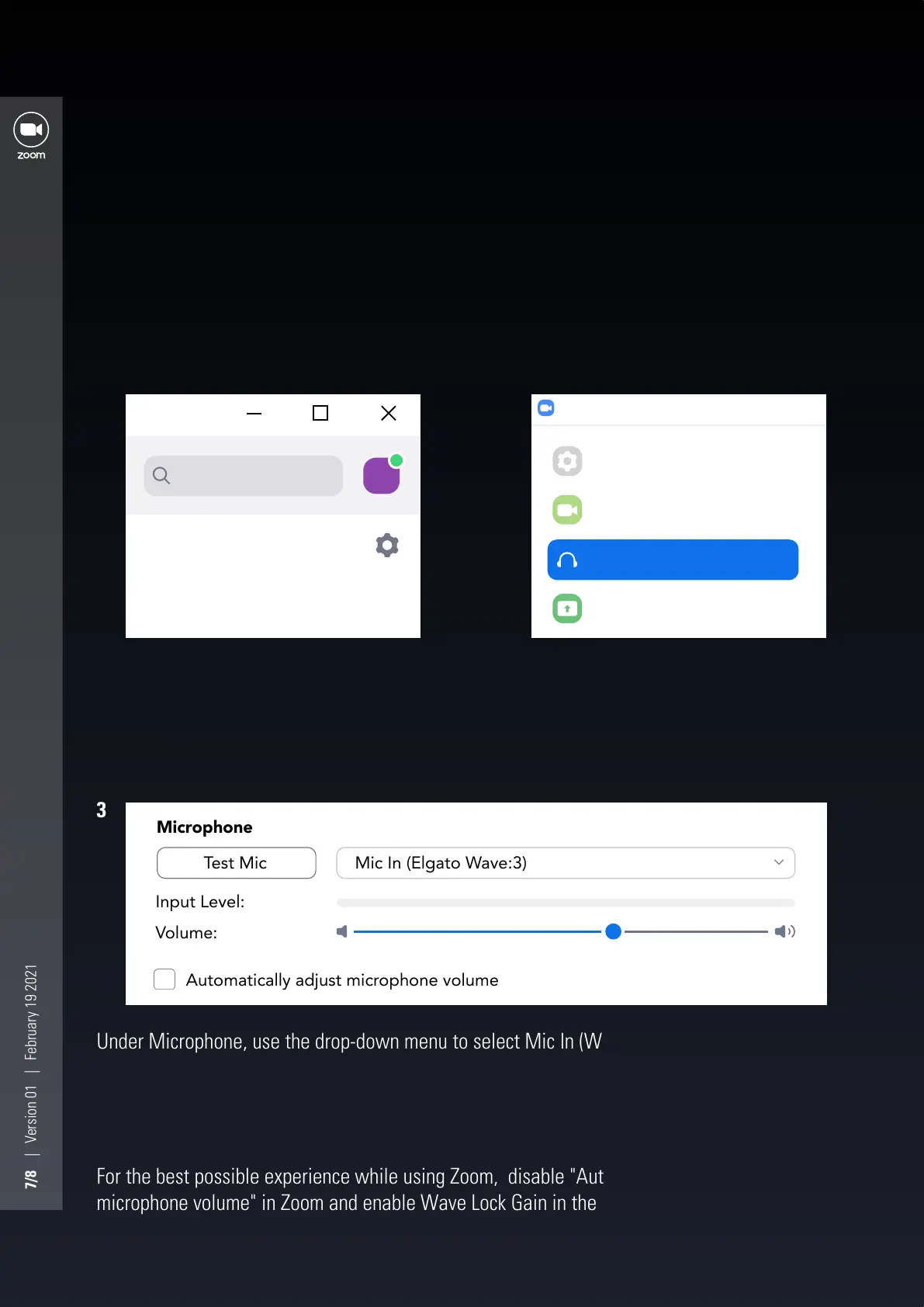
On the left-hand side of the Settings
menu, you should locate and click in the
"Audio" section.
While Zoom is open, locate the "Settings"
menu, or the cogwheel, in the top right-
hand corner.
Under Microphone, use the drop-down menu to select Mic In (Wave:3)
2
1
3
ZOOM
For the best possible experience while using Zoom, disable "Automatically adjust
microphone volume" in Zoom and enable Wave Lock Gain in the Wave Link software.
7/8 | Version 01 | February 19 2021
CM
Search
Settings
General
Video
Share Screen
Audio
Input Level:
Test Mic
Automatically adjust microphone volume
Mic In (Elgato Wave:3)
Volume:
Microphone


 To Next Page
 Loading...