Need help?
Do you have a question about the Elinz YCC365 Plus and is the answer not in the manual?
Lists core features like cloud storage, HD recording, remote access, and motion detection.
Identifies physical parts like microphone, lens, IR LED, and TF card slot.
Guide on how to correctly insert the TF card into the camera slot.
Steps for creating a user account and accessing the mobile application.
Detailed instructions for connecting the camera to your Wi-Fi network using various methods.
Specific steps for establishing a connection using the AP Direct mode.
Explains the controls and indicators shown on the live camera feed interface.
How to control camera movement (PTZ) and manage saved positions (presets).
Guide to playing back recorded videos, downloading clips, and sharing.
Information on available cloud storage plans and payment methods.
How to adjust settings like device name, time zone, and notification preferences.
Steps to set up the camera for recording directly to a TF card.
How to view multiple cameras simultaneously on one screen.
Instructions for using the camera via a computer and common troubleshooting questions.
Detailed answers to common problems like connection failures and recording issues.
Guidance on changing Wi-Fi networks and managing account sharing.
Details on product updates, support contacts, and company policies.
This document outlines the features and operation of the Elinz Smart WiFi Camera, a versatile device designed for home security and monitoring. The camera offers a comprehensive suite of functionalities, enabling users to keep an eye on their premises remotely and effectively.
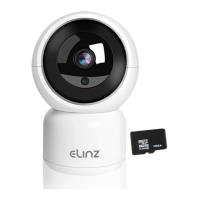
The Elinz Smart WiFi Camera boasts a wide array of core functions. It supports cloud storage, allowing users to save and access video recordings securely online. For local storage, it includes a TF card slot, accommodating cards up to 128GB. The camera records in high definition (1080P HD Lens), ensuring clear and detailed video footage.
Remote control is a key feature, enabling users to manage the camera's operations from anywhere via a mobile application. This includes a remote switch to turn the device on or off. The camera is equipped with two-way audio, featuring a microphone for listening in and a speaker for speaking through the device, facilitating real-time communication.
For enhanced security, the camera incorporates an audible alarm, which can be triggered in response to detected events. It also supports schedule recording, allowing users to set specific times for the camera to record. Infrared night vision (IR LED) ensures clear visibility even in low-light or no-light conditions.
The camera offers pan and tilt functionality, providing a wide viewing angle and the ability to adjust the camera's perspective remotely. Motion detection is integrated, alerting users to any movement within the camera's field of view. Remote monitoring is facilitated through the mobile app, which is compatible with both iOS and Android devices. The camera connects to your network via 2.4G Wi-Fi, ensuring stable wireless connectivity.
To begin using the camera, users first need to download the "YCC365 Plus" mobile application from their respective app stores or by scanning a provided QR code. Upon first use, an account registration is required, typically using an email address and a password that meets specific length and character requirements (6-26 characters, combination of letters and numbers). Password reset functionality is available for forgotten credentials.
Adding the camera to the app can be done in several ways. The primary method involves scanning a QR code displayed on the phone with the camera lens. Users must ensure their phone is connected to a 2.4G Wi-Fi network and that the camera is reset to a configuration state. After scanning, a "beep" voice confirms successful pairing, followed by a "Internet connected welcome to use cloud camera" message. The camera should be positioned 4-8 inches from the phone's screen for optimal QR code scanning.
Alternatively, the camera can be added by connecting it directly to a router via an RJ45 cable. Once connected, the app guides the user through the "Addition by connecting to network cable" process.
For situations where direct scanning or cable connection isn't feasible, an "AP hotspot" addition method is available. This involves connecting the phone to the camera's temporary Wi-Fi hotspot ("CLOUDCAM_XXXX") and then configuring the camera to connect to the home Wi-Fi network through the app. This method is particularly useful if the camera doesn't initially connect via other means.
Once connected, the app provides a real-time preview interface. This interface includes a parameter menu for various settings, options for snapshot capture, full-screen viewing, pan-tilt control, and preset position management. Users can access video playback, adjust video quality, and utilize the two-way audio feature ("Hold to talk"). Additional controls include white light activation, access to cloud albums, and local video recording to the phone.
The PTZ (Pan-Tilt-Zoom) feature allows users to control the camera's rotation by sliding a steering wheel on the screen or by directly sliding the live preview. Preset positions can be added, edited, and deleted for quick navigation to specific viewing angles.
Video playback is primarily cloud-based, with dark blue indicating alarm recordings and light blue for non-alarm recordings. If a TF card is inserted, users can switch to "SD card" playback. The app allows users to select specific dates for playback and adjust the cloud video playback speed (TF card playback speed adjustment is not supported). Video clips can be created from cloud recordings, saved to a cloud album, and shared on social media platforms like Facebook and YouTube.
The camera's preferences menu offers extensive customization. Users can rename the device, set the device time zone, toggle the device switch, turn off the device at specific times, enable/disable the microphone, set alarm tones, control the work indicator, and adjust night vision settings. Image rollover (180°) is also an option. Sharing the camera's feed with other users is possible through the "Share" option. Notification settings, motion detection, and sound detection can be configured, along with their respective sensitivities and detection areas. Push notifications can be enabled or disabled.
Storage settings allow users to view memory card details and set the recording mode. The app displays device storage information and allows users to choose between cloud or local (TF card) video playback. Wi-Fi network settings can be changed as needed.
The YCC365 Plus app offers a cloud storage service, with a free 30-day trial followed by monthly or yearly subscription packages. Payments are processed via PayPal.
For users with multiple cameras, the app supports split-screen viewing, allowing simultaneous monitoring of several devices.
The manual provides guidance on troubleshooting common issues. If the device cannot be added, users are advised to ensure the camera is reset, confirm it's connected to a 2.4GHZ Wi-Fi network (not 5GHZ), enable GPS service on Android phones during initial setup, and verify that the camera isn't already bound to another account. Voice prompts during the setup process guide users through the connection stages.
If the camera fails to connect after scanning the QR code, users should check if their Wi-Fi channel is hidden or if the router is too far from the camera. Reducing the number of Wi-Fi users or simplifying the Wi-Fi password might resolve connection issues.
Regarding video recording to a TF card, the manual explains that video files are limited in size, leading to short intervals between recordings as new files are created. If the TF card isn't identified, users should check if it meets quality requirements (8-128GB, C10 TF card, formatted) and ensure a strong Wi-Fi signal. If the TF card is always working but video files disappear, users are advised to check the TF card state in the app and format it if necessary, or try a new TF card.
If the video recording timeline appears blank after the cloud service expires, it indicates that video cannot be replayed without an active cloud service or a TF card in the camera.
For notification issues, users should ensure the app has the necessary message pushing rights. The system is designed to record all messages and videos, even if notifications aren't pushed constantly when the user is actively watching the live video.
If the camera disconnects, users should check the power and internet connection, then restart the camera. If the problem persists, removing and re-adding the camera in the app is recommended.
Slow video playback or a "circle" indicating loading suggests a network environment issue.
Sharing the app account allows other people to view the video feed, with no theoretical limit on the number of simultaneous users.
If adding the camera to another account fails, it's because one camera is typically bound to one account. The camera must be removed from the current device before it can be added to another.
Changing the camera's Wi-Fi network can be done in two ways: either through the parameter settings if the camera remains in the same location, or by starting the camera in a new location and using the "TROUBLESHOOT" option on the main page if a "Device disconnected" message appears.
The manual also includes general after-sales instructions, noting that product updates may occur without prior notice, and users should refer to the official website for the latest information. It emphasizes reading the instruction manual carefully and contacting the seller for any problems. The company reserves the final interpretation for any questions or disputes, and users are responsible for losses incurred from not following the manual's instructions. The document concludes by reiterating that the camera supports dual video recording (TF card/cloud storage) and offers monthly/yearly payment options for cloud storage to enhance video recording safety.
 General
| Two-Way Audio | Yes |
|---|---|
| Storage | Micro SD card (up to 128GB) |
| Mobile App | YCC365 Plus |
| Motion Detection | Yes |
| Night Vision | Yes |
| Connectivity | Wi-Fi |
| Lens | 3.6mm |
| Resolution | 1920x1080 (Full HD) |

 To Next Page