This document describes the Elinz WIFI Intelligent Solar Energy Alert PTZ Camera, a smart surveillance device designed for outdoor use, featuring solar power and pan-tilt-zoom capabilities.
Function Description
The Elinz WIFI Intelligent Solar Energy Alert PTZ Camera is a solar-powered, wireless security camera with pan-tilt-zoom (PTZ) functionality, designed for intelligent monitoring and alerts. It operates using Wi-Fi connectivity and is managed through the UBOX app on iOS or Android smartphones. The camera is equipped with a PIR sensor for motion detection, white light and infrared LEDs for night vision, and a microphone for audio capture. Its solar panel charges an internal 18650 battery, ensuring continuous operation without constant external power. The PTZ feature allows users to remotely control the camera's viewing angle. It supports both integrated and separated installation, offering flexibility in placement. The camera also includes cloud storage services for recorded video.
Important Technical Specifications
- Power Source: Solar panel and 18650 rechargeable lithium battery.
- Connectivity: WIFI (for IPCAMPTZSOLAR4G version, also supports 4G SIM card).
- Camera Type: PTZ (Pan-Tilt-Zoom) camera.
- Motion Detection: PIR sensor.
- Night Vision: White light LED and Infrared LED.
- Audio: Built-in microphone.
- Storage: Supports TF card (for IPCAMPTZSOLAR4G) and cloud storage.
- Recommended Installation Height: Approximately 2.6 meters (9 feet) for optimal PIR sensitivity.
- App Compatibility: UBOX app for iOS and Android devices.
- Charging: USB charging cable included.
- Included Accessories: Solar panel, PTZ camera, screw kit (hexagon spanner, screwdriver, 8 screws, 4 tapping screws), USB charging cable, user manual, position paper, qualification certificate. An optional 2M extra power cable and bracket are available for separated installation.
Usage Features
Installation and Setup
- Physical Installation: The camera can be installed in an integrated manner (solar panel attached to the camera) or separated (solar panel mounted separately with an extra power cable). A position paper is provided to mark drill holes for mounting the bracket. Screws and a screwdriver are included for assembly.
- SIM/TF Card Insertion (for IPCAMPTZSOLAR4G): Access the SIM and TF card slots by loosening a cap on the camera. Insert the cards and then tighten the screws to ensure waterproofing.
- Power Connection: Connect the solar panel to the camera using the provided power cable and tighten the waterproof cap. Ensure the solar panel is powered on by removing and replacing its rubber plug.
- App Download: Scan the QR codes provided in the manual or search for "UBOX" in the App Store (iOS) or Google Play Store (Android) to download the application.
- App Registration: Register an account using an email address, verify it with a code sent to the email, and set a login password (8-32 characters, combination of letters).
- Wi-Fi Connection (for Wi-Fi version):
- Add a "Family" in the app, setting a room or position, family name, and address.
- Press "Add a device" and then "Setup Device."
- Ensure the device is powered on and the blue LED is blinking, indicating pairing mode. If not, press the reset button until the blue LED lights up.
- Input the Wi-Fi name (auto-filled) and password.
- Choose between "QR code configuration" or "Sound wave configuration."
- For QR code configuration: The app displays a QR code; scan it with the camera from about 10cm away.
- For Sound wave configuration: Ensure the camera and phone are within 1M distance and listen for the "DI DI" sound.
- Select the family name or device location and press "Done." The device will automatically appear in the device list.
- 4G Connection (for IPCAMPTZSOLAR4G version):
- Ensure the SIM card is active, has data credit, and is correctly inserted.
- Go to the "Device" tab in the UBOX app and select "Setup 4G Device."
- Wait for the blue light on the camera (may take up to 90 seconds) before proceeding.
- Scan the QR code on the camera using the app.
- Wait for connection, then name the device and click "Next."
Device Settings and Operation
- Device List: View installed devices, turn push notifications on/off, access settings (sharing, cloud storage, delete device), and enter the preview section.
- Basic Settings: Configure storage management, flip screen, environmental model, PIR detection sensitivity, sleep time, power frequency, LED indicator, and device name.
- Device Information: Check device name, ID, model, FW version, manufacturer, and check for FW updates.
- Account Management: Check and change account name and password.
- Cloud Service: Check and purchase cloud storage and AI Cloud Facial Recognition.
- Friends List: Manage friends and permissions for device access.
- Common Settings: Set default voice and resolution for devices.
- Video Playback: Click the "Calendar" icon in the app to choose a date and playback videos from cloud storage.
- Pan Tilt Control: Remotely adjust the camera's viewing angle using the pan-tilt control interface in the app.
Maintenance Features
- Battery Management: The device uses a rechargeable lithium battery. Battery life is affected by wake-up frequency. If the PIR sensor is in a high-traffic area, it's recommended to turn off or set the device to low sensitivity to extend battery life. Charge the battery immediately when low.
- Wi-Fi Signal Strength: Keep the device within range of the Wi-Fi router. If there are thick or insulated objects between the device and the router, ensure the Wi-Fi signal is strong to avoid connectivity issues.
- Power Saving: The camera is designed for low power consumption. It wakes up for a few seconds when triggered and then enters standby mode. Work time can be configured in the app settings.
- Push Notifications: For users in mainland China, the app's self-starting function must be enabled on the phone to receive push messages due to Google's push message restrictions.
- Cloud Storage: The device includes one month of free cloud storage. Continued use of cloud services after the trial period requires in-app purchase.
- Waterproofing: Ensure all caps and screws, especially for SIM/TF card slots and power cables, are tightened to maintain waterproofing.

 Need help?
 General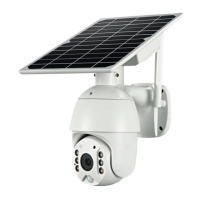

 To Next Page