User Manual: 1002L, 1502L, 2002L
UM600012 Rev D, Page 13 of 24
On-Screen Display (OSD)
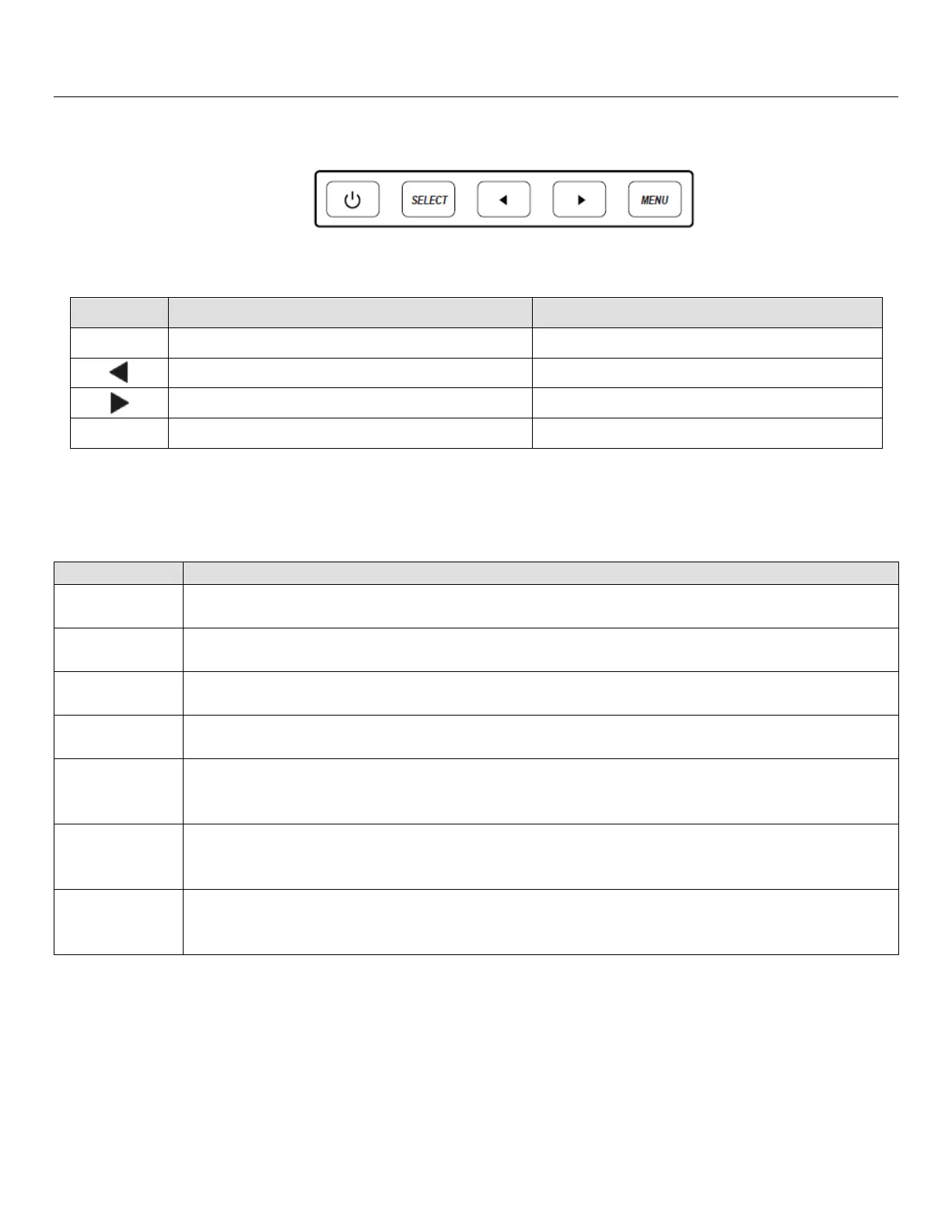
Four OSD buttons are on the bottom of the monitor. These can be used to adjust various
display parameters.
The buttons and their functionality are:
Function when OSD is not displayed:
Function when OSD is displayed:
Return to previous OSD menu
Display OSD audio submenu
Display OSD luminance submenu
Video input select submenu
The OSD buttons control an on-screen graphical user interface, which displays on top of your
input video. This allows for intuitive adjustment of the following display parameters:
Increase/decrease monitor brightness
Default: Maximum
Increase/decrease monitor contrast
Default: Best gray-shade performance
Allows fine adjustments of the panel’s pixel dot clock
Only applicable for VGA input video
Allows fine adjustments of the panel’s pixel dot clock phase
Only applicable for VGA input video
Automatically adjusts the system clock to the input analog VGA video signal, affecting
the H-position, V-position, Clock, and Phase menu items
Only applicable for VGA input video
Moves the image horizontally on the display in single-pixel increments
Default: Centered
Only applicable for VGA input video
Moves the image vertically on the display in single-pixel increments
Default: Centered
Only applicable for VGA input video



 To Next Page