Package Contents
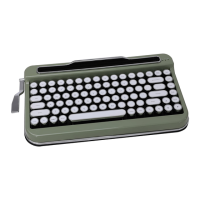
PENNA Keyboard
PENNA Keyboard Keycaps(Retro chrome or Diamond shape)
Supporting to mount keycaps
User manual
- 1 Additional space bar only for Retro chrome keycap model
Thank you for purchasing the PENNA wireless keyboard.
This user’s manual contains all of the information needed to operate your keyboard.
Introduction
Feature Description
Bluetooth 4.2(BLE)
Multi-pairing - 5 Devices support
Auto Sleep
Hot key - FN+Multimedia key
OS Support - Mac / Windows / iOS / Android
Cherry Mechanical Switches
6 Months Of Idle Battery Time : 2AA BATTERY (Not included)
Maximum Cradle length : 267mm
SIZE 356X195X54mm
Weight : 1.1kg
Multi-pairing
Bluetooth connection
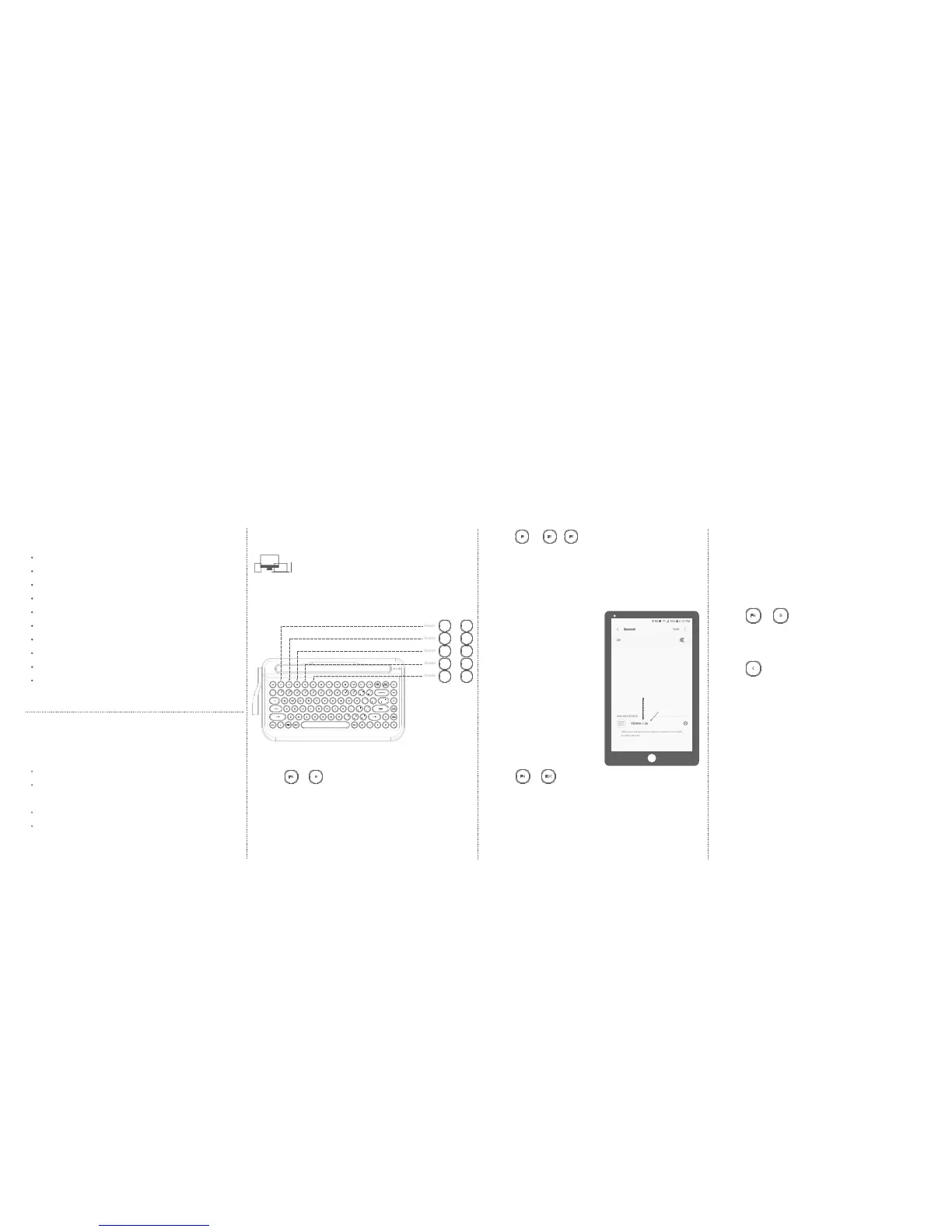
Connection status LED of each slot
Switching Key
Activate pairing mode
STEP 1.
FN B
+
Delete all devices assigned to Bluetooth slots
STEP 2.
C
Thank you for purchasing PENNA. PENNA is a stylish retro Bluetooth keyboard manufactured by the professional design group, Elretron INC.
PENNA is a mechanical keyboard made with CHERRY switches, known globally for unrivaled quality in keyboard switches.
PENNA has been designed to increase the productivity of multi-devices, such as mobile phones, and tablet PCs.
PENNA combines a retro style design with the most recent technologies, such as Bluetooth 4.2, multi-pairing, and macro functions, while achieving NEWTRO which allows for the reminisces analog emotions with the newest technology.
How to connect (Initial connection)
STEP 1.
FN B
+
STEP 2.
F1 F5F2
or
~
FN ESC
+
STEP 4.
By pressing FN+B at the same time, you may activate the Bluetooth pairing mode.
Among the 5 LED lights at the top left corner, an empty slot, not currently assigned to any
device will be lit. However, if the slot is previously assigned to another device, the LED will
appear blinking.
Press F1~F5 located directly below the slot you want to assign for the connection.
The LED will start blinking and be in the Pairing mode (for connection) for 60 seconds. If no
further action is taken in 60 seconds, the pairing mode will end automatically.
STEP 3.
Ending the Bluetooth pairing mode
Press FN+B at the same time to activate the pairing mode and by pressing FN+ESC,
you may exit the Bluetooth pairing mode. The pairing mode will be terminated and the
keyboard will try to connect to the device to which it was last connected.
Press FN+B to activate the pairing mode and press C to delete all devices assigned to the
Bluetooth slots or initialize the connection. Device connection history will be removed from
the memory, and Bluetooth will be initialized.
(Initialize new connections, deleting the information of the devices allocated to slots)
To initialize all slots
If More than 2 devices are searching for a Bluetooth connection to PENNA,
it may cause connection errors. Please try connecting 1 device at a time. You may also
connect a new device without deleting a previously assigned device.
In this case, the connection history in the Bluetooth slot will be deleted.
For example, while device A is assigned to slot no. 1, device B can be connected to it, the
previous connection of device A will be deleted from the memory.
However, the Bluetooth connection history in device A will remain in the memory,
so please delete it from the device separately.
ATTENTION
You can connect various devices such as PCs, mobile phones, tablets, etc. to PENNA.
You can utilize FN+F1~F5 keys to select which device you want to use. Use PENNA at home,
school, cafes, and any other places you can think of!
Now, you may find the PENNA paired with any
of your Bluetooth activated devices, such as
PADs / PCs / MOBILE PHONES.
When registering a Bluetooth device, a code in
the form of "Penna-x-xx" is given. The first “x” is
the slot in which the device is being registered.
The "xx" will change each time you register a
new device. This format prevents bluetooth
connection errors when devices are registered
in the same slot.
Slot number
Random numer


 To Next Page
 Loading...