Macro Bar
Multi media keys
STATUS LED
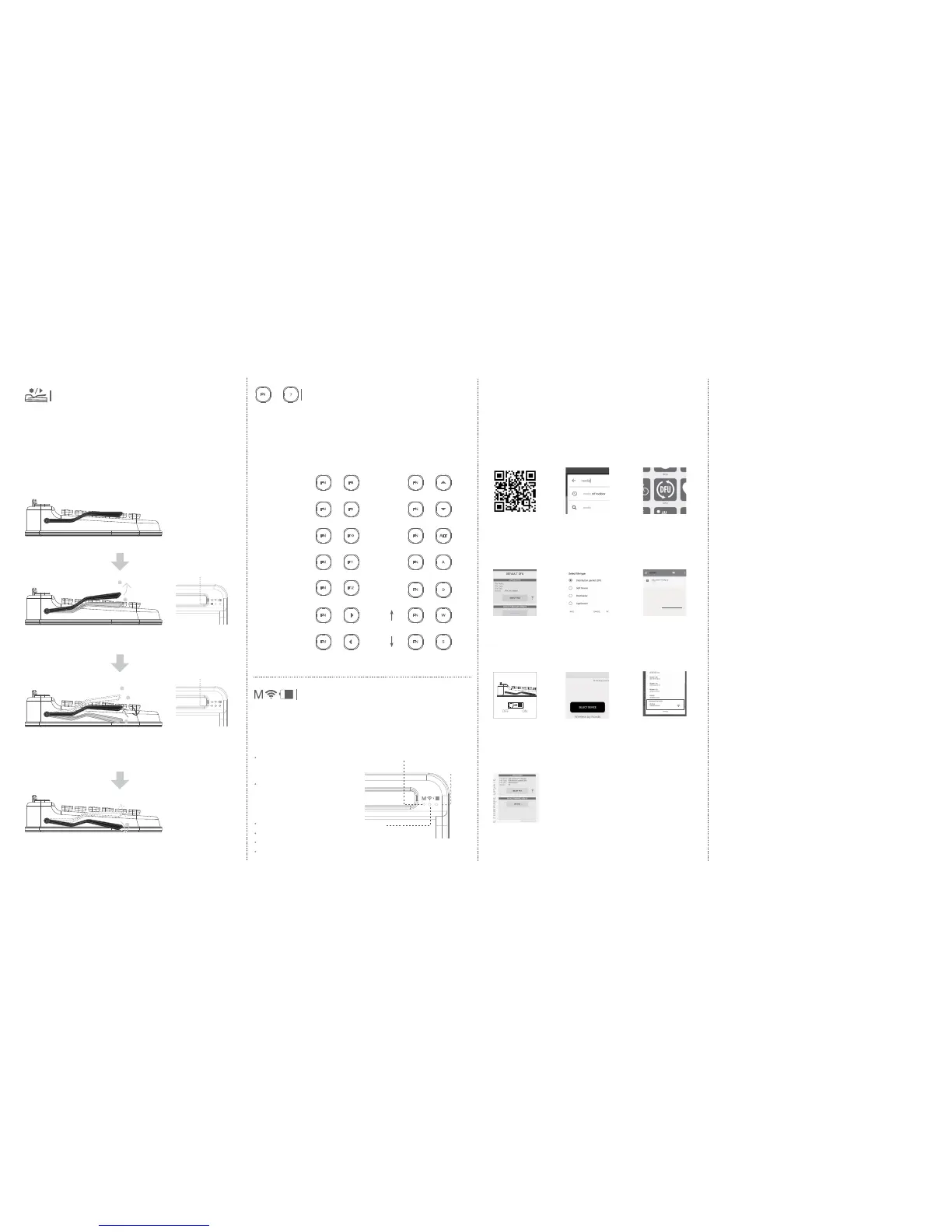
Macro mode
Connection Status
Macro mode(GREEN)
Recording mode : GREEN LED
Connection Status(BLUE)
Lit for 3 seconds if the Bluetooth
is disconnected
Battery Status(RED)
Warning : Blinks for 3 seconds
ON/OFF : Lit for 3 seconds
Autosleep : Lit for 3 seconds
Autosleep off: Lit for 3seconds
Saving frequently used keys and sentences both of which can be recalled instantly by
using the macro bar.
Registration of frequently used keys such as Enter/Backspace, etc and even sentences by
using Macro bar.
In case of any problems, please follow the below steps before
contacting our service center.
1) If slot number you are trying to connect is different from the number that appears on
your device: You may discover this problem if you are trying to connect one device to
several slots.
PENNA does not allow registering the same device to more than 2 of the 5 Bluetooth
slots. If you cannot remember which device has been registered, please initialize by press-
ing FN+B then C to delete previous connection history and try again.
2) After initializing PENNA by pressing FN+B -> C then press FN+B doesn’t activate pairing
ready status (with 5 LED lights lit up and only 1 LED blinking):
Even if PENNA’ s Bluetooth slots have been initialized, the device may still try to connect
to PENNA based on its past connection history. Please check if PENNA appears in the
device connection history and delete it accordingly.
3) If device doesn’t connect to assigned slot or is not recognized:
When many devices simultaneously trying to connect to PENNA, there may be errors.
When assigning devices to a slot, please do so one at a time.
4) If none of the above solutions resolve connection problems:
Most of the problems from Bluetooth connection occur because of the previous history
of connected device. Please erase PENNA from the device connection history and try
again.
Using Multi media keys can increase your productivity as you do not have to take your
hands off the keyboard so frequently, e.g. to use the mouse.
The available hot keys depend on the operating system used. The following keys show the
functions and standard assignment of each hot key.
PENNA has 3 LEDs, each for indicating the macro mode, Bluetooth connection status, and
battery life. Please see below for the appearance.
If the device is old:
PENNA employs the most current version of Bluetooth (4.2 BLE), so some old devices or
software variations may not work. Please update your software or use a newer device.
If using Bluetooth dongle on Windows 7:
Since PENNA employs Bluetooth 4.2 BLE, dongles not compatible with BLE on Windows 7
may not work. So please update your OS to Windows 8.1 or above or use dongles that
support Windows BLE.
If other problems are discovered, please contact our service center at the below e-mail
address:
Battery Status
Firmware for PENNA can be upgraded with a Bluetooth connection in the future. You can
download software from our web-site (www.elretron.com). PENNA comes with the most
recent software, V10.0, but if newer version is released, please proceed to update the
system update with the following instructions.
?
FN
+
FN F11
+
Brightness Down
←
FN
A
+
FN F12
+
Brightness UP
→
FN
D
+
FN F10
+
Volume up
FN A LT
+
Context
FN S
+
Home
FN
+
FN W
+
End
FN
+
FN F9
+
Volume down Pgdn
FN
+
Sleep mode
FN F8
+
Pgup
FN
+
Troubleshooting
Tech-support@elretron.com
[Problems relating to compatibility]
[BLUETOOTH CONNECTION]
Please check below if Bluetooth connection problems occus.
Firmware update
2. Install Nordic nrf toolbox from
the Play Store or App Store
1. Scan the QR code, and
download the latest firmware
3. Tap on DFU to enter
DEVICE FIRMWARE UPDATED MODE
5. Select ZIP as the file type,
then tap on OK
4. Tap on SELECT FILE
6. Select the latest firmware file
downloaded from step 1
(File format must be saved as, XXX.pkg.zip)
XXX.pkg.zip
8. Tap on SELECT DEVICE
(Search for the target device
for the firmware update)
7. Press down and hold the macro
bar and turn on the keyboard
(keyboard is now in firmware mode)
❷
9.Tap on Dfu Targ
at the bottom
10. Tap on LOAD to start
uploading the device
Warning : Do not interrupt power during the upload.
Ensure that the battery level of your mobile device is above 50%.
The device shuts down when the firmware update is completed,
so to reboot set the On/Off button from On->Off->On settings.
Default Status
Record Mode
Save & Wait Mode
Transfer Mode
Pull up
1
2
Macro Bar’s usual height
Warning: Do not use the macro function with sensitive information such as passwords,
personal information, etc.
If press down the bar downward slightly for the first time, what you’ve typed
using the record mode will be saved and the bar will return to its original
position, while the wait mode begins.
Press down
Return by itself
1
2
If you press the bar downward slightly, it will return by itself and saved keys are
transferred to the tablet PC.
If you pull up the bar, it will remain in this position and record mode begins.
If you type at this moment, it will be recorded.
GREEN LED LIGHT ON
GREEN LED LIGHT OFF
Press bar
1
2
3
❶


 To Next Page
 Loading...