
 Need help?
Do you have a question about the Elvaco CMe3100 and is the answer not in the manual?
Information regarding copyright, trademarks, and intellectual property rights.
Contact details for Elvaco AB headquarters and technical support.
Essential safety precautions for operation, usage, service, and repair of the CMe3100.
Defines manual's purpose, audience, and provides access to online resources.
Explains how to navigate the web interface using menu item references.
Explains symbols used in the manual for notes and tips.
Introduces the CMe3100 Metering Gateway and its applications.
Details the CMe3100's versatility and core application areas.
Lists key features of the CMe3100 M-Bus Metering Gateway.
Discusses compatibility with other products and licensing schemes.
Provides instructions to get started with the CMe3100 and its web interface.
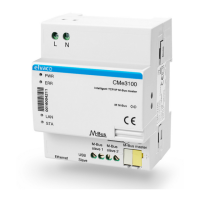
Illustrates and lists the physical components and ports of the CMe3100.
Instructions on mounting, connecting power, M-Bus, Ethernet, and other interfaces.
Guides on device startup, factory reset, and LED indications.
Steps to access and log into the CMe3100 web interface.
Introduces basic operations for configuring the CMe3100 via the web interface.
Explains how to use the Installation Panel for initial device setup.
Details on setting the device's time and time zone for accurate operation.
Guides on setting static or dynamic IP addresses for network connectivity.
Instructions for changing the device's hostname for network identification.
Explains how to configure DNS settings for network name resolution.
Steps to create and upload Meter Lists for wired and wireless M-Bus meters.
Guides on performing an automatic meter search and installation.
Instructions on downloading a report detailing installed meter settings.
Steps to activate and configure a schedule for meter readouts.
Configures default settings for sending Push Reports via email, FTP, and HTTP.
Guides on enabling and configuring various types of Push Reports.
Instructions for enabling and configuring Event Reports.
Steps to create and save configuration and backup files.
Guides on checking device status and settings via the System Panel.
Instructions for viewing the device overview and scheduled tasks.
How to download a report of installed meter settings.
Guides on filtering system log entries by severity and date.
Configures the minimum severity level for logging events.
How to check the readout status of a specific meter.
Steps to add encryption keys by uploading a file.
Guides on adding encryption keys directly via the web interface.
How to link an encryption key to a specific meter.
Instructions to edit the MOID for a specific meter.
Guides on configuring communication settings for individual meters.
Steps to perform a software update for the Metering Gateway.
Guides on adding new user accounts for web interface access.
Instructions for editing existing user accounts.
Steps to delete existing user accounts.
Guides on uploading and installing license files to activate features.
Steps to customize meter search criteria and modes.
Instructions for performing a manual readout for all meters.
Guides on performing a manual readout for a single meter.
Steps to enable the continuous meter readout mode.
Guides on uploading SSL certificates for device authentication.
Steps to enable HTTPS for secure web interface access.
Configures server certificates for authenticating HTTPS/FTPS Push Report servers.
Enables HTTPS/FTPS for individual Push Reports.
Configures M-Bus search parameters like baud rate and addressing mode.
Sets M-Bus communication timeouts and retry parameters.
Configures settings for handling multiple M-Bus telegrams per readout.
Guides on configuring M-Bus settings for a specific meter.
Enables direct M-Bus communication for master devices.
Allows master devices to retrieve meter values from the CMe3100 database.
Configures M-Bus slave ports for Virtual or Transparent M-Bus services.
Enables meter readouts via Modbus protocol for master devices.
Guides on enabling and configuring the SNMP service for monitoring.
Configures recipients for SNMP traps.
Steps to enable and configure the Auto Configuration service.
Guides on disabling Adaptive Retries for Push Reports.
Configures the Value Period for Push Reports.
Steps to configure the Value Interval for Push Reports.
Configures timeout settings for Push Report transmissions.
Configures retry settings for scheduled and manual jobs.
Guides on enabling and configuring the console application.
Instructions to enable and configure On Demand Reports.
Customizes identity settings for Push Reports.
Configures localization settings like language and date format for Push Reports.
Instructions on how to reboot the Metering Gateway via the web interface.
Steps to perform a factory reset, clearing all settings and data.
Guides on using cron patterns to customize job schedules.
Details the physical, electrical, and environmental characteristics of the CMe3100.
Provides a history of the document's version updates and changes.
Details the software and hardware versions of the appliance.
Defines common terms and abbreviations used in the manual.

 To Next Page


 General
