EasyManua.ls Logo

eMachines V700 Series - User Manual

eMachines V700 Series
54 pages
Print Icon
To Next Page IconTo Next Page
Loading...
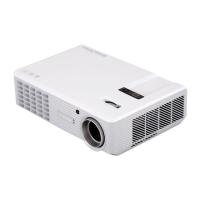
eMachines Projector
V700 Series
User's Guide

Questions and Answers

  • E
    elizabethterrellAug 19, 2025
    How to fix eMachines V700 when no image appears on screen?
    • F
      finleyoscarAug 19, 2025
      If no image appears on the eMachines Projector screen, first ensure that the projector is connected correctly as described in the 'Getting Started' section. Check for bent or broken connector pins. Verify that the projector lamp is securely installed—refer to the 'Replacing the Lamp' section. Finally, confirm that you have removed the lens cap and that the projector is switched on.
  • D
    danielparksAug 21, 2025
    How to adjust focus on eMachines V700 Projector?
    • H
      heather13Aug 21, 2025
      If the image on your eMachines Projector is out of focus: * Ensure the lens cap is removed. * Adjust the focus ring on the projector lens. * Confirm the projection screen is within the required distance of 3.3 to 33.8 feet (1.0 to 10.3 meters) from the projector. For more details, see the 'How to Get a Preferred Image Size by Adjusting Distance and Zoom' section.
  • C
    Cindy MatthewsAug 23, 2025
    How to fix eMachines Projector image that is too small or too large?
    • P
      Patricia DixonAug 23, 2025
      If the image displayed by your eMachines Projector is too small or too large: * Adjust the zoom lever on the front of the projector. * Move the projector closer to or further from the screen. * Press 'MENU' on the remote control, navigate to 'Image --> Aspect Ratio', and experiment with different settings. Alternatively, press 'Aspect Ratio' on the remote control to adjust directly.
  • M
    Maureen WhiteAug 26, 2025
    What to do if eMachines Projector image is partial, scrolling or incorrectly displayed from notebook?
    • C
      Cameron KingAug 26, 2025
      If you're seeing a partial, scrolling, or incorrectly displayed image on your eMachines Projector when connected to a notebook: * Press 'RESYNC' on the remote control. * Adjust your computer's resolution. * Press the toggle output settings (e.g., [Fn]+[F4], Compaq [Fn]+[F4], Dell [Fn]+[F8], Gateway [Fn]+[F4], IBM [Fn]+[F7], HP [Fn]+[F4], NEC [Fn]+[F3], Toshiba [Fn]+[F5]). * If you still have difficulty, restart all equipment, including the projector.
  • T
    teresa42Aug 30, 2025
    How to correct slanted sides on eMachines Projector image?
    • S
      Susan PerkinsAug 30, 2025
      If the image from your eMachines Projector has slanted sides: * Reposition the projector so it is centered on the screen, if possible. * Press the 'Keystone / ' button on the remote control until the sides are vertical. * If the 'Keystone' button is unavailable, press 'MENU' on the remote control, go to 'Image - -> Auto Keystone' and choose 'Off' on the OSD.
  • J
    jillian09Sep 2, 2025
    Why is my notebook screen not displaying on eMachines V700?
    • Z
      zdelgadoSep 2, 2025
      If your notebook computer's screen isn't displaying your presentation when using an eMachines Projector: * For Microsoft® Windows® based notebooks: Some PCs deactivate their screens when a second display is in use. Refer to your computer's manual for reactivation instructions. * For Apple® Mac® OS based notebooks: In System Preferences, open Display and select Video Mirroring 'On'.
  • C
    Courtney SmithSep 4, 2025
    How to resolve unstable or flickering image on eMachines V700?
    • R
      Raymond BergSep 4, 2025
      If the image from your eMachines Projector is unstable or flickering: * Adjust the 'Tracking' setting. Refer to the 'Image' section for more information. * Change the display color depth settings on your computer.
  • A
    alambertSep 6, 2025
    How to fix vertical flickering bar on eMachines Projector image?
    • P
      Priscilla CannonSep 6, 2025
      If the image from your eMachines Projector has a vertical flickering bar: * Use the 'Frequency' setting to make an adjustment. Check the 'Image' section for details. * Check and reconfigure the display mode of your graphics card to ensure it is compatible with the projector.
  • A
    Allison HolmesSep 8, 2025
    Why is eMachines Projector image stretched when playing widescreen DVD?
    • J
      Jennifer SmithSep 8, 2025
      If the image from your eMachines Projector is stretched when displaying a 'widescreen' DVD title, and you are playing a DVD encoded in anamorphic or 16:9 aspect ratio, adjust the following: * If playing a 4:3 format DVD title, change the format to 4:3 in the projector OSD. * If the image remains stretched, adjust the aspect ratio. Set up the display format to 16:9 (wide) aspect ratio on your DVD player.
  • J
    James CollinsSep 12, 2025
    How to flip image on eMachines V700 Projector?
    • A
      Amanda HensleySep 12, 2025
      To correct a reversed image on your eMachines Projector, select 'Image --> Projection' on the OSD and adjust the projection direction.

Summary

Safety and Comfort Information

General Safety Warnings

Safety warnings regarding water, unstable surfaces, ventilation, and electrical hazards.

Using Electrical Power Safely

Electrical Power Precautions

Precautions for safe electrical power use, including grounding and extension cords.

Product Servicing Guidelines

When to Seek Professional Servicing

Instructions on when to seek professional servicing and not to attempt self-repair.

Additional Safety Information

Safe Operation and Environment

Safety advice for eye protection, installation environments, and handling malfunctions.

First Things First: Usage and Precautions

Usage Notes Dos and Donts

Essential do's and don'ts for operating and maintaining the projector.

Introduction to the Projector

Key Product Features

Highlights key technical specifications and capabilities of the projector.

Remote Control and Panel Layout

Getting Started: Connecting the Projector

Turning the Projector On and Off

Turning on the Projector

Step-by-step instructions for powering on the projector and connecting sources.

Turning off the Projector

Adjusting the Projected Image

Optimizing Image Size and Distance

Adjusting Image Size with Distance and Zoom

User Controls and Installation Menu

Onscreen Display (OSD) Menus

Color Settings Adjustment

Advanced Image Adjustments

Setting Menu Options

Security Settings Configuration

Setup for projector security features, including administrator and user passwords.

Security Settings Management

User and Administrator Passwords

Detailed steps for setting and managing user and administrator passwords.

Management Features

Appendices: Troubleshooting Guide

Image Problems and Solutions

Guides users through common image-related issues and their resolutions.

Appendices: Troubleshooting Guide (continued)

Image Display Issues

Solutions for image display issues, including resolution and notebook compatibility.

Image Size and Orientation Issues

Solutions for issues like image being too small/large, slanted sides, or reversed image.

Projector Operational Issues

Addresses problems such as the projector stopping responding or the lamp burning out.

Replacing the Projector Lamp

Technical Specifications

Regulations and Safety Notices

FCC Notice and Interference Guidelines

Details FCC compliance requirements and measures to correct interference.

Federal Communications Commission Declaration of Conformity

eMachines V700 Series Specifications

General IconGeneral
BrandeMachines
ModelV700 Series
CategoryProjector
LanguageEnglish