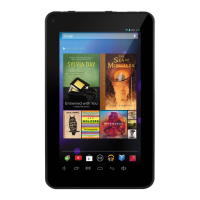
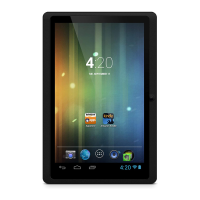
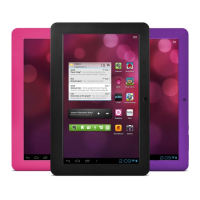
This document is a user manual for the Ematic Genesis Series EGL26BL 7" Tablet PC. It provides instructions for operation, technical specifications, and maintenance information.
Function Description:
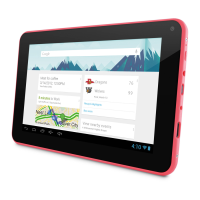
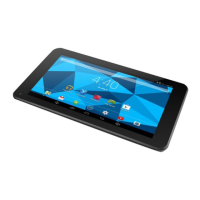
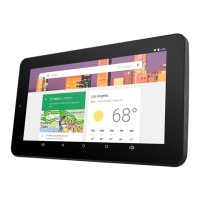
The Ematic Genesis Series EGL26BL is a 7-inch Tablet PC designed for general use, including internet browsing, email, music playback, and running various applications. It features a multi-touch screen for quick and easy navigation. The device operates on the Android 4.0 operating system.
Important Technical Specifications:
- Model: Genesis Series - EGL26BL
- Screen: 7" Touch Screen, 800x480 pixels
- Operating System (OS): Android 4.0
- CPU: 1.2GHz
- Storage: 4GB
- RAM: 512MB
- Micro SD Card Support: Up to 32GB
- Mini USB: 2.0 OTG (On-The-Go) for data transfer and charging, or connecting to an external USB flash drive.
- 3D G-sensor: 3 directions
- Recorder: Built-in MIC
- Video Playback: Supports avi, mov, mp4, asf, wmv, vob, rm, rmvb, 3GP, dat, mpg, flv, mkv formats.
- Audio Playback: Supports mp3, wav, wma, aac, APE, FLAC, AMR formats.
- Photo Formats: Supports JPEG, BMP, GIF, PNG.
- Headphone Interface: 3.5mm, automatically switches audio output from speakers to headset when connected.
- Battery: Rechargeable battery.
Usage Features:
- Power ON/OFF: Press and hold the POWER button for 3 seconds to turn on. To turn off, press and hold the POWER button until "Power OFF" is displayed, then tap "Power OFF" and "OK".
- Navigation: The device uses a multi-touch screen.
- Tap: Selects items, starts applications, presses buttons, inputs text.
- Swipe: Moves items (images, icons), adjusts settings (volume, brightness), moves desktop screens horizontally.
- Touch and Hold: Displays options windows, moves applications, deletes email accounts and contacts.
- Home Screen: The starting point for using the device, displaying the "Ematic" logo upon power-on, followed by the main home screen.
- System Bar: Located at the bottom of the screen, it provides navigation tools (HOME, BACK, RECENT APPS) and displays current status information (time, network, battery level, notifications).
- App Shortcuts: Can be added to the HOME screen for quick access. Shortcuts can be added from the App Shortcuts menu or by dragging from the Apps screen. They can be removed by touching and holding, then dragging to the Delete/Trash icon.
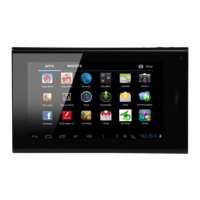
- Applications: The ALL APPLICATION screen lists all installed applications. Pre-loaded apps include Browser, Calculator, Calendar, Clock, Email, and Music Player. Additional apps can be downloaded from the App Shop.
- Settings:
- Display: Customize screen brightness, auto-rotate screen (enables/disables automatic orientation change), screen display (set wallpaper for Home and Lock screens), and sleep timeout.
- Applications Management: View, update, and manage downloaded, all, or running applications, including memory usage, default settings, and permissions.
- Email Configuration: Set up email accounts, compose, and send emails. Options include saving drafts, attaching files, and discarding messages.
- Backup & Reset: Restore device to factory settings (erases all data).
- Language & Input: Select language, manage personal dictionary, and configure other input options.
- Date & Time: Set automatic or manual date and time, time zone, 24-hour format, and date format.
- About Tablet: View device information such as status, legal info, hardware/software versions, and tutorials.
- Micro SD Card: Insert carefully until it clicks into place. To remove, ensure all programs are closed, then press to eject and remove.
Maintenance Features:
- Battery Management:
- Use the tablet at least once a week.
- Charge the battery regularly and fully.
- Avoid leaving the battery fully discharged for long periods.
- Keep the device and battery away from heat.
- Initial charge: Charge for at least 4 hours before first use. The first two charges may take up to 6 hours for full activation.
- Battery indicator in the System Bar shows power level. Low battery will show no power icon, power off automatically, operation buttons unresponsive, and a red signal in the right corner.
- Care and Maintenance:
- Liquids: Keep the device dry. Avoid precipitation, humidity, and liquids, as minerals can corrode circuits. Do not use with wet hands.
- Heat/Cold: Avoid extreme temperatures (below 0°C/32°F or above 45°C/113°F).
- Microwaves: Do not dry the device in a microwave oven.
- Dust/Dirt: Do not expose to dust, dirt, or sand.
- Cleaning: Do not use harsh chemicals, solvents, or strong detergents. Wipe with a soft cloth slightly dampened in a mild soap-and-water solution.
- Shock/Vibration: Do not drop, knock, or shake the device to prevent damage to internal circuit boards.
- Paint: Do not paint the device, as paint can clog moving parts or ventilation openings.
- Troubleshooting:
- Device fails to turn on: Check battery level, connect to adapter, and re-check. If issues persist, contact service personnel.
- No sound via earphone: Check volume settings. Check if the audio file is damaged by playing other audio.
- Copy function not working/fails to play music: Check device connection to PC, confirm storage space, check USB cable condition.
- Twinkling screen after turn-on or sudden shut off: Charge the device if the battery is low.
FCC Warning:
The device complies with Part 15 of FCC Rules. It must accept interference and not cause harmful interference. Users are advised to reorient/relocate receiving antennas, increase separation between equipment and receiver, connect to a different circuit, or consult a radio/TV technician if interference occurs. Any unauthorized modifications can void the user's authority to operate the equipment.

 Need help?

 To Next Page
 General