This document describes the EWT117, a portable computing device, likely a laptop or 2-in-1 convertible, designed for general use. The manual provides an overview of its features, specifications, and safety guidelines.
Function Description
The EWT117 is a versatile computing device that runs on Windows 10. It features a touch screen panel, allowing for direct interaction. The device can be used for various tasks such as taking pictures, shooting video with its front camera, and handling multimedia content. It supports external storage devices like U disks and Micro SD cards, and can connect to external displays via Mini-HDMI. Audio output is available through a headphone jack and built-in speakers. The device is designed for portability, indicated by its battery operation and compact form factor. It supports wireless networking via IEEE 802.11 b/g/n and Bluetooth 4.0 for connecting to other devices. The operating system includes a familiar Windows interface with a start screen, application management, search capabilities, and multitasking features. Power management options include sleep, restart, power off, and hibernation.
Important Technical Specifications
- Processor: INTEL Cherry Trail Z8350
- RAM: 2GB
- ROM: 32GB
- Display: 11.6" TN LCD (1366*768)
- Wi-Fi Networking: IEEE 802.11 b/g/n
- Audio Output: 3.5mm headphone jack
- USB Host: 1xUSB3.0, 1xUSB2.0
- HDMI: MINI HDMI x1
- Bluetooth: 4.0
- Camera: 0.3M (Front camera)
- Operating System: WINDOWS 10
- Power: Rechargeable Li-poly battery, Power Adapter (DC IN 5V, 2.5A)
- Speakers: 2x1W speakers
- Power Supply Adaptor Manufacturer: Shenzhen TEKA Technology Co., Ltd.
- Power Supply Adaptor Model Number: TEKA018-0502500UK
Usage Features
The EWT117 offers a range of features for user interaction and connectivity:
- Power Button: Used to start/close the touch screen panel, enter dormancy, or wake the device.
- Front Camera: For taking pictures and shooting videos.
- Touchpad: Enables direct operation of the device.
- Keyboard: Provides direct input for the device.
- Indicators:
- Caps Lock indicator (green light).
- Charging indicator (red when charging).
- Work light (bright green when the machine is operating).
- Microphone: Transmits audio signals.
- Charge Indicator: Red light when the adapter is plugged in.
- DC Charging Base: For connecting the 5V / 2.5A charger.
- USB Interfaces: Two ports (1xUSB3.0, 1xUSB2.0) for connecting U disks, mice, or keyboards.
- Mini-HDMI Interface: For High-Definition Multimedia Interface connections.
- Headphone Jack: Transmits audio signals to speakers or headphones.
- Micro SD Card Slot: Built-in memory card reader supporting Micro SD format.
- Speakers: Built-in speakers for audio output without external devices.
- POWER Key: Likely an alternative or dedicated power control.
- Windows 10 Interface: Features a start screen with "magnet" application programs, allowing for easy access and management. Users can add multiple applications to the start screen and right-click on properties icons for options.
- Menu Bar: Accessible via touch or mouse, providing access to power options (sleep, shutdown, restart), file explorer, settings, and other applications.
- Search Menu: Allows searching for content, with full functionality available when logged into an account and connected to the internet.
- Multitasking Operating Interface: Supports multiple desktops for organizing work.
- Basic Operations: Includes options for sleep, restart, power off, and hibernation (short press of the power button).
Maintenance Features
The manual provides important precautions for use and maintenance:
- Environmental Conditions:
- Suitable for use in non-tropic areas below 2,000 meters.
- Prevent the device from falling or being strongly impacted.
- Avoid extreme temperatures (too cold, too hot, >35°C), high humidity, and excessive dust.
- Do not expose the device to direct sunlight.
- Handling Liquids:
- Avoid strong magnetic and strong static environments.
- Do not allow water or other liquid splashes onto the device; if this occurs, close it immediately and dry it until it dries out.
- Cleaning:
- Do not clean the device with any detergent containing chemical elements or other liquids that could cause damage due to corrosion and becoming damp.
- If cleaning is necessary, clean it with a dry soft cloth tissue paper.
- Repair and Disposal:
- The company is not responsible for loss or deletion of material inside the machine caused by abnormal software and hardware operation, maintenance, or any other accident.
- Back up important material at any time to avoid loss.
- Do not disassemble the device yourself; otherwise, you will lose the right to warranty.
- FCC Compliance: The device complies with FCC rules, indicating it has been tested and found to meet limits for a Class B digital device. Users are advised on measures to correct interference if it occurs, such as reorienting antennas or increasing separation from other equipment. The device is evaluated for general RF exposure and can be used in portable exposure conditions without restriction.

 Need help?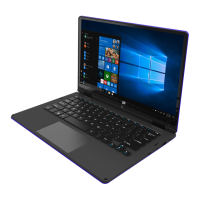

 To Next Page
 General