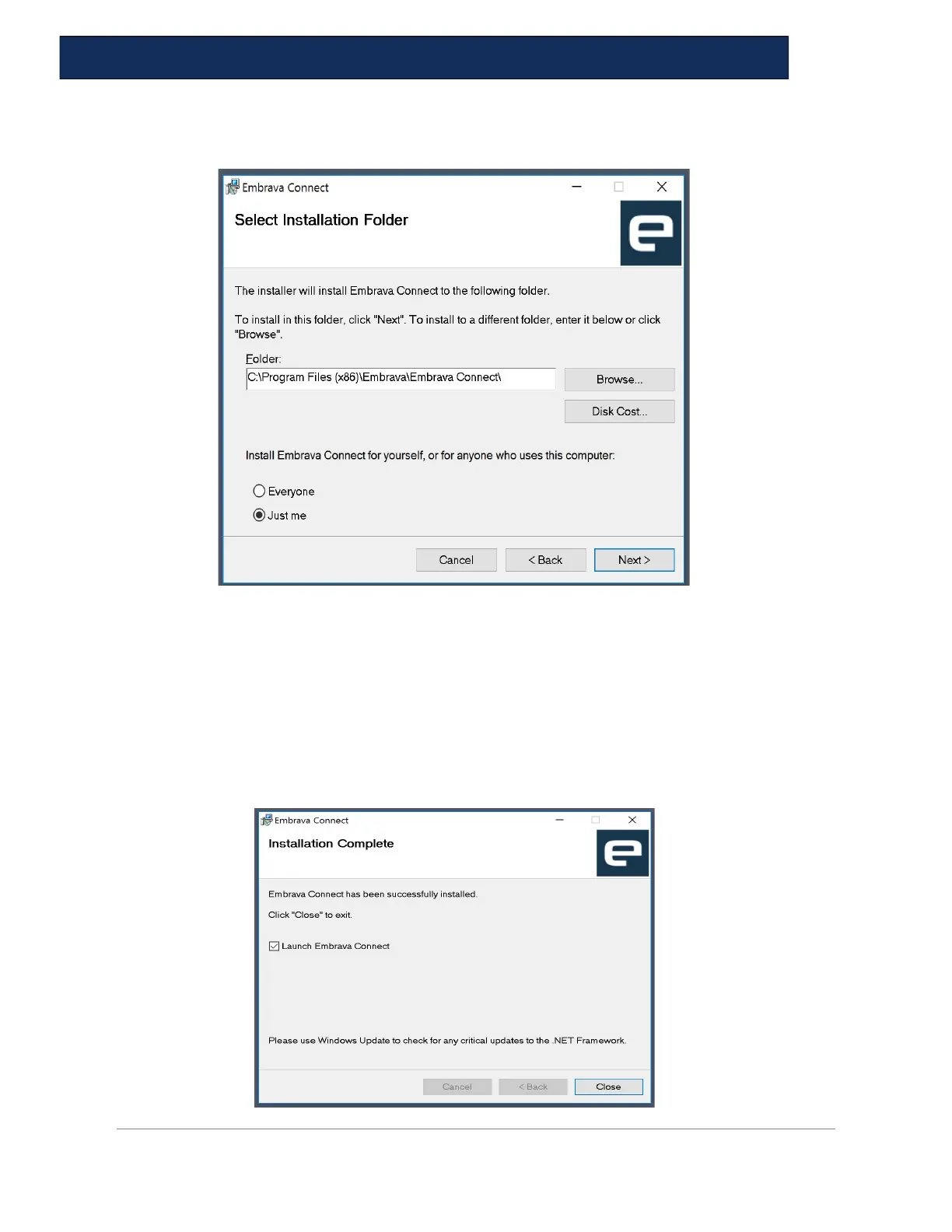
6. After you have read the License Agreement and agree to the terms select ‘I Agree’
and click ‘Next’. You will see the screen below.
7. Click Next, and the program will install. You might receive a request from your computer
to allow the installation (changes to the computer). Allow it!
8. Once complete, you will see the screen below. The installation process will now complete
and Embrava Connect will run immediately.
a. If you have connected the Embrava devices correctly, as described in the ‘Connect
Device’ section above.
**Should your system not show step 8 - Proceed to step 9 to access the previous step.


 To Next Page