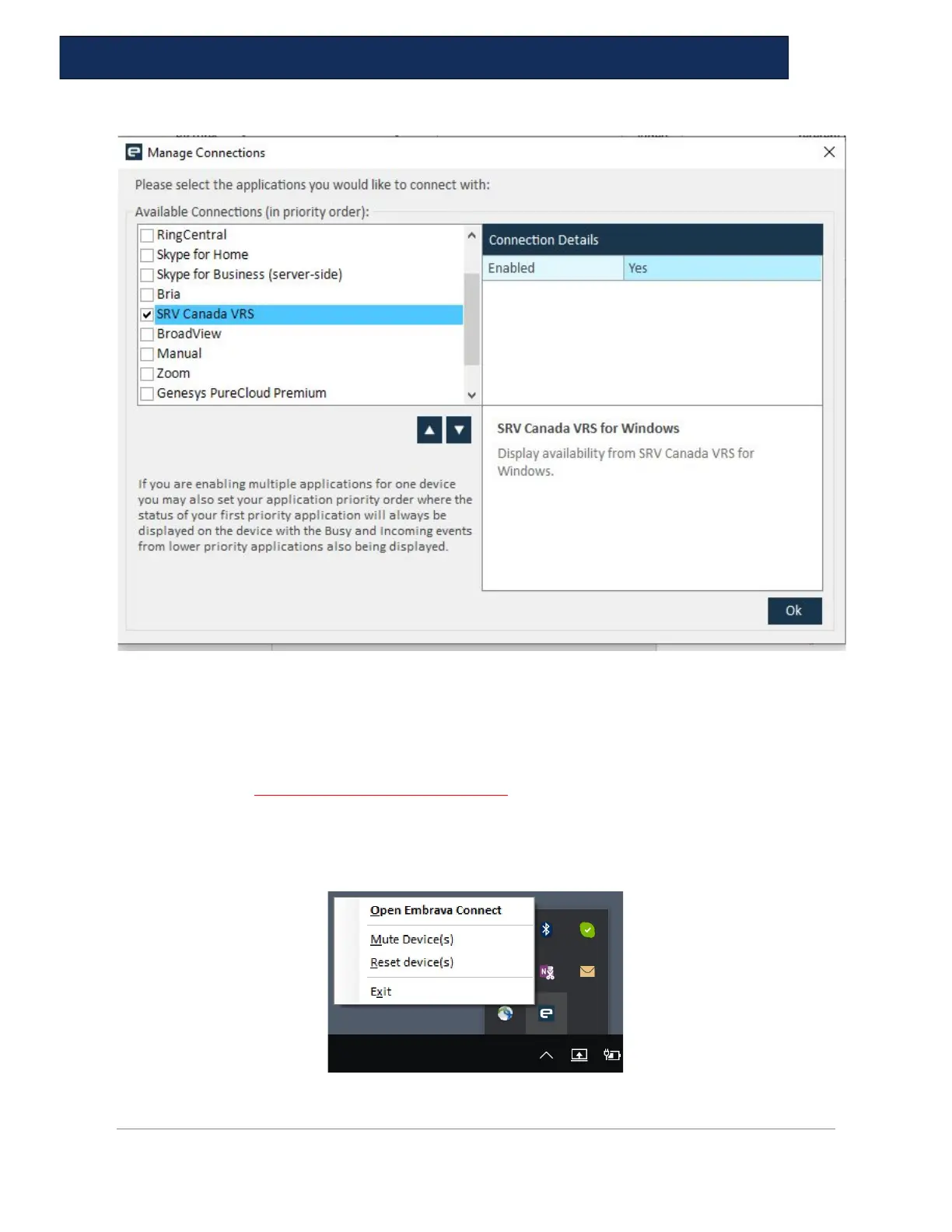
Uncheck any applications you do not wish to use. If you are using one device to display your status
from multiple applications, you can set the order of which application should get priority
over the device.
10. Once Embrava Connect is installed and running the application can be configured by
clicking the Embrava icon in your System Tray.
How to - choose or change the light color by opening Embrava Connect, click the function
(ie Incoming Call) in the “Light” line click the darker blue box, hit the down arrow to choose
a color. You will also have control of the other feature lines.


 To Next Page