This document describes the Emerson Media Recorder, model EMT-1200, a versatile device designed for recording and managing various media types. It functions as a media recorder, player, and transfer device, supporting multiple input and output options, as well as Wi-Fi connectivity for mobile phone integration.
Function Description:
The Emerson Media Recorder allows users to record video from external sources to DVD, USB, or SD card. It also facilitates copying files between different storage media, including USB, SD card, CD, and DVD. The device can act as a media player, displaying video, photos, and music files from connected USB drives, SD cards, or optical discs on an external display via an HD output. Furthermore, it offers Wi-Fi connectivity, enabling users to transfer files between their mobile phones and the recorder's USB, SD card, or DVD storage.
Important Technical Specifications:
- Input: 100-240V 50/60Hz 0.8A
- Output: 5V 3A 15.0W
- Internal Storage: 8GB total (2GB reserved for system software + 6GB for user storage). Note that for MicroSD, Micro SDHC, and MicroSDXC cards, an adapter is required.
- Supported DVD Types: DVD-5 (4.7G), DVD-R, DVD-RW
- Supported CD Types: CD-R, CD-RW
- Working Temperature: 0-40 °C
- Video Recording Formats: MPG (for Standard DVD player), MP4 (for Blu-ray player and social media sharing)
- Recording Quality Options: High Quality (approx. 1 hour recording time), Medium Quality (approx. 1 hour 30 minutes), Low Quality (approx. 2 hours 45 minutes)
- Auto Stop Timer: Options for OFF, 30 minutes, 60 minutes, 90 minutes, 2 hours, 3 hours
- Auto Chapter: Options for OFF, 5 minutes, 10 minutes, 15 minutes intervals for chapter marks
- Color Systems: PAL (European countries), NTSC (United States, Japan)
- Supported Picture Formats: JPEG, BMP, PNG
- Supported Music Formats: MP3, OGG, WMA, AAC, FLAC
- Supported Video Formats: AVI, MOV, WMV, MKV, TS, M2TS, MPG, RM, RMVB
- Wi-Fi Transfer Limit: Maximum total size allowed for one transfer is 64GB. For larger files, multiple transfers are required.
Usage Features:
- System Settings: Users can configure language (English, German, French, Dutch, Spanish), date, and time settings. A default setting option is available to restore factory settings.
- DVD Burning:
- DVD Burning Format: Choose between MPG (standard DVD) and MP4 (Blu-ray, social media).
- DVD Burn Type: Select "Data" to burn video, pictures, music, and documents that can be played/edited on a computer, or "Video" to create a DVD playable on DVD players with menus and chapters.
- Recording Quality: Adjustable to High, Medium, or Low, affecting recording duration.
- Auto Stop Timer: Automatically stops recording after a preset time.
- Auto Chapter: Creates chapter marks at specified intervals.
- Color System: Select PAL or NTSC based on region.
- Recording Process: Connect AV cable from video source, insert blank DVD, select recording options, and press [REC] to start. Pause and resume recording are possible.
- Recording to USB/SD Card:
- Similar to DVD recording, but output is to USB drive or SD card.
- Recorded video files are saved in the "MT-ROOT/Record" folder.
- Copying USB/SD Card to DVD:
- Allows burning media files from USB or SD card to a DVD+R or DVD-RW disc.
- Copying DVD to USB/SD Card:
- Copies all files from a DVD-ROM to a USB drive or SD card.
- Copying CD to Internal Storage/CD-R/CD-RW:
- Copies audio content from a CD to the device's internal storage, which can then be burned to a new blank CD-R or CD-RW.
- Content saved to internal storage can be burnt to multiple CDs.
- Copying CD to USB/SD Card:
- Copies audio content from a CD to a USB drive or SD card, creating both .mp3 and .wav formats.
- Copying USB/SD Card to CD:
- Copies music files from a USB drive or SD card to a blank CD-R or CD-RW. Only .WAV format will be copied to the new CD-R.
- Transferring Files via Wi-Fi (Mobile Phone Integration):
- App Download: Scan QR code or search "FriendlyMemories" on Apple App Store or Google Play.
- App Access Settings: Grant permissions for photos, local network, and mobile data.
- Connection to Recorder: Connect to the recorder's Wi-Fi network ("DVD_SERVER_XXXX") using the default password (12345678).
- Wi-Fi Settings in App: Modify Wi-Fi name and password, restart the recorder to save changes.
- Display Files on App: View files from USB, SD card, or DVD on the mobile app.
- Upload Files from Mobile Phone: Upload photos, videos, or other files from the mobile phone to the recorder's USB, SD card, or DVD. Note: For privacy, the app cannot display pictures, music, or documents already on the phone. Only one file can be uploaded to DVD at a time.
- Transfer Files Between Storages (USB/SD Card/DVD) via App: Copy, move, download (to phone), or delete files between connected USB, SD card, and DVD storage using the app.
- Media Player Functionality:
- Connect to an external display (TV, screen with HD port) using an HD cable.
- Play video, photo, and music files from USB, SD card, or CD/DVD.
- Picture Display: Navigate photos using arrow buttons.
- Music Display: Play, pause, and exit music playback.
- Video Display: Adjust volume and exit video playback.
- File Deletion: Delete files from connected storage.
- Erase Disc Function: Format CD-RW or DVD-RW discs directly.
Maintenance Features:
- Cleaning: Unplug the device before cleaning; avoid liquid or aerosol cleaners.
- Repairs: Do not attempt repairs yourself; refer to qualified professionals.
- Replacement Parts: Ensure technicians use manufacturer-specified or equivalent replacement parts.
- Safety Checks: After maintenance, ensure safety checks are performed.
- Error Messages: The manual provides troubleshooting for common error messages related to storage, AV/USB/SD card connections, and insufficient space.

 Need help?
 General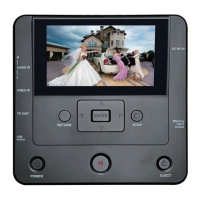

 To Next Page