EasyManua.ls Logo

Emerson EWD2203 - User Manual

Emerson EWD2203
44 pages
Print Icon
To Next Page IconTo Next Page
Loading...
OWNER’S
MANUAL
If you need additional assistance for set-up or operating
after reading owner’s manual, please call
TOLL FREE : 1
-
800
-
256-2487
or visit our web site at http://www.funai-corp.com
Please read before using this equipment.
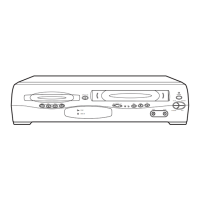
OPEN/CLOSE
OUTPUT
REC
REW
FF
VIDEO AUDIO
CH-DOWN
POWER
CH-UP
STOP/EJECT
PLAY
DVD
VCR
TIMER REC
STOP
PLAY
DISC IN
FWD
REV PLAY
ReWritable
Recordable
INSTRUCCIONES EN ESPAÑOL INCLUIDAS.
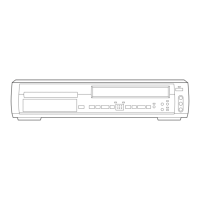
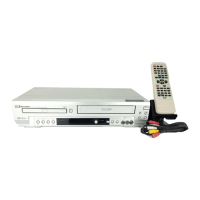
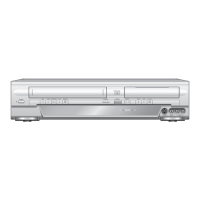
DVD PLAYER with VIDEO CASSETTE RECORDER
EWD2203
EMERSON AND THE G-CLEF LOGO ARE REGISTERED
TRADEMARKS OF EMERSON RADIO CORP., PARSIPPANY,
NEW JERSEY, U.S.A.
H9410UD(EN).qx33 03.1.17 6:21 PM Page 1

Table of Contents

Questions and Answers

  • H
    hmcknightSep 3, 2025
    What to do if I cannot remove the tape from my Emerson DVD VCR Combo?
    • J
      Jocelyn RosalesSep 4, 2025
      If you cannot remove the tape from your Emerson DVD VCR Combo, check if the player is in VCR mode. If it is not, press the VCR button on the remote control to switch to VCR mode.
  • S
    Stephen MillsSep 18, 2025
    Why does the “Prohibited icon” appears on the screen of my Emerson EWD2203 DVD VCR Combo?
    • M
      Melissa ZavalaSep 18, 2025
      If a “Prohibited icon” appears on the screen of your Emerson DVD VCR Combo, it indicates that the operation you are trying to perform is prohibited either by the player or by the disc itself. This is not a malfunction.
  • H
    hoodcathySep 16, 2025
    Why can't I change the audio or subtitle language on my Emerson EWD2203 DVD VCR Combo?
    • K
      Keith BakerSep 16, 2025
      If you cannot change the audio or subtitle language on your Emerson DVD VCR Combo, it means that the DVD does not contain audio or subtitles in the selected language. This is not a malfunction.
  • L
    Leroy BeltranSep 14, 2025
    Why can't I change the camera angle on my Emerson DVD VCR Combo?
    • V
      Vanessa MillerSep 14, 2025
      If you cannot change the camera angle on your Emerson DVD VCR Combo, it is because the DVD does not contain sequences recorded from different camera angles. This is not a malfunction.
  • B
    Brian CastroSep 12, 2025
    Why doesn't audio or subtitle language match the setup on my Emerson DVD VCR Combo?
    • A
      Andrea FrenchSep 12, 2025
      If the audio or subtitle language does not match the setup on your Emerson DVD VCR Combo, it means that the selected language is not available for that particular DVD. This is not a malfunction of the device.
  • J
    Jason ConnerSep 12, 2025
    Why is there no DTS audio output from my Emerson EWD2203?
    • J
      James BeasleySep 12, 2025
      The Emerson DVD VCR Combo does not support DTS audio. This is not a malfunction.
  • J
    Janice ReyesSep 9, 2025
    Emerson EWD2203: Cannot view a tape but the audio is OK, how to fix?
    • J
      Juan FrankSep 9, 2025
      If you can hear audio but cannot see the video when playing a tape on your Emerson DVD VCR Combo, head cleaning may be necessary. Also, ensure the VCR is not in the Menu mode.
  • S
    shelby30Sep 7, 2025
    Why is the picture distorted on my Emerson DVD VCR Combo?
    • J
      jeremy42Sep 7, 2025
      If you are experiencing a distorted picture on your Emerson DVD VCR Combo, try connecting the player directly to the TV. Sometimes slight distortions can occur and do not indicate a malfunction. Momentary picture stops are also not necessarily a sign of malfunction.
  • R
    robert25Sep 5, 2025
    How to improve poor playback picture on Emerson EWD2203?
    • C
      Cindy HayesSep 5, 2025
      To resolve a poor or absent playback picture on your Emerson DVD VCR Combo, try changing the RF output channel to CH4 and selecting the same channel on your TV. Additionally, fine-tune your TV settings.
  • Z
    zpriceAug 20, 2025
    What to do if my Emerson EWD2203 DVD VCR Combo remote control is not working?
    • S
      Stephen GilbertAug 20, 2025
      If your Emerson DVD VCR Combo isn't responding to the remote control, try the following: * Ensure the power plug is connected to an AC outlet. * Check and/or replace the batteries in the remote. * Aim the remote directly at the remote sensor, removing any obstacles. * Ensure you are within 23 feet of the player. * Select the correct mode (DVD or VCR) on the remote. * Check if a cassette tape is in the VCR.

Summary

FEATURES

DVD Mode

Description of DVD playback features.

VCR Mode

Description of VCR playback and recording features.

PRECAUTIONS

ABOUT THE DISCS

PLAYABLE DISCS

Lists discs compatible with the player.

DISC TYPES

Explains disc structure (titles, chapters, tracks).

OPERATING CONTROLS AND FUNCTIONS

FRONT PANEL

Identifies and describes front panel buttons and indicators.

REMOTE CONTROL

Identifies and describes remote control buttons.

REAR VIEW

VCR;DVD SWITCHING

HOOKUPS

DVD;VCR TO TV CONNECTION

Instructions for connecting the unit to a TV via RF.

RF OUTPUT CHANNEL

Explains how to set the RF output channel.

CONNECTING TO A TV

General TV connection instructions.

CONNECTING TO TVS WITH S-VIDEO OR COMPONENT INPUT

CONNECTING TO AMPLIFIER WITH DIGITAL INPUTS

CONNECTING TO DOLBY DIGITAL DECODER

CONNECTING TO ANALOG AUDIO

SETUP

AUTOMATIC CHANNEL SET UP

Automatically programs the VCR tuner to scan available channels.

CHANNEL SELECTION AND PRESETTING

How to select and preset channels.

LANGUAGE AND CLOCK SETUP

Setting on-screen language and clock.

TO ADD;DELETE CHANNELS

PLAYBACK FUNCTION

BASIC PLAYBACK MODES

Normal, Still, Slow, Auto Repeat playback.

SEARCH FUNCTIONS

Picture, Index, and Time search.

RECORDING FUNCTION

NORMAL RECORDING

Basic recording of video tapes.

OTR AND TIMER RECORDING

One-touch and timed recording setup.

TIMER RECORDING HINTS

Tips for setting up and managing timer recordings.

SPECIAL FEATURES

VIDEO TAPE COPYING

Instructions for copying video tapes.

AUTO REWIND AND TAPE COUNTER

Automatic tape rewinding and time display.

PLAYING A DISC

BASIC PLAYBACK AND MENUS

Starting playback and navigating disc menus.

PAUSE AND GENERAL FEATURES

Controlling playback and using disc features.

DISC NAVIGATION AND SEARCH

DISC MENU AND TITLE MENU

Accessing disc-specific menus and options.

STEP-BY-STEP PLAYBACK

Frame-by-frame playback control.

FAST;SLOW SEARCH

Speeding up or slowing down playback.

DVD SPECIFIC FUNCTIONS

ZOOM AND CHAPTER SEARCH

Enlarging images and navigating titles/chapters.

TIME SEARCH

Searching for playback by specific time.

DISC REPEAT AND PROGRAM PLAYBACK

REPEAT FUNCTIONS

Repeating tracks, titles, or entire discs.

PROGRAM PLAYBACK

Creating custom track playback order.

RANDOM AND MP3 PLAYBACK

RANDOM PLAYBACK

Shuffling track playback order.

MP3 PLAYBACK AND INFO

Playing MP3 files and viewing status.

AUDIO, SUBTITLE, AND CAMERA SETTINGS

LANGUAGE AND CAMERA SETTINGS

Selecting audio, subtitle, and camera angles.

DISPLAY AND PARENTAL CONTROL

ON-SCREEN DISPLAY

Changing the information shown on screen.

PARENTAL CONTROL

Preventing playback of inappropriate content.

DVD SETUP OPTIONS

AUDIO SETTING

Choosing appropriate audio settings for DVD playback.

PICTURE AND SOUND SETTINGS

BLACK LEVEL AND DISPLAY SETTINGS

Adjusting picture brightness and display options.

VIRTUAL SURROUND

Enjoying stereophonic visual space.

LANGUAGE SETTING

TROUBLESHOOTING GUIDE

MAINTENANCE

SERVICING AND CLEANING

Unit service, cabinet, disc, and lens cleaning.

DISC HANDLING

Guidelines for handling discs.

AUTO HEAD CLEANING

SPECIFICATIONS

LIMITED WARRANTY

Emerson EWD2203 Specifications

General IconGeneral
BrandEmerson
ModelEWD2203
CategoryDVD VCR Combo
LanguageEnglish

Related product manuals