8
|
ENGLISH
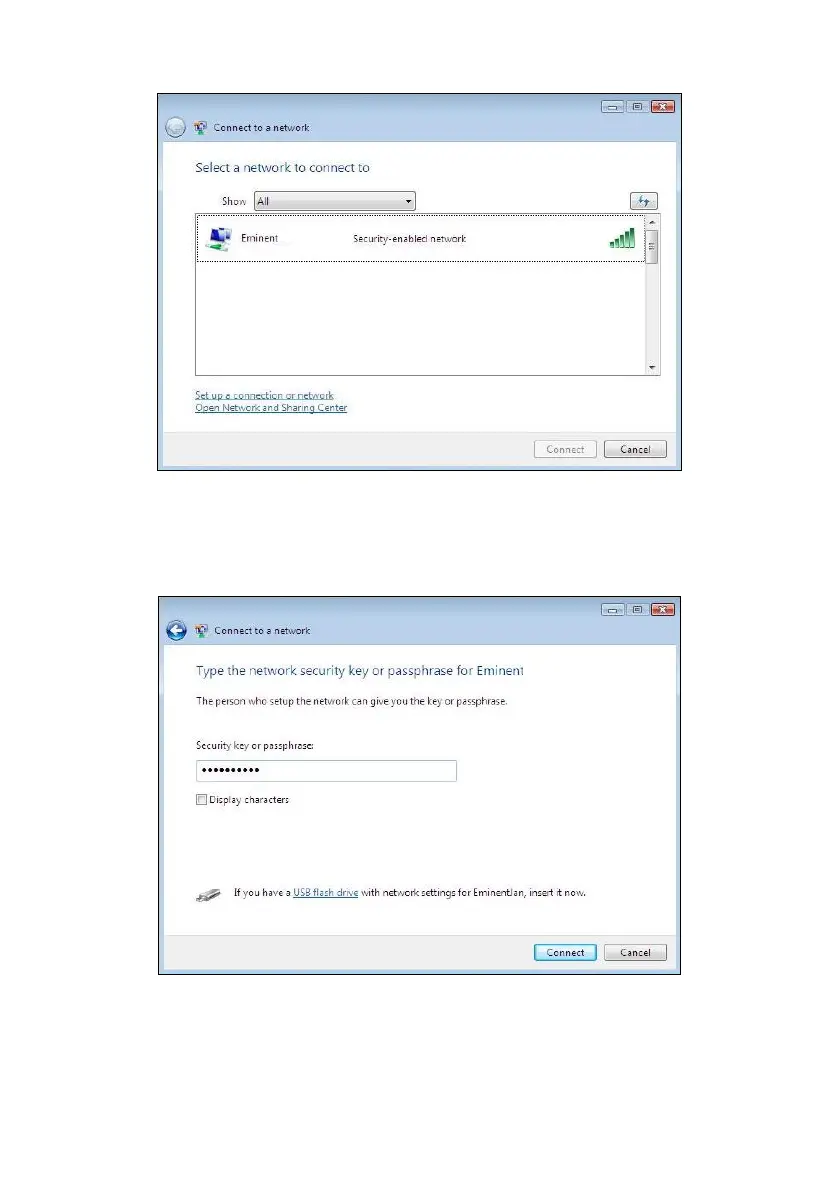
Image 8 – Connecting
4. Click ‘Connect’.
5. If correct, Windows will now ask you to fill out your wireless security key and click
‘Connect’. Refer to the following image:
Image 9 - Connecting
6. If your wireless security key has been filled out correctly, your network will be
connected. Windows will then show a connected screen and asks you to save
this network and to start this connection automatically. Mark both options and
click ‘Close’. Refer to the following image:



 To Next Page