Need help?
Do you have a question about the Empire Electronix M805 and is the answer not in the manual?
This document serves as an English User Manual for a Tablet PC, providing comprehensive instructions on its functions, usage, and important considerations for maintenance. It is designed to help users understand their device and ensure optimal performance.
To ensure the longevity and proper functioning of your Tablet PC, it is crucial to adhere to several safety guidelines. The device should be protected from moisture and dust at all times, as it is not waterproof. Avoid leaving the device in high-temperature environments, especially in a closed car during hot weather, as this can cause damage. The device should not be dropped or struck, and violent shaking, particularly of the LCD screen, should be avoided to prevent display malfunction. When using earphones, it is important to adjust the volume carefully to prevent harm to your hearing.
Charging the device is necessary when the power icon indicates a nearly flat battery, when the device automatically turns off and won't restart, or when there is no response from the buttons. It is imperative to use only the charger provided by the manufacturer, as other chargers may damage the device. The input for the charger is 100-240V ~ 50/60 Hz, with an output of 5V 1500 mA.
During data transfer operations such as downloading, uploading, or formatting, do not disconnect the device from your PC, as this can lead to programming errors. Disassembly of the device should only be performed by an expert. Avoid using alcohol, thinner, or benzene-based chemicals for cleaning the device's surface. The device should not be used in environments where electronic device usage is prohibited, such as aircraft. Regular backups of your device are highly recommended, as the manufacturer is not responsible for lost files or data after damage or repair. The manufacturer reserves the right to update the device's technology and design without prior notice.
The device takes approximately 20 seconds to power up, and it is advised not to operate it during this period.
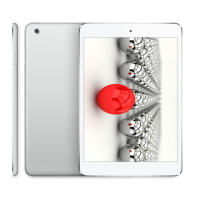
The Tablet PC features several key functions accessible via dedicated buttons and ports. The POWER button allows users to switch between sleep/wake up mode with a brief press, or to turn the device ON/OFF by pressing and holding for several seconds. The MENU button provides access to the submenu with a brief press, while the ESC button allows users to exit the current mode.
For expandable storage, the device includes a TF Card Slot that supports external TF cards ranging from 1GB to 16GB. Audio output is handled by a Stereo earphone jack. Charging is done via a DC Socket connected to a 5V DC charger. A MINI USB Port (Micor 5-pin USB Port) is available for connectivity. The USB Host Port (2.0) supports external USB drivers, 3G dongles, mice, keyboards, and other peripherals. The device features an HD Display area for visual output.
The device is equipped with a capacitive touch screen, allowing for multi-touch input, supporting up to five fingers simultaneously.
To switch on the device, press and hold the Power key for 3 seconds. The Android start-up progress bar will appear, and the system desktop will be displayed after approximately 20 seconds. To unlock the LCD from locked mode, press and drag the unlock icon to the green point. To switch off the device, press and hold the 'POWER' key for 3 seconds. The power off interface will appear; select the power off icon to confirm, and the system will shut down automatically. If the battery is low, the device will alarm continuously and shut off automatically if not charged. If the device fails to start, check the battery level and recharge if necessary.
A brief press of the 'POWER' key will put the system into power save and lock mode. Another brief press or a tap on the touch screen will bring the system back to life within 1 second. In power save mode, primary functions like music or movie playback will continue, but the LCD screen will turn off.
Before initial use, charge the battery for 8-12 hours to ensure a full charge. Insert the micro port of the battery adapter into the DC slot and connect the other side to a power socket. The battery icon on the desktop will indicate charging status. Wait until the battery is fully charged before disconnecting. To maintain optimal battery condition, avoid charging in high temperatures. It is not necessary to fully discharge the battery before recharging. If the device is not used for an extended period, charge it once every two weeks.
The device features various icons to represent different functions:
The Mini USB port on the device can function as a USB Host.
The device has a TF card slot for reading files from TF cards. Insert the TF card in the correct orientation until it clicks into place. To remove, press down on the card, and it will pop out.
The device supports both Wi-Fi and external 3G networks.
To access the music player, double-click the desired item in the playlist. The device supports MP3, WAV, MIDI, and WMA audio formats. If no music files are in the playlist, the system will automatically upload files from the card. Users can slide the touch screen up/down to navigate the playlist. In the music playing interface, click the designated icon to enter the audio playlist. The playback progress bar can be dragged to adjust progress.
Click the Video player icon to enter the video player interface and open video files. The device supports MKV, AVI, RM, RMVB, MP4, MOV, VOB, DAT, FLV, 3GP, and other video formats. Similar to audio, if no video files are in the playlist, the system will automatically upload files from the card. The playback progress bar can be dragged to adjust progress.
Click the HD Video Player to enter the viewing interface. The device supports BMP, JPG, JPEG, PNG, and GIF picture formats. If no files are in the photo list, the system will automatically load image files from the card to the photo browser. Users can open folders, find image files, and add pictures. The menu button allows setting a photo as wallpaper.
Click the record icon to enter the record interface. Click the record button to start recording and the stop button to stop. The system will prompt to store or delete the recording. For playback, select the audio player, choose the record files from the explorer, and play them.
The file manager allows viewing all files on the device, including those in internal memory and external memory cards. It also provides a quick view for pictures and videos.
The device supports TXT, LRC, PDF, HTML, HTM, EPUB, and other e-book formats.
Before using the Internet browser, ensure the network is connected. Click the IE Browser icon to enter the interface, type the desired website in the address bar, and press "Go." Users can click the star icon to view bookmarks and history, and the menu icon to access settings. The device also supports other Internet browsers.
Ensure network connectivity before using the e-mail function. For first-time use, an e-mail account must be added. The device supports multiple e-mail accounts, including web-based (Gmail, MSN, Yahoo) and enterprise accounts. For portal sites, enter your e-mail address and password, then click "next." After successful connection, enter "Account Name" (for the device) and "Your Name" (displayed to recipients). Users can access accounts, read emails by clicking titles, and access options by pressing and holding titles. The menu icon provides access to settings for refreshing, composing, managing folders, viewing/adding/deleting accounts, and setting account preferences.
Click the Calendar icon to enter the calendar interface. In calendar mode, drag the screen up/down to navigate months or pages. The year automatically changes from December to January. The orange-highlighted number indicates today's date, which can be changed in the Settings function. Click the designated icon to return to the main menu.
Click the Calculator icon to enter the calculator interface.
Click the Clock icon to enter the time interface, then click the clock to access the alarm function. New alarms can be added or existing ones edited. Press and hold existing alarms to turn them on/off, edit, or delete. Individual alarms can be edited to adjust time, repeat mode, ringtone, and label. In the alarm interface, click the menu icon to access settings for various items.
The device supports third-party APK format applications based on the Android OS. Apps can be downloaded from the Internet or copied from other devices. If downloading from sources other than Google Android Market, ensure "Unknown sources" is selected in Settings – Applications. Click the Explorer icon, select the desired app, and click "install."
The device features front and rear cameras, allowing users to take pictures and record video clips.
Click the Settings icon to access system settings, where you can change wireless & networks, sound, display, location & security, applications, accounts & sync, privacy, storage, language & keyboard, voice input & output, and date & time.
7.1 Wireless & Network Setting: Refer to item 4.
7.2 Sound Setting: Adjust Silent mode, Volume, Notification ringtone, Audible selection, Screen lock sounds, and Haptic feedback.
7.3 Display Setting: Adjust Brightness, Auto-rotate screen, Animation, and Screen timeout.
7.4 Location & Security Setting: Set up screen lock, device administrators, and TF card password.
7.5 Application Setting: Manage apps, check storage, and battery usage. To install apps not from Google Android Market, enable "Unknown sources."
7.6 Accounts & sync Setting: Manage accounts on the device.
7.7 Privacy Setting: Back up data and reset factory defaults.
7.8 Storage Setting: Check storage use and manage TF cards. Before removing a TF card, use the "safely remove hardware and uninstall media" function to prevent application issues.
7.9 Language & Keyboard Setting: Change system language and select keyboard inputs. If an input method is installed, enable it here. To change Android keyboard settings, open "Settings," select "Language and input," then "Default," and tap "Configure input methods." Tap the icon to access input language settings, where "Input language" can be selected, and "Use system language" can be checked. The default keyboard will be set to the selected language.
7.10 Date & time Setting: Adjust date and time.
7.11 About device: Check device information.
Press and hold the blank area where you want to type, and a popup will appear to choose input methods.
Some applications are installed on an external TF card. If the TF card is removed, these applications will not be visible.
Check Settings – Applications and ensure "Unknown sources" is selected.
 General
| Operating System | Android 4.2 Jelly Bean |
|---|---|
| RAM | 1 GB |
| Internal Storage | 8 GB |
| Battery | 4000 mAh |
| Display | IPS |

 To Next Page