Troubleshoing
If connection can’t be established verify that:
1. ECpv2 is powered up and running. ECpv2 must have 24VDC (+/- 15%) supply
voltage. The green Power and the green Run LEDs in the front of the ECpv2 must
both be illuminated. Note that a two low supply voltage can result in a situation
where sufficient voltage is present to power up the ECpv2 but not to run the
program. In this case the Power LED is illuminated but the Run LED. When
powering up the ECpv2 the Power LED will light up first and the Run LED will
come approximately 30s after when ECpv2 is initialized and the program is up
and running.
2. Your laptop must be on the same subnet as the ECpv2. Even though you have an
ethernet cable going directly from your laptop to the ECpv2 you still need to
make sure that your laptop is provided with a suitable IP address. In the case
where the default IP address of the ECpv2 192.168.1.101 is kept a suitable IP
address for your laptop would be 192.168.1.x, where x is a number in the range
[2;249] excluding “101” as this is used by the ECpv2 itself.
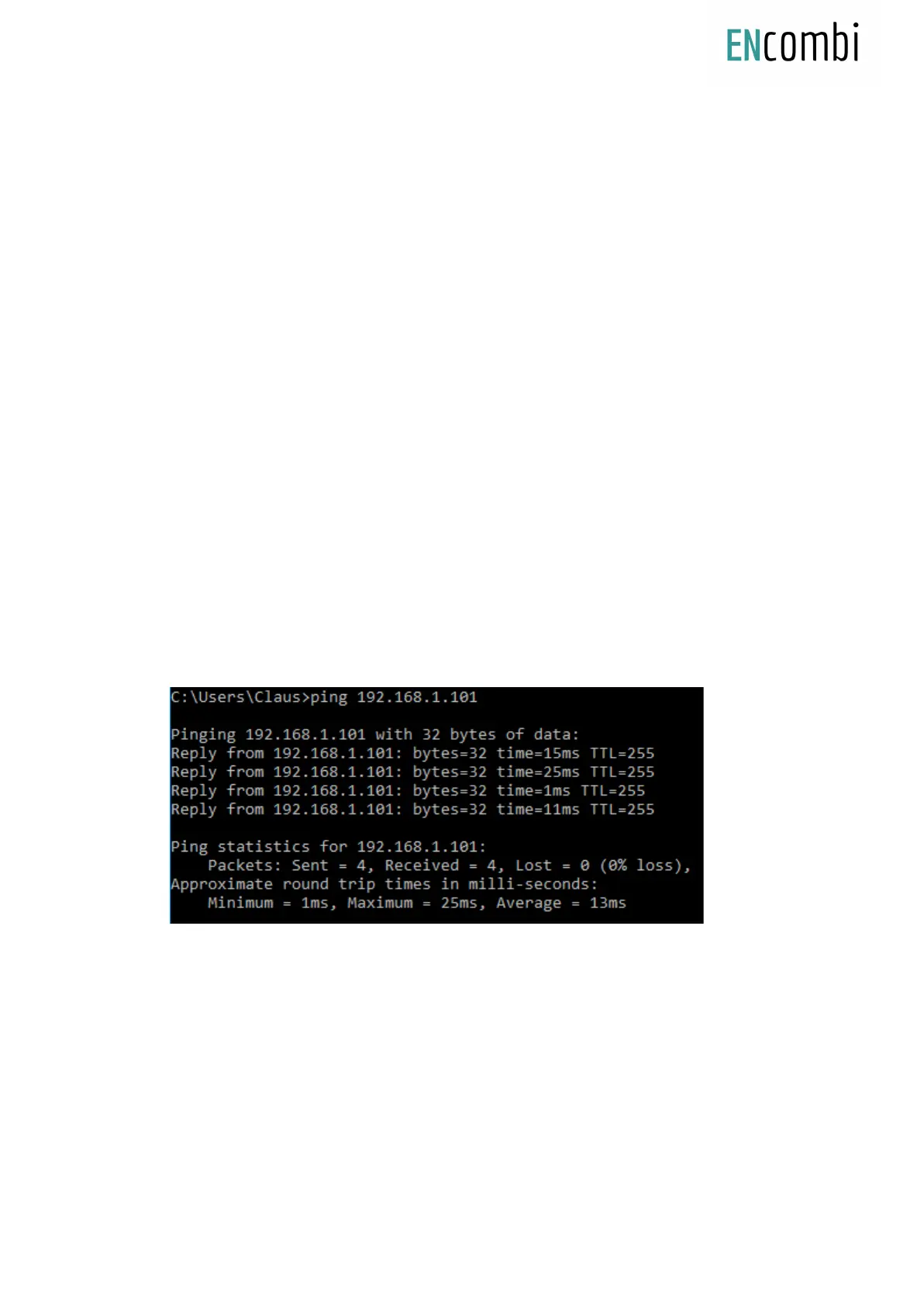
3. Once the IP of your laptop is in place you must be able to ping the ECpv2. This
can be done by opening a command prompt and writing the command “ping
xxx.yyy.zzz.www” where xxx.yyy.zzz.www is the IP address of the ECpv2 as shown
below. First when the ECpv2 replies to the command it is verified that your
laptop and the ECpv2 can see each other on the network and you can connect to
ECweb using the browser as described above.


 To Next Page