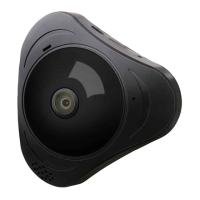
Panoramic VR IP Camera 360º
10
5) The alarm setting
Alarming: 2 channels
The rst one is to press the infrared remote control alarming key (lock key)
that has learned successfully. The other one is the alarming keys (lock
key) at the top of the APP contact list, “ ” means Alarming. “ ” means
disalarming. After alarming, when there is a case, the device will send the
alert to the APP actively, and send the scene captured images to the alarm
mail at the same time.
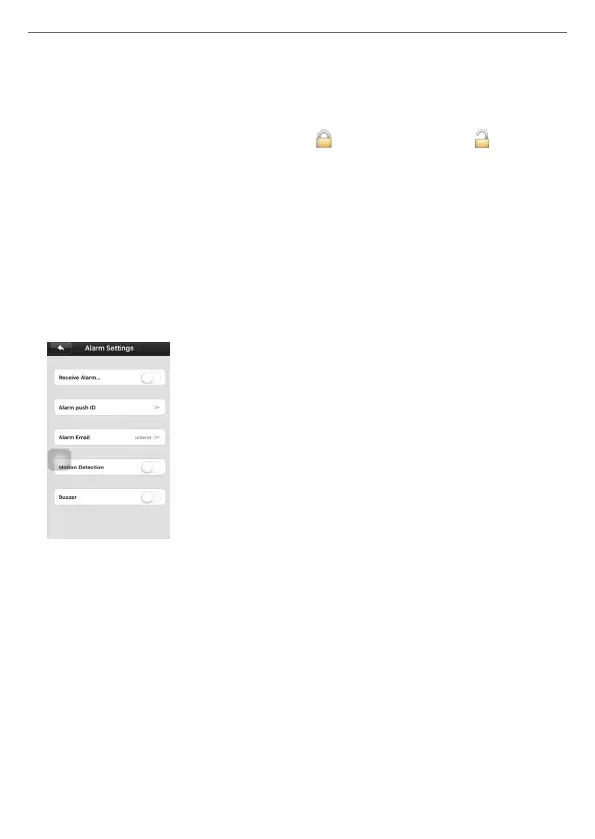
Push account, alarm mail: Click on the device name -> settings -> alarm
settings: add receiving alert APP ID in binding account (open Yoosee
software, can be found after clicking on the rst “settings” button from right
in the lower, can add up to ve account), alarm write the receiving alarm
email address.
Motion detecting: Any movement or sound can trigger the alert.
Buzzer: To turn on the buzzer, when have alert the device itself, which will
siren screaming until “disalarming”.
6) Defence Ares Settings
1) Alarm learning code:
Note: This function is optional, please be sure your device has this
function.
This device with 8pcs remote control, 8*8 = 64pcs wireless alarm (433
frequency), support 8 groups.
The following is the learning code ways:
A) Please add device to device list in Yoosee software.
B) Click Device -> device name -> settings -> zone settings.
C) Eg: You want to learn one door sensor that installed in the hall, the


 To Next Page
 Loading...