info@ener-j.co.uk
www.ener-j.co.uk
2
Step 1: Download mobile App
Step 2: Connect the camera to router
Step 3: Add camera in the App
Step 4: Install the camera
Step 5: Enjoy remote operation
1. Open Google Play Store.
2. Search for “iSmsee”.
3. Touch INSTALL.
4. Review the App’s permissions, then touch ACCEPT to
download.
After installing iSmsee App on your mobile device, just locate the iSmsee App and tap the icon to run. The App will load and take you
directly to the Device list screen.
1. Open the App Store.
2. Search for “iSmsee”.
3. Tap INSTALL APP to download.
• To ensure your privacy, this device supports password protection.
• The default, all-access username is admin, the default password is empty.
• To ensure your ongoing privacy, we strongly recommend setting a new password as soon as possible.
The SECURITY CAMERA WI-FI IP Camera with LED Light works with iPhone, iPad and Android devices.
Install the mobile App and use your mobile for remote viewing/control your camera.
The mobile App is free to download for you, and is available from the respective Apple App Store and Google Play Store.
The camera works with your home Internet connection and wireless router. There are 3 ways you can follow to set up the camera with
your Wi-Fi network.
This method is provided to add camera without connecting a network cable, it named as “One key to add”. It’s the prior adding
method, but if it failed, please try another two methods. (Explained in the part 6)
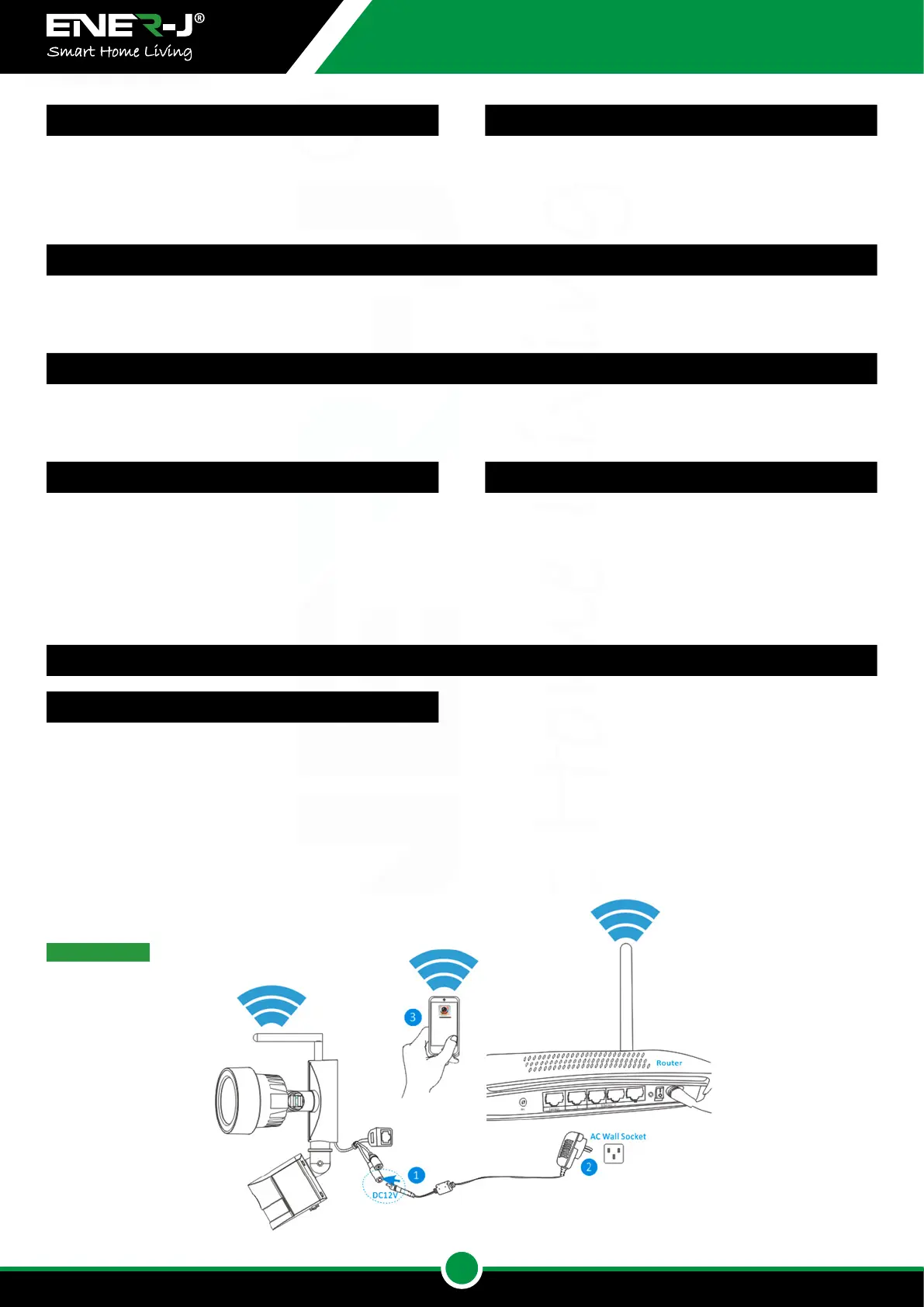
1. Connect the output of the supplied 12V power adapter into the power socket on the camera.
2. Plug the power adapter into the wall socket.
3. Connect your mobile phone to your home wireless router.
Method 1: One Key to Add Camera
• Make sure product is xed correctly and stable if fastened in
place.
• Do not operate if wires and terminals are exposed.
• Apply for garden/square/wall/garage etc.
Quick Start Guide
To install App on Android
To install App on Android
To install App on iPhone/iPad
Quick Start Guide
Default Password Information
Installing the mobile App
Connecting the camera to your network
Preparation


 To Next Page
 Loading...