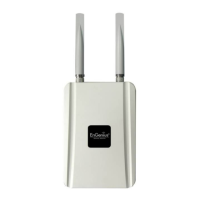
EOR7550 Quick Start Guide
Dual Radio Multi-Function Repeater
Quick Start Guide v.1.0
Refer to User’s Manual for complete instructions 2
IP Settings
1. Under Network section, click on [LAN].
This feature allows you to configure the
LAN interface using a static IP address.
This IP address is also used to access the
web-based interface.
2. IP Address: Specify an IP address
3. IP Subnet Mask: Specify the subnet
mask for the IP address
4. Click on the Apply button to save the
changes.
Note: If you change the IP address here, you
may need to adjust your PC’s network settings
to match the same domain.
Wireless Security
The default Radio2 is set to AP mode. You can
start by changing the security setting on Radio2.
1. Under Wireless section, click on
[Radio2].
2. Under Radio2 sub-menu, click on
[Security].
3. Select your preferred security from
[Encryption] select-box.
4. Please refer to user manual for more
security configuration details.
Wireless Network
EOR7550 provides 2 separate Radio Channel
which allows you configuring your device into
different separate modes. Each Radio Channel
can be configured separately with different
configuration menu.
1. Under System section, click on
[Operation Mode] to configure each
radio.
2. You will see the current operation mode
setting for each radio and Ethernet type.
3. Click on [Reset] to start configuration.
4. There are 7 modes for each radio.
Please start by setting Radio1.
5. Note that Radio1 mode will determine
the available choices on Radio2.
6. Please refer to user manual for more
detail.
Dural Radio Operation Mode Table
18 Modes Radio1(11a/b/g)
Radio2
(11/b/g/n)
AP CB CR
WDS
Bridge
WDS
Repeater
UR(AP) UR(STA) Disable
AP
O
(LAN/WAN)


 To Previous Page
 Loading...