LIGHT EFFECTS
FN + HOME
FN + PGUP
FN + END
FN + PGDN
FN + L_CTRL
FN + L_ALT
RGB Effects 1-5
RGB Effects 6-10
RGB Effects 11-15
RGB Effects 16-20
Toggle Backlight colors
Turn on/off Backlights
Toggle Sidelight
Effect and Off
Toggle Sidelight
Colors
FN +
Backlights Brightness -
Backlights Brightness +
Dynamic light direction to left
Dynamic light direction to right
Backlights Speed-
Backlights Speed +
Toggle Sidelight Brightness
Toggle Sidelight Speed
CHANGE RGB EFFECTS
Press Fn + Home/PgUp/End/PgDn to switch the RGB effects of your
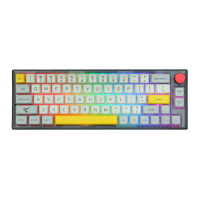
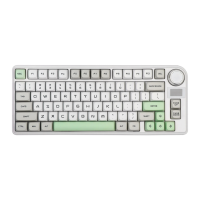
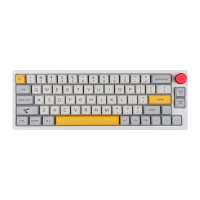
Epomaker Aura75 keyboard.
PAIRING BLUETOOTH
1. Hold Fn+l! / 2@ / 3# for 3-5 seconds till the indicators flashes fast in
red/green/yellow the keyboard is ready to pair in Bluetooth.
2. Turn on your Bluetooth device and find 'Aura75 BT3.O' or 'Aura75 BT5.O-1/2/3',
then connect. When the keyboard is connected to the Bluetooth device, the light on
the 1!/ 2@ / 3# key stops flashing and the connection is done.
3. Press Fn+l! / 2@ / 3# to toggle between the Bluetooth devices 1/2/3.
PAIRING WIRELESS 2.4GHZ
1. ress Fn+4$ the indicator flashes in green, the keyboard is under the 2.4G mode;
2. Continue to hold Fn+4$ for for 3-5 seconds till the 4$ indicator flashes fast, the
keyboard is ready to pair;
3. Insert the 2.4G dongle to your device, the 4$ key stops flashing and the connection
is done.


 To Next Page