EN
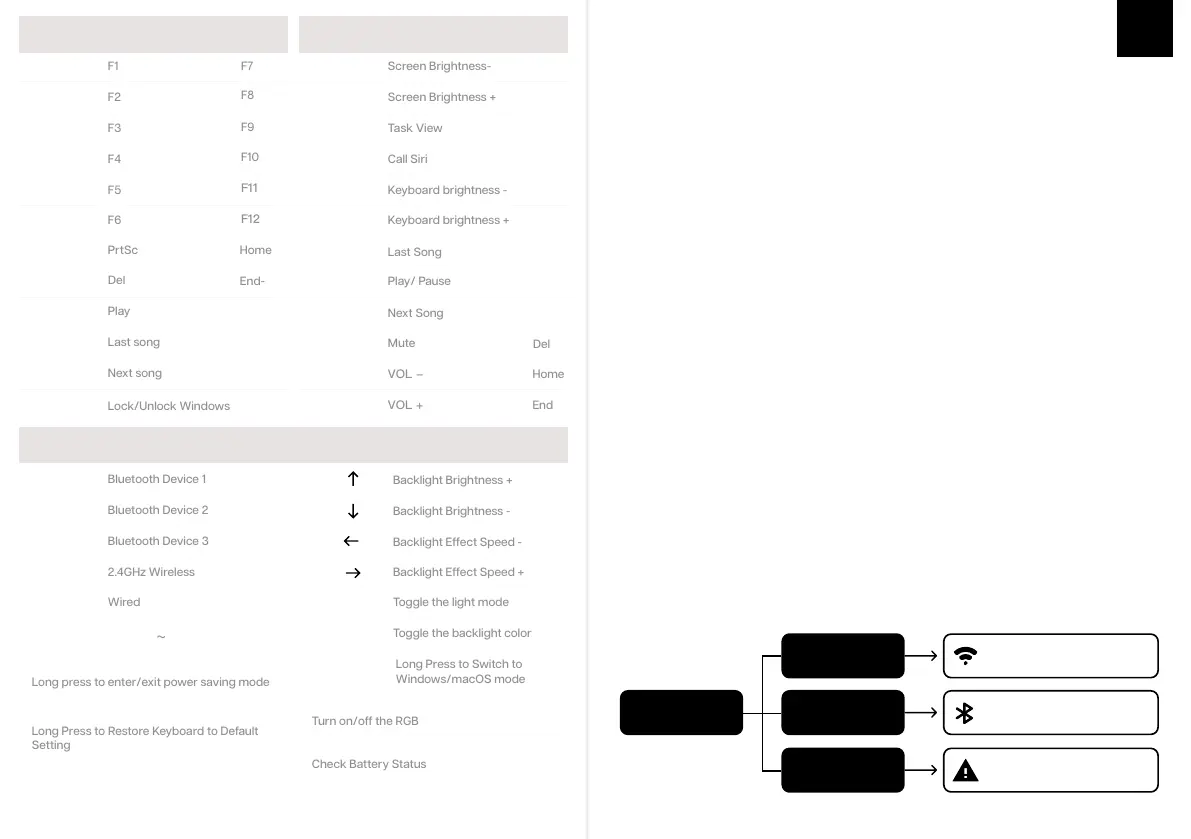
WINDOWS SHORTCUTS
FN + 8
FN + 7
FN + 9
FN + 0
FN + -
FN + =
FN + 1
FN + 2
FN + 3
FN + 4
FN + 5
FN + 6
MACOS SHORTCUTS
FN + 8
FN + 7
FN + 9
FN + 0
FN + -
FN + =
FN + 1
FN + 2
FN + 3
FN + 4
FN + 5
FN + 6
FN + ALT_L
Long Press to Switch to
Windows/macOS mode
Operating system should be windows 8 or above to support the Bluetooth function. The device
should support Bluetooth 5.0 or a higher version to use Bluetooth 5.0.
BLUETOOTH & WIRELESS 2.4GHZ SPECIFICATIONS
KEYBOARD WAKE UP/
If your keyboard is sleeping press any key to wake it up, it will remember the last device connected.
Turn on the
keyboard
Green Light ON
Blue Light ON
Lights OFF
Wireless 2.4GHz connected
Bluetooth connected to the
last paired device.
No device paired. Try pairing
your device again.
Long press the FN+Q/W/E for 3 seconds, the keyboard will start pairing and the light will flash. If
there’s no connection, the keyboard will enter into sleep mode.
PAIRING BLUETOOTH
Long Press for 3 seconds to pair Bluetooth device
FN + QWE
Firstly, turn on the keyboard via the switch on the keyboard’s bottom. Then plug the receiver into
your device. After being recognized by your device, press FN+R, you will see the R key’s backlit
flashes. When the LED stays on the green, the pairing is successfully done.
PAIRING WIRELESS 2.4GHz
Switch to Wireless Mode
FN + R
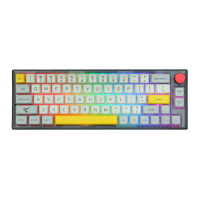
Pressing Fn + \| at the same time allows you to switch the RGB effect of
your TH66 Keyboard.
CHANGE RGB EFFECTS
Short Press to switch to last paired device
FN + QWE
KEYBOARD SHORTCUTS
If you switch devices and/or systems, please make sure to press FN + ALT_L to switch
the keyboard layout according to the system you used, or some shortcuts/multimedia keys may
not work properly.
FN + U
FN + A
FN + S
FN + D
FN + WIN
FN + K
FN + L
FN + PGDN
GENERAL FUNCTION SHORTCUTS
FN + Q
FN + W
FN + E
FN + R
FN + T
FN +
FN +
FN +
FN +
FN + \|
FN + P
Toggle the backlight color
FN + SHIFT+ ESC
CTRL_L + ALT_L_+Q
Long Press to Restore Keyboard to Default
Setting
FN + BACKSPACE
FN+ALT_R+SPACE
Long press to enter/exit power saving mode
FN+Y IN WIRELESS MODE
FN + PGDN
FN + K
FN + L


 To Next Page