EN
WINDO W S SHOR T CUTS
L I G HT EFFE C T S
FN + F8
FN + F8
FN + F7
FN + F7
FN + F9
FN + F9
FN + F10
FN + F10
FN + F12
FN + F12
FN + F11
FN + F11
FN + K
FN + \|
FN + 1
Short Press to Switch to BT1;
Long Press to Pair Devices
FN + K
FN + L
FN + P
Short Press to Switch to BT2;
Long Press to Pair Devices
FN + 2
FN + L
FN + U
FN + ↓
FN + I
FN + ↑
Short Press to Switch to BT3;
Long Press to Pair Devices
FN + 3
Short Press to Switch to 2.4G Mode;
Long Press to Pair Devices
FN + 4
FN + O
FN + ←
FN + 5
FN + Z/X/C
Switch among the Layers 1/2/3
FN + F2
FN + F2
FN + F3
FN + F3
FN + F4
FN + F4
FN + F5
FN + F5
FN + J
FN + BACKSPACE
FN + ESC
FN + J
FN + F6
FN + F6
FN + F1
FN + F1
FN + WIN
FN + →
FN + B
FN + SPACEBAR
M A C O S SH O R T CUTS
FUNCT I O N K EY C OMB INAT I O N S
Toggle the switch in the back to make sure that the keyboard is under the wireless
mode:
P AIR I N G B LUET O O T H
1. Hold Fn+1/2/3 for 3-5 seconds till the indicators flashes fast in blue, the keyboard is ready to pair.
2. Turn on your Bluetooth device and find “TH80 BT5.0” or “TH80 BT3.0”, then connect. When the
keyboard is connected to the Bluetooth device, the light on the 1/2/3 key stops flashing and the
connection is done.
3. Press Fn+1/2/3 to toggle between the Bluetooth devices 1/2/3.
Toggle the switch in the back to make sure that the keyboard is under the wireless
mode:
P AIR I N G WIR ELESS 2.4G H z
1. Hold Fn+4 for for 3-5 seconds till the light flashes fast in green, the keyboard is ready to pair.
2. Insert the 2.4G dongle to your device, the 4 key stops flashing green and the connection is done.
WIR ED MODE
Toggle the switch to the wired mode, press Fn+5 till the 5 key lights up in white, and the keyboard
enters to the wired mode successfully.
C H ECK BATTER Y
Hold Fn+B, the keys from 1! to 0) lig
hts up to show the battery percentage; for example, if the keys
from 1! to 6^ light up when holding Fn+B, it means that the battery life is currently 60%; if keys of
1!-0) light up, battery life is 100%.
C H ECK L A YER AND MODE
Hold Fn+Spacebar, the indicators of Z/X/C and 1/2/3/4/5 light up to show at which layer
and which mode the keyboard is; for example, if the keys of X and 3 light up when holding
Fn+Spacebar, it means that the keyboard is in layer 2 and under the wireless mode and
connected to BT3 device.
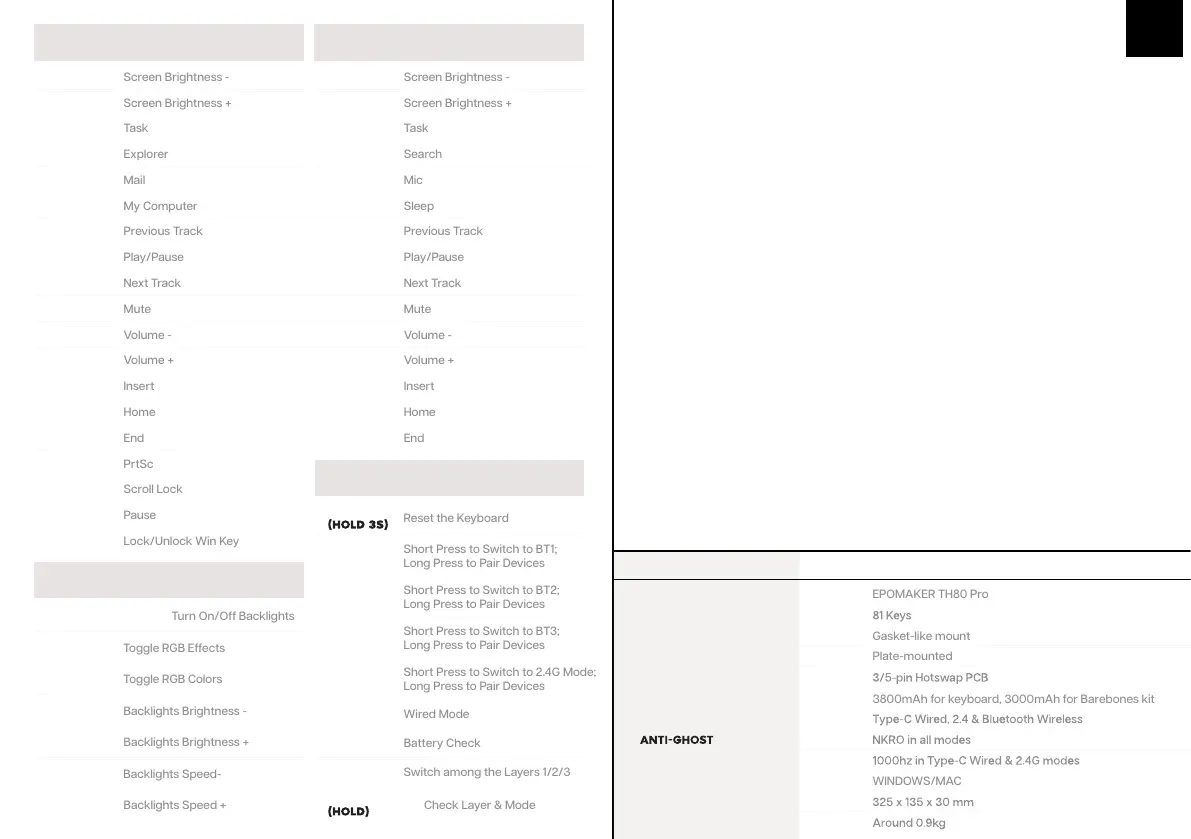
S P E C S
KEYS AMOUNT:
STRUCTURE:
STABILIZER TYPE:
PCB TYPE:
BATTERY CAPACITY:
CONNECTIVITY:
KEY:
POLLING RATE:
COMPATIBILITY:
DIMENSION:
WEIGHT:
MODEL:
3800mAh for keyboard, 3000mAh for Barebones kit


 To Next Page
 Loading...