EN
WINDOWS SHORTCUTS
FN + F1
FN + F2
FN + F3
FN + F4
FN + F5
FN + F6
FN + F7
FN + F8
FN + F9
FN + F10
FN + F11
FN + F12
F1
F2
F3
F4
F5
F6
F7
F8
FN+ESC
(HOLD 3S)
FN + 1
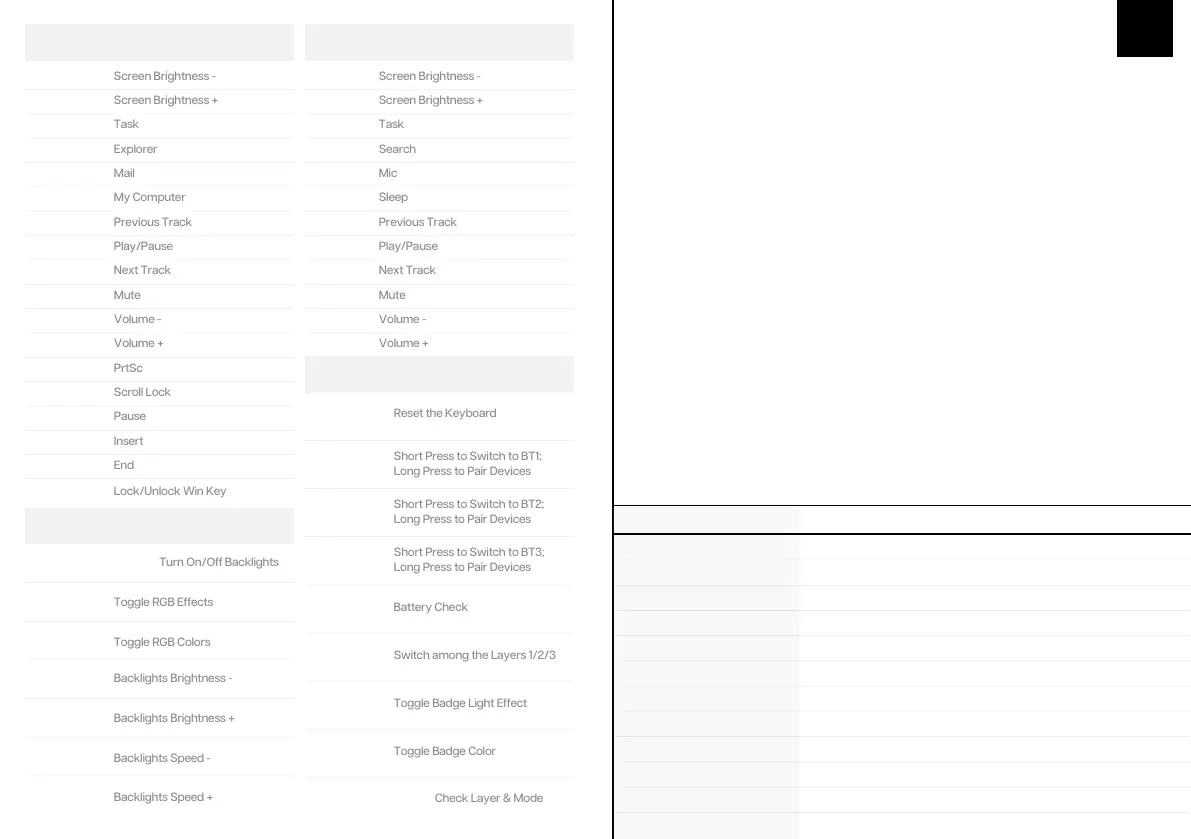
Short Press to Switch to BT1;
Long Press to Pair Devices
FN + 2
Short Press to Switch to BT2;
Long Press to Pair Devices
FN + 3
Short Press to Switch to BT3;
Long Press to Pair Devices
FN + B
FN + Z/X/C
Switch among the Layers 1/2/3
FN+HOME
FN+PG UP
Toggle Badge Light Effect
FN+SPACEBAR
(HOLD)
F9
F10
F11
F12
FN + U
FN + I
FN + O
FN + DEL
FN + PG DN
FN + WIN
FN + BACKSPACE
FN + \|
FN + ENTER
FN + ↓
FN + ↑
FN + ←
FN + →
MACOS SHORTCUTS
LIGHT EFFECTS
FUNCTION KEY COMBINATIONS
SPECS
MODEL:
Toggle the switch in the back to make sure that the keyboard is under
the wireless mode:
1. Hold Fn+1/2/3 for 3-5 seconds till the indicators flashes fast in blue, the keyboard is
ready to pair.
2. Turn on your Bluetooth device and find “TH80 SE BT5.0” or “TH80 SE BT3.0”, then
connect. When the keyboard is connected to the Bluetooth device, the light on the 1/2/3
key stops flashing and the connection is done.
3. Press Fn+1/2/3 to toggle between the Bluetooth devices 1/2/3.
PAIRING BLUETOOTH
Toggle the switch in the back to make sure that the keyboard is under
the 2.4G wireless mode:
Insert the 2.4G dongle to your device, the 4 key stops light up in green for 2s and
the connection is done.
PAIRING WIRELESS 2.4GHZ
Toggle the switch in the back to make sure that the keyboard is under the wired mode till the 5
key lights up in white, and the keyboard enters to the wired mode successfully.
WIRED MODE
Hold Fn+B, the keys from 1! to 0) lights up to show the battery percentage; for example, if the keys
from 1! to 6^ light up when holding Fn+B, it means that the battery life is currently 60%; if keys of
1!-0) light up, battery life is 100%.
CHECK BATTERY
Hold Fn+Spacebar, the indicators of Z/X/C and 1/2/3/4/5 light up to show at which layer and
which mode the keyboard is; for example, if the keys of X and 3 light up when holding
Fn+Spacebar, it means that the keyboard is in layer 2 and under the wireless mode and
connected to BT3 device.
CHECK LAYER AND MODE
KEYSAMOUNT:
STRUCTURE:
STABILIZERTYPE:
PCBTYPE:
BATTERYCAPACITY:
CONNECTIVITY:
ANTI-GHOSTKEY:
POLLING RATE:
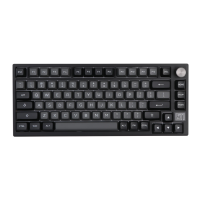
EPOMAKER TH80 SE
81Keys + 1 knob
Gasket-like mount
Plate-mounted
3/5-pin HotswapPCB
4000mAh
Type-CWired, 2.4&BluetoothWireless
NKROin all modes
1000hz inType-C Wired & 2.4G modes
COMPATIBILITY:
DIMENSION:
WEIGHT:
WINDOWS/MAC
325x135 x30mm
Around0.9kg


 To Next Page