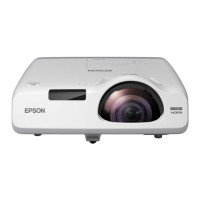
Epson 530 Projector
Setup and Troubleshooting Guide
Page 2 of 2
TROUBLESHOOTING
• Nothing appears on the screen at all, screen is dark
◦ Make sure the lens cap is removed from the lens.
◦ Make sure there is power to the projector and it is turned on (power button should be lit up).
◦ Allow a minute or so for the projector to warm up.
◦ Turn the projector all the way off and back on. If the screen is still dark, the projector may
be malfunctioning.
• Only a blue screen appears, no image from the source
◦ Make sure a cable is properly connected from the correct output of your source to the
correct input of the projector.
◦ Make sure your source is turned on and outputting an image. Many laptops require you to
press a function key on the keyboard to turn on the external VGA monitor output. The key
may be labeled “CRT/LCD” or have a picture of a monitor on it. Hold “Function” (near the
shift key) and press this key to toggle the VGA output on and off. Sometimes this output
may also be controlled by right-clicking anywhere on your laptop screen and selecting
“Properties”, then the “Settings” tab and adjusting which displays are active.
• The image is not bright enough
◦ Close blinds, cover windows, turn off lights to darken the room, especially any light shining
directly on the screen.
◦ Move the projector closer to the screen. This will produce a smaller but brighter image.
◦ More detailed instructions on troubleshooting issues can be found on pages 144 - 157 in
the instruction manual.
Questions? Call 1-815-686-2687 or email atsinfo@atsrentals.com.
For urgent technical support outside of business hours call 1-815-230-1911.



 To Previous Page