EasyManua.ls Logo

Epson CV2-H - User Manual

Epson CV2-H
6 pages
Print Icon
To Next Page IconTo Next Page
Loading...
Setup Guide
6 Expand Vision in the menu tree, click General, and click
Add.
7 Select Manually configure a camera and click OK.
8 Select Compact Vision from the Type drop-down list.
9 Enter 192.168.0.3 in the IP Address field.
10 Make sure GigE 1 is selected as the Channel setting.
11 Check the camera’s label for the model number and select it
from the Model drop-down list.
IMPORTANT: Before using this product, make sure you read these
instructions, and the safety instructions and guidelines in the online Epson
®
Vision Guide Hardware Manual.
The illustrations show the CV2-S but the steps are the same for the CV2-H,
unless otherwise specified.
1
Unpack
High-flex GigE
camera cable
Ethernet cable
Note: Your setup may vary and not all items may be shown above. A
24V power source (not pictured) and any lenses (not pictured) for the
camera(s) in your system are sold separately and required to set up your
Vision Guide system.
2
Connect the hardware
1 Turn on your robot controller, if necessary.
2 Make sure your computer is connected to your robot
controller.
Note: See the Epson RC+ 7.0 User’s Guide for details on
connecting your computer to the CV2 unit.
3 Install your camera lens (not included) on the camera.
4 Connect the high-flex GigE camera cable to the camera and
to the CH1 port on the CV2 unit.
5 Connect the Ethernet cable to the LAN1 port on the CV2
unit and to the LAN port on your robot controller.
Note: If CV2 unit is connected to PC via Ethernet cable, see
online Epson Vision Guide Hardware Manual for details on how
to configure using a hub.
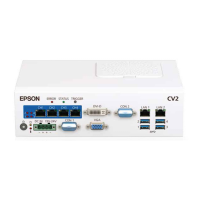
6 Connect your power source to the DC IN port on the CV2
unit. The CV2 unit powers on. If the CV2 unit does not turn
on, press the power button.
Note: If you are installing your own 24V power source (not
included), wire it to the 24V power connector included with the
CV2 unit. Be sure to use AWG14–AWG24 wires. For wiring details,
see the online Epson Vision Guide Hardware Manual.
7 Check the lights for proper function. The power and
PoE 1 lights should be on and the STATUS light should be
flashing.
ERROR
DC IN
19V-24V
CON 1
CH1
1
2
3
4
CH2
CH3
CH4
STATUS
TRIGGER
3
Test the system
Before testing the Vision Guide system, make sure the Epson
RC+ 7.0 software is installed on your computer.
Note: See “Installing the software” on the next page for instructions.
1 On your computer, double-click the EPSON RC+ 7.0 icon
on your Windows
®
desktop to start the Epson RC+ 7.0
software.
2 In the Connection list, select USB.
The robot controller’s PROGRAM light starts flashing.
3 Open the Project menu and select New to create a test
project.
4 Enter a test project name and click OK.
5 Open the Setup menu and select System Configuration.
Vision Guide CV2-H/-S

Question and Answer IconNeed help?

Do you have a question about the Epson CV2-H and is the answer not in the manual?

Summary

Unpack

Connect the hardware

Test the system

Installing the software

Troubleshooting Common Issues

Getting Technical Support

Training Programs

Overview

The Epson Vision Guide CV2-H/-S Setup Guide provides comprehensive instructions for unpacking, connecting, and testing the Vision Guide system, which is designed to integrate with Epson robots for vision-guided automation tasks. This guide is crucial for initial setup and troubleshooting, ensuring users can successfully deploy their vision system.

Function Description:

The Epson Vision Guide CV2-H/-S is a vision processing unit that enables Epson robots to perform tasks requiring visual recognition, inspection, and guidance. It processes images from connected cameras, allowing the robot to identify objects, determine their position and orientation, and execute precise movements based on visual data. The system is designed to enhance the accuracy, flexibility, and automation capabilities of Epson robot systems in various industrial applications. The CV2 unit acts as the central hub for camera connections and communication with the robot controller and a PC running the Epson RC+ 7.0 software.

Important Technical Specifications:

  • Power Source: Requires a 24V power source (sold separately). Users installing their own 24V power source must wire it to the included 24V power connector, using AWG14–AWG24 wires.
  • Camera Connectivity: Supports high-flex GigE cameras, connecting via CH1, CH2, CH3, and CH4 ports on the CV2 unit.
  • Network Connectivity: Features a LAN1 port for Ethernet connection to the robot controller's LAN port. It can also connect to a PC via Ethernet, potentially requiring a hub for specific configurations.
  • Software Integration: Operates with Epson RC+ 7.0 software, which is installed on a Windows PC. This software provides the interface for system configuration, project creation, vision sequence development, and robot programming.
  • IP Address: Default IP address for camera configuration is 192.168.0.3.
  • Camera Models: Compatible with various Basler GigE camera models, including acA1300-60gm, acA640-120gm, acA640-100gm, acA1600-20gm, acA1600-20gc, acA1600-60gm, acA1600-60gc, acA2500-14gm, acA2500-14gc, acA2500-20gm, acA2500-20gc, and acA3800-10gm.
  • Physical Indicators: Includes LED lights for Power, PoE (Power over Ethernet) for each camera channel, Error, Status, and Trigger, providing visual feedback on the system's operational status. The Status light flashes during normal operation.

Usage Features:

  • Unpacking and Initial Setup: The guide details the contents of the Vision Guide package, including the CV2 unit, high-flex GigE camera cable, and Ethernet cable. It emphasizes that a 24V power source and lenses are sold separately.
  • Hardware Connection:
    • Robot Controller: Requires the robot controller to be powered on and the computer connected to it.
    • Camera Lens: Instructions for installing the camera lens (not included) onto the camera.
    • Camera Cable: Connects the high-flex GigE camera cable from the camera to a CH port (e.g., CH1) on the CV2 unit.
    • Ethernet Cable: Connects the Ethernet cable from the LAN1 port on the CV2 unit to the LAN port on the robot controller.
    • Power Connection: Connects the power source to the DC IN port on the CV2 unit. The unit powers on automatically; if not, the power button should be pressed.
  • System Testing (Software Configuration):
    • Software Installation: Requires Epson RC+ 7.0 software to be installed on the computer. Instructions for installation are referenced in the "Installing the software" section.
    • Launching Software: Double-clicking the EPSON RC+ 7.0 icon on the desktop.
    • Connection Type: Selecting "USB" in the Connection list.
    • Project Creation: Opening the Project menu, selecting "New," and entering a project name.
    • System Configuration: Navigating to Setup > System Configuration.
    • Camera Addition: Expanding "Vision," clicking "General," then "Add" to manually configure a camera.
    • Camera Type and IP: Selecting "Compact Vision" as the Type and entering "192.168.0.3" as the IP Address.
    • Channel and Model: Ensuring "GigE 1" is selected as the Channel and choosing the correct camera model from the drop-down list based on the camera's label.
    • Applying Settings: Clicking "Apply" and then "Close."
    • Launching Vision Guide: Clicking the vision icon in the toolbar to open the Vision Guide environment.
    • New Sequence: Clicking the new sequence icon, entering a name, and ensuring "Camera 1" is selected to initiate a live camera feed.
  • Troubleshooting: Provides common solutions for issues such as a dark camera feed (checking lens cap, iris, Virtual setting, lens functionality) and connection/communication errors (checking cable connections, camera configuration, and resetting the system).
  • Documentation: References the online Epson Vision Guide Hardware Manual for detailed safety instructions, guidelines, wiring details, and advanced configurations (e.g., connecting CV2 to PC via Ethernet with a hub). It also refers to the Epson RC+ 7.0 User's Guide for details on connecting the computer to the CV2 unit and general software usage.
  • Support and Training: Provides contact information for technical support (phone and website) and links to Epson's training resources for programming, maintenance, and robotics vision guide classes.

Maintenance Features:

  • System Reset: The guide outlines how to reset the system from the Epson RC+ 7.0 software by navigating to Setup > System Configuration > Vision > Cameras, clicking "Reset," and confirming with "Yes." This is a key troubleshooting step for persistent issues.
  • Firmware Updates: The software interface includes an "Update Firmware" option, suggesting that firmware updates for the camera or CV2 unit can be managed through the Epson RC+ 7.0 software.
  • Configuration Management: The ability to save and load project configurations within Epson RC+ 7.0 allows for easy restoration of known working setups or deployment to multiple systems.
  • Diagnostic Lights: The LED indicators (Power, PoE, Error, Status, Trigger) on the CV2 unit serve as primary diagnostic tools, allowing users to quickly assess the operational status and identify potential issues without needing to access the software. For instance, a non-flashing Status light or an illuminated Error light indicates a problem.

Epson CV2-H Specifications

General IconGeneral
BrandEpson
ModelCV2-H
CategoryMachine Vision Systems
LanguageEnglish