This document is a user's guide for the Epson ET-M2140 / M2140 Series printer.
Function Description
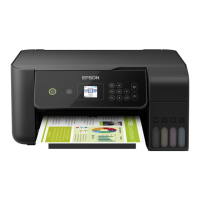
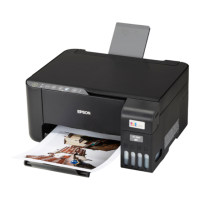
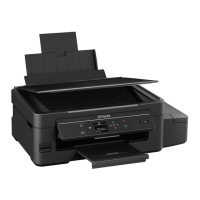
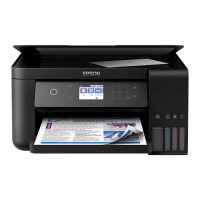
The Epson ET-M2140 / M2140 Series is a multifunction printer capable of printing, copying, and scanning. It is designed for both document and photo printing, with features to optimize print quality and efficiency. The printer utilizes an ink tank system, allowing users to refill ink tanks using ink bottles rather than replacing cartridges. It supports various paper types and sizes, including plain paper, photo paper, and envelopes, and offers 2-sided printing for efficiency. The device can be controlled via a built-in LCD screen or through a computer using printer drivers and dedicated Epson software.
Important Technical Specifications
Printer Specifications:
- Print Head Nozzle Placement: Black ink nozzles: 400x2 rows.
- Weight of Paper:
- Plain Paper: 64 to 90 g/m² (17 to 24 lb)
- Envelopes (#10, DL, C6): 75 to 90 g/m² (20 to 24 lb)
- Thick Paper: 91 to 256 g/m² (printing from computer only).
- Printable Area for Single Sheets:
- A: 3.0 mm (0.12 in.)
- B: 3.0 mm (0.12 in.)
- C: 46.0 mm (1.81 in.)
- D: 44.0 mm (1.73 in.)
- Printable Area for Envelopes:
- A: 3.0 mm (0.12 in.)
- B: 5.0 mm (0.20 in.)
- C: 24.0 mm (0.95 in.)
- D: 46.0 mm (1.81 in.)
Scanner Specifications:
- Scanner Type: Flatbed
- Photoelectric Device: CIS
- Effective Pixels: 10200x14040 pixels (1200 dpi)
- Maximum Document Size: 216x297 mm (8.5x11.7 in.), A4, Letter
- Scanning Resolution: 1200 dpi (main scan), 2400 dpi (sub scan)
- Output Resolution: 50 to 9600 dpi in 1 dpi increments
- Color Depth:
- Color: 48 bits per pixel internal (16 bits per pixel per color internal), 24 bits per pixel external (8 bits per pixel per color external)
- Grayscale: 16 bits per pixel internal, 8 bits per pixel external
- Black and white: 16 bits per pixel internal, 1 bit per pixel external
- Light Source: LED
Interface Specifications:
- For Computer: Hi-Speed USB
Dimensions (Storage/Printing):
- Width: 375 mm (14.8 in.)
- Depth: 347 mm (13.7 in.)
- Height: 302 mm (11.9 in.)
- Weight: Approx. 6.2 kg (13.7 lb) (without ink and power cord)
Electrical Specifications:
- Model: 100 to 240 V Model, 220 to 240 V Model
- Rated Frequency Range: 50 to 60 Hz
- Rated Current: 0.5 to 0.2 A (100-240V), 0.3 A (220-240V)
- Power Consumption (with USB Connection):
- Standalone copying: Approx. 13.0 W (ISO/IEC24712)
- Ready mode: Approx. 5.0 W (100-240V), 5.1 W (220-240V)
- Sleep mode: Approx. 0.7 W
- Power off: Approx. 0.2 W (100-240V), 0.3 W (220-240V)
Environmental Specifications:
- Operation Temperature: 10 to 35°C (50 to 95°F)
- Operation Humidity: 20 to 80% RH (without condensation)
- Storage Temperature: -20 to 40°C (-4 to 104°F) (can store for one month at 40°C)
- Storage Humidity: 5 to 85% RH (without condensation)
- Ink Bottle Storage Temperature: -20 to 40°C (-4 to 104°F)
- Ink Bottle Freezing Temperature: -15°C (5°F) (ink thaws and is usable after approx. 2 hours at 25°C)
System Requirements:
- Windows: 10 (32/64-bit), 8.1 (32/64-bit), 8 (32/64-bit), 7 (32/64-bit), Vista (32/64-bit), XP SP3 or later (32-bit), XP Professional x64 Edition SP2 or later, Server 2016, Server 2012 R2, Server 2012, Server 2008 R2, Server 2008, Server 2003 R2, Server 2003 SP2 or later.
- macOS: High Sierra, Sierra, OS X El Capitan, OS X Yosemite, OS X Mavericks, OS X Mountain Lion, Mac OS X v10.7.x, Mac OS X v10.6.8.
Usage Features
- LCD Screen Control: The printer features an LCD screen for navigating menus, making settings, and displaying messages. Users can select items using directional buttons (up, down, left, right) and an OK button.
- Home Screen: Displays icons and menus for common functions like Copy, Scan, Quiet Mode, Settings, and Maintenance.
- Paper Loading: Supports loading paper in a paper cassette (up to 250 sheets for plain paper) and a rear paper feed slot (single sheets for various types including thick paper and envelopes).
- Original Placement: Originals can be placed face-down on the scanner glass, aligning with a corner mark.
- Printing from Computer:
- Windows: Access printer driver settings via Control Panel or a taskbar icon. Offers basic printing, 2-sided printing, multi-page printing, reverse order printing, reduced/enlarged printing, poster printing with alignment marks, header/footer printing, watermark printing, and combining multiple files with Job Arranger Lite.
- Mac OS: Access print settings via the print dialog. Offers basic printing, 2-sided printing, multi-page printing, reverse order printing, and reduced/enlarged printing.
- Copying: Allows setting the number of copies, 2-sided copying (1-sided original to 2-sided copy), multi-original to one sheet copying (2-up), ID card copying, and adjusting density, paper size, paper type, and reduce/enlarge settings.
- Scanning:
- Control Panel: Scan directly to a computer in JPEG, PDF, or Email formats, or use custom settings configured in Epson Event Manager.
- Epson Scan 2: Offers detailed scan settings including document size, original orientation, image type (color, grayscale, black & white), resolution, and advanced image adjustments (remove background, text enhancement, auto area segmentation, color enhance, threshold, unsharp mask, descreening, edge fill, dual image output).
- Power Saving: Features Sleep Timer and Power Off Settings to automatically turn off the printer after a specified period of inactivity or disconnection, promoting energy efficiency.
- Firmware Updates: EPSON Software Updater allows updating printer firmware and software applications to ensure optimal performance and access to new features.
Maintenance Features
- Ink Refilling: Utilizes an ink tank system. Users can refill ink tanks by pouring ink from genuine Epson ink bottles. The printer indicates when to refill ink and requires resetting the ink level after refilling.
- Maintenance Box: Collects surplus ink from print cycles. The printer will prompt users to replace the maintenance box when it reaches its capacity.
- Nozzle Check: Prints a pattern to check for clogged print head nozzles.
- Head Cleaning: Cleans clogged nozzles in the print head. Recommended if print quality declines and nozzle check shows clogging.
- Power Cleaning: A more intensive cleaning process for heavily clogged nozzles, consuming more ink than regular head cleaning. An interval of 12 hours is required between each power cleaning.
- Print Head Alignment: Adjusts the print head to improve print quality, addressing issues like blurry printouts, misaligned vertical lines, or horizontal banding.
- Paper Path Cleaning: Cleans internal rollers to prevent ink smears and resolve paper feeding problems.
- Scanner Glass Cleaning: Instructions for cleaning the scanner glass to ensure clear scanned images and copies.
- Translucent Film Cleaning: Instructions for cleaning the translucent film inside the printer if print quality issues persist after head alignment or paper path cleaning.
- Checking Printer Status: Users can check the printer's status, ink levels, and error codes via the LCD screen or computer (EPSON Status Monitor 3 for Windows, EPSON Status Monitor for Mac OS).
- Troubleshooting: Provides solutions for common problems such as paper jams, paper feeding issues, power/control panel problems, inability to print from a computer, printout quality issues (scuffed, missing color, banding, poor quality, smears, sticky photos, incorrect position/size/margins, garbled characters, inverted images, mosaic patterns), and scanning problems (slow scanning, stops when scanning to PDF/Multi-TIFF, uneven colors, rough image quality, offset in background, blurred text, moiré patterns, incorrect scan area, text not recognized in searchable PDF).
- Personal Information Protection: Features to clear all personal data and settings from the printer's memory when disposing of or transferring ownership of the device.
- Transport and Storage: Detailed instructions for preparing the printer for transport or long-term storage, including securing the print head and packing.

 Need help?



 To Next Page
 General