110
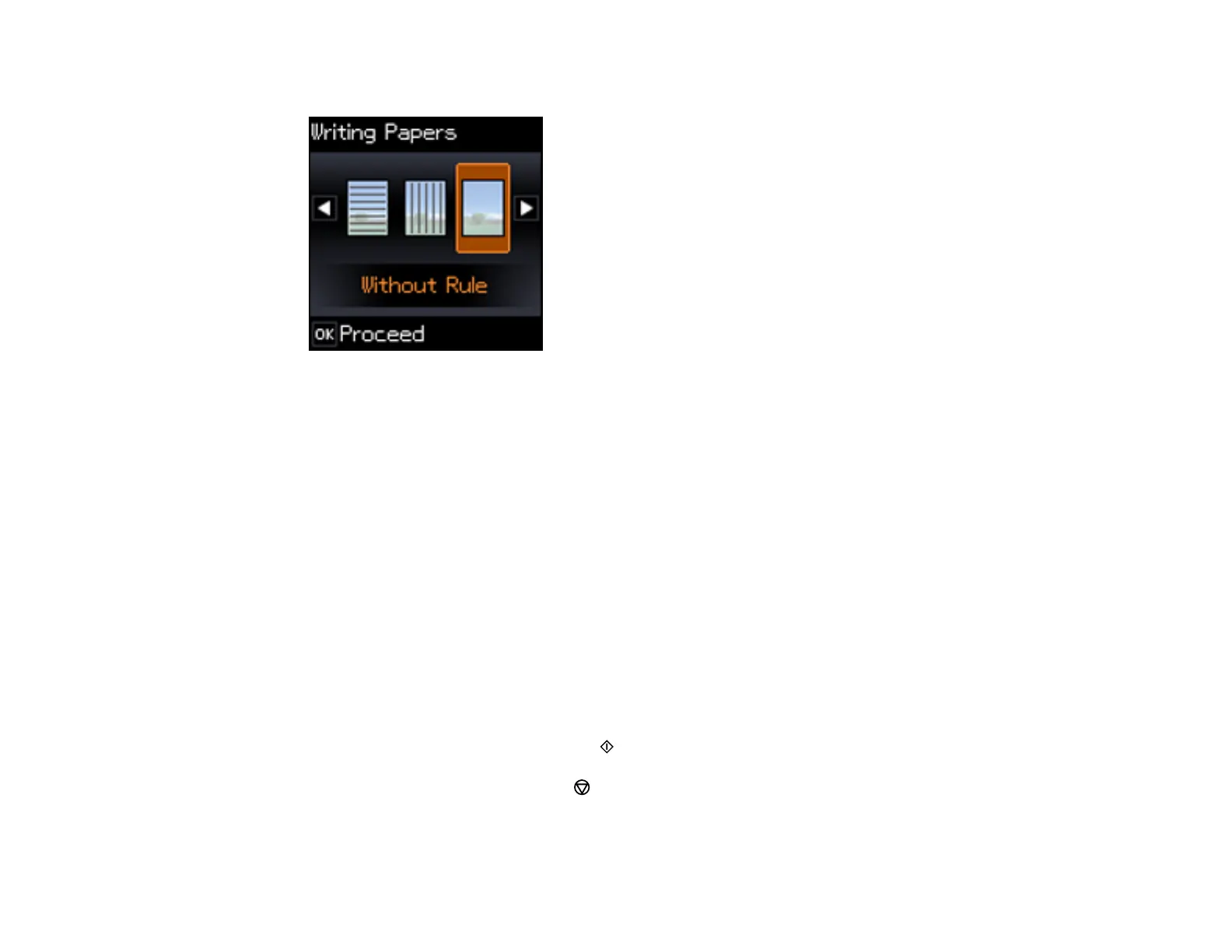
You see this screen:
6. Press the left or right arrow button, and press the OK button to select one of the following settings:
• Without Rule
• Horizontal Rule
• Vertical Rule
Note: View the images for each option to preview the design layout.
7. Select the photo you want to use for your note paper and press the OK button.
Note: To rotate the layout for your note paper, press the down arrow.
8. If you see a message asking you to load paper, press the OK button.
9. To print more than one sheet, press the up or down arrow to select the number (up to 99).
10. To change the paper size, press the OK button, select the paper size, and press the OK button
again.
11. When you are ready to print, press the start button.
Note: To cancel printing, press the stop button.
Parent topic: Printing Personalized Projects





 To Next Page