EasyManua.ls Logo

Epson Moverio BT-40 - User Manual

Epson Moverio BT-40
4 pages
Print Icon
To Next Page IconTo Next Page
Loading...
USB Type-C
Earphone jack
USB Type-C connector
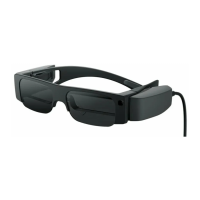
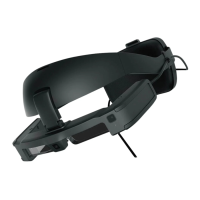
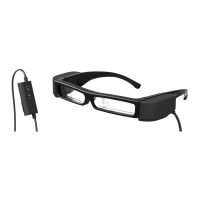
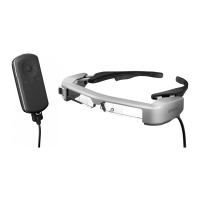
Headset
Temples
Lens
Nose pad
Ambient light sensor
Sensors
Shade
Clip
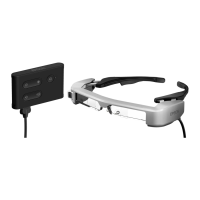
Dedicated controller
(Intelligent Controller BO-IC400)
*The Intelligent Controller BO-IC400
is supplied with the BT-40S. For more
information about the BO-IC400, see
the “BO-IC400 User's Guide”.
SD card slot pin
USB cable
BO-IC400 User's Guide
User's Guide (this document)
Safety Instructions
© 2020 Seiko Epson Corporation
414016900 EN 2020.07
Please read this guide rst. Also, make sure you read the “Safety Instructions” sheet
supplied before using this product.
See the following website for additional information:
https://tech.moverio.epson.com/en/
User's Guide
Included Items and Headset Part Names
Watching Images
1
2
3
While the image is displayed on your connected device, connect the
headset's USB Type-C connector to the connected device.
Connect commercially available earphones to the earphone jack.
We recommend using earphones that comply with CTIA standards.
Also, when using 3-pin earphones, the microphone function
does not work. You may hear some noise when connecting or
disconnecting the earphones or USB Type-C connector during
content playback, so be sure to take off your earphones first.
When using apps with a call function, phone calls may be audible
from the smart device even if earphones are connected. We
recommend checking in advance what happens when you receive
a phone call while images are displayed.
Put on the headset and earphones, and then adjust the position of
the headset so that you can see the image.
Do not apply excessive force when opening the temples.
You can clip the earphone jack to your clothes using the clip. Note
that some clothes may be damaged by the clip.
Turn the screen of your connected device sideways to display the
image at full screen size.
- Turn on the screen rotation feature for the connected device.
Check the following points if you cannot see the image.
- The USB Type-C connector is connected correctly (make sure
you connect it securely to the connector).
- The connected device is on, not in sleep mode.
- Your smart device supports images output in USB Type-C
DisplayPort Alternate Mode.
If you are using an Android device, you can adjust the brightness of the headset's screen as well as other parameters by using the
dedicated app.
BT-40: Install the app "MOVERIO Link" on your smart device using Google Play.
BT-40S: Use "MOVERIO Link Pro" from the app list screen of the Intelligent Controller BO-IC400.
The following outlines the main features of the app.
Headset screen brightness adjustment
Power saving mode (on the connected device and the headset)
Screen lock for the connected devices (to prevent accidental operations)
Adjust the volume on your connected device.
Earphone jack
This product is only for use with USB Type-C DisplayPort Alternate Mode.
Optional Items
The following optional items are available. These optional items are available as of July 2020. Availability and part numbers vary by region and are
subject to change without notice.
Intelligent Controller BO-IC400*
Shade Pack BO-SP400
Nose Pad Pack BO-NP350
Nose Pad Pack BO-NP300
*Supplied with the BT-40S.
This product is powered using the battery in your smart device or the Intelligent Controller (hereinafter, these are collectively referred to as the "connected
device"). While using the product, keep an eye on the battery level of your connected device.
The BT-40 does not come with an Intelligent Controller. You need to provide a smart device that supports USB Type-C DisplayPort Alternate Mode.
Question and Answer IconNeed help?

Do you have a question about the Epson Moverio BT-40 and is the answer not in the manual?

Overview

This document serves as a user's guide for the Epson Moverio BT-40 and BT-40S smart glasses, providing essential information on their function, usage, and maintenance. It is crucial to read this guide and the accompanying "Safety Instructions" sheet before using the product.

The Moverio smart glasses are designed for use with a smart device or the Intelligent Controller (for the BT-40S model) that supports USB Type-C DisplayPort Alternate Mode. The BT-40 model requires the user to provide a compatible smart device, as it does not include an Intelligent Controller. The device is powered by the battery of the connected smart device or Intelligent Controller, so users should monitor the battery level of their connected device during use.

Function Description

The Moverio smart glasses project images onto a virtual screen, allowing users to view content from their connected device in an immersive manner. The core function is to display visual content, such as videos or applications, directly in the user's field of vision.

Usage Features

Initial Setup and Connection:

To begin using the smart glasses, connect the headset's USB Type-C connector to your smart device or Intelligent Controller. Ensure the connection is secure. For audio, connect commercially available earphones to the earphone jack on the headset. It is recommended to use earphones that comply with CTIA standards. If using 3-pin earphones, the microphone function will not work. Be aware that some noise may occur when connecting or disconnecting earphones or the USB Type-C connector during content playback; it's advisable to remove earphones first in such instances. If using apps with call functions, phone calls might be audible from the smart device even with earphones connected, so check this behavior in advance.

Wearing and Adjustment:

Once connected, put on the headset and earphones. Adjust the position of the headset until the image is clearly visible. When opening the temples, avoid applying excessive force. The earphone jack features a clip, allowing you to attach it to your clothes for convenience, though be mindful that some clothes might be damaged by the clip.

Screen Display and Orientation:

For optimal viewing, turn the screen of your connected device sideways to display the image at full screen size. This typically requires enabling the screen rotation feature on your connected device. If you cannot see the image, verify that the USB Type-C connector is securely connected, the connected device is on and not in sleep mode, and that your smart device supports image output via USB Type-C DisplayPort Alternate Mode.

Brightness and App Control (Android Devices):

For Android users, the brightness of the headset's screen and other parameters can be adjusted using a dedicated app.

  • BT-40: Install the "MOVERIO Link" app from Google Play on your smart device.
  • BT-40S: Use "MOVERIO Link Pro" from the app list screen of the Intelligent Controller BO-IC400. Key features of these apps include headset screen brightness adjustment, a power saving mode for both the connected device and the headset, and a screen lock for connected devices to prevent accidental operations. Volume adjustments are managed directly on your connected device.

Wearing Over Glasses:

The headset can be worn over prescription glasses, provided they are not wider than approximately 144 mm (5.7 inches). However, depending on the shape of your glasses, it may not be possible to wear the headset comfortably. Exercise caution to avoid scratching the headset or your glasses when wearing them together.

Viewing in Bright Surroundings:

To improve screen visibility in bright environments, attach the supplied shade. The shade is magnetic, making it easy to attach and remove.

Sensor Calibration:

If the accuracy of the headset's geomagnetic sensor is low in apps that utilize it, you can calibrate the sensor by waving the headset in a figure-8 motion while it is connected to a smart device or Intelligent Controller.

Nose Pad Replacement:

The nose pad for glasses is worn on the nose from over the glasses. If you need to replace the nose pad, ensure you purchase the correct optional nose pad for the BT-40. To replace, pull the nose pad straight towards you to remove it, then attach the new one.

Maintenance Features

Cleaning the Headset:

Regular cleaning helps maintain optimal viewing quality.

  • Lens Cleaning: If the screen appears dirty or foggy, check the lens for dust or fingerprints. Wipe any dust or dirt off the lens with a soft cloth. Do not use liquids such as lens cleaning solutions or organic solvents on the lens.
  • General Cleaning: For other dirty parts of the headset (excluding the lens), wipe with a wet tissue. Do not use a tissue moistened with alcohol-based cleaning liquid.

Water Resistance:

The product is IPX2-compliant for daily water resistance, meaning it can withstand dripping water at a rate of 3 mm/minute for up to 10 minutes when at a 15-degree angle without water entering the product. However, this rating does not apply to the USB Type-C connector.

  • Important Considerations: Water resistance does not guarantee protection against all damage or malfunctions. The warranty will be void if malfunctions are due to incorrect handling.
  • Handling Precautions: Avoid touching the USB Type-C connector with wet hands and do not expose it to water or dust when connecting or disconnecting it. Small debris like hair or sand in the ports can compromise water resistance.
  • Liquid Exposure: Do not allow other liquids such as organic solvents, soapy water, hot spring water, or seawater to splash onto the product.
  • Storage: Do not leave the product in humid locations like bathrooms.
  • Post-Exposure: If rain or water splashes onto the product, wipe it immediately with a dry cloth.

Support Information:

For additional information regarding app development and firmware updates, users can visit the official website: https://tech.moverio.epson.com/en/.

Epson Moverio BT-40 Specifications

General IconGeneral
Contrast Ratio100, 000:1
Brightness500 cd/m²
Operating SystemAndroid
Battery LifeUp to 6 hours
Display TechnologyOLED
Display TypeLCD
Resolution1920 x 1080
Color Depth24-bit
Field of View (FoV)34 degrees
ConnectivityBluetooth
CompatibilityAndroid
AudioBuilt-in speakers

Related product manuals