Epson P-2000
11/04 Epson P-2000 - 11
Direct Printing
You can print your photos directly from the P-2000 to any of
the following Epson printers without connecting a computer:
❏ Epson Stylus
Photo R300 and R300M
❏ Epson Stylus Photo R320
❏ Epson Stylus Photo RX600
❏ PictureMate
Note: Additional printers may be supported; check the Epson web
site to get the latest information: http://support.epson.com.
You can use the following sizes and types of paper:
Note: PictureMate prints on 4 × 6-inch paper only.
For details about paper, see your printer documentation.
Connecting the P-2000 to a Printer
Follow these steps to connect the P-2000 to your printer:
1. Make sure the P-2000 and the printer are turned off.
2. Open the USB connector cover:
3. Connect the small end of the USB cable to the P-2000.
4. Connect the other end of the cable to the
EXT I/F connector
on the printer.
The
EXT I/F connector may be in a different location on
your printer.
5. Connect the AC adapter to the P-2000.
6. Turn on the printer and the P-2000.
Note: Don’t worry if you see the message Camera is connected
on the printer’s LCD panel. You will still be able to print from the
P-2000.
Printing Your Photos
1. Make sure the printer is connected and has paper and ink.
Make sure the AC adapter is connected to the P-2000
before you print.
2. To print a single photo, select the image. If you want to
print multiple images in a folder or album, just open the
folder or album.
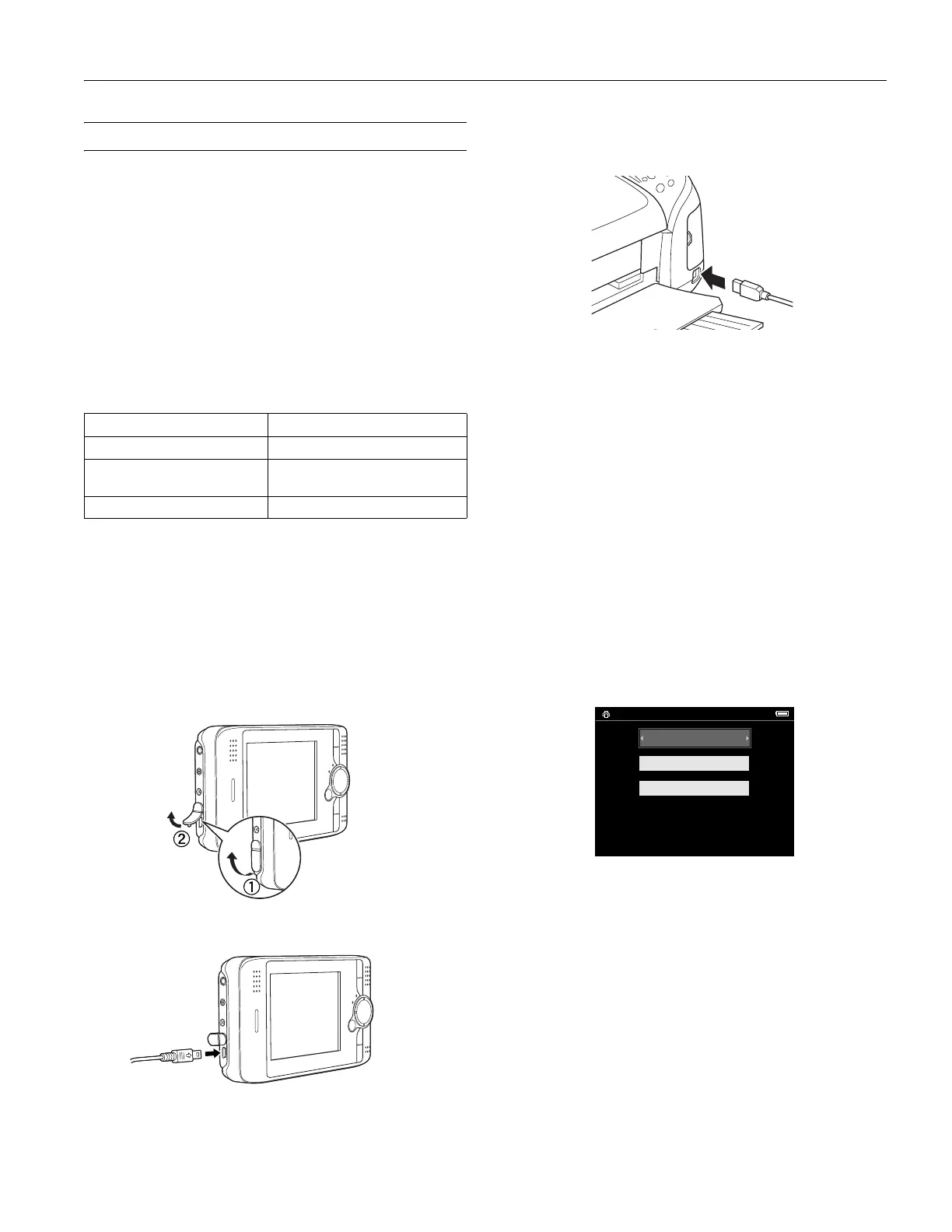
3. Press the
PRINT button. You see the Print menu:
Paper Size
Premium Glossy Photo Paper 4 × 6 in., 5 × 7 in., Letter, A4
Premium Semigloss Photo
Paper
Letter
PictureMate
™
Photo Paper 4 × 6 in.
Print
Print This Image
Print All Image
Select Images to Print
Number of Print Orders 2



 To Next Page
 Loading...