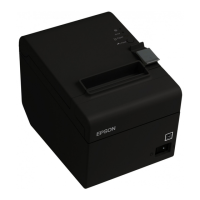
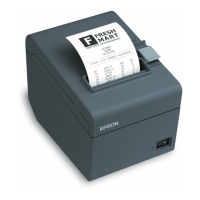
Now you’re ready to set up your printer in RPE/CRE.
3. Select [4] Setup | [L] Friendly Printer Setup and re-enter your password if necessary.
4. Select Receipt in the Select Friendly Printer list on the left.
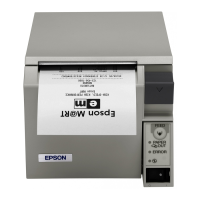
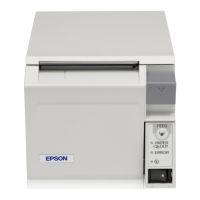
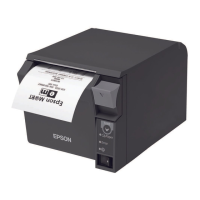
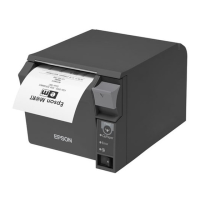
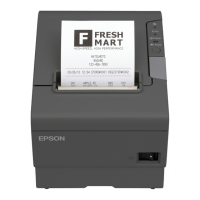
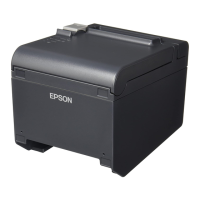
5. Select the EPSON TM-T70 Receipt printer in the Select local Windows printer list on the right.
6. Select Epson Thermal Receipt Printer as the Printer Type.
7. Select Cut Receipt at this Station.
8. Select Print logo on receipts at this station then select the logo file you would like to print on receipts (if
applicable).
Note: The Pixel aspect ratio for the logo must be 1:3 (i.e. if the image has a 100px height then the width must be
300px). If the image you are using is not in that aspect ratio then it will be distorted.
9. Select Save & Exit.



 To Next Page
 Loading...