7 | P a g e
Driver Configuration
Once your computer has restarted and you’re back at the Windows Desktop, you’re ready to set
up the properties for your printer.
1. Select Start | Control Panel | Printers and Faxes.
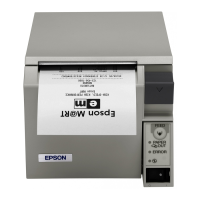
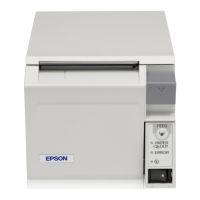
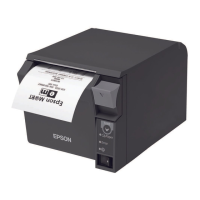
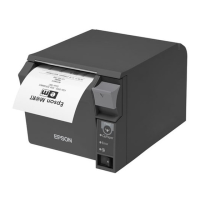
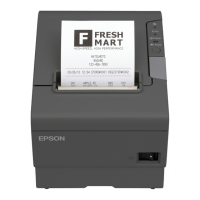
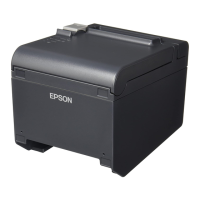
2. Right-click on the EPSON Receipt printer (Epson
TM-T70) and select Properties.
3. Select the Ports tab.
4. Select the port your EPSON Receipt printer is
connected to (e.g. ESDPRT001, LPT1, COM1, USB
T70) and select Apply.
Note: If the printer is already selected and the Apply
button is disabled, just continue to the next step.
Now you can print a test page to ensure that your
printer is set up correctly.
1. Select the General tab.
2. Select Print Test Page.
Note: If your test page fails to print, see the Printer
Troubleshooting section below.



 To Next Page
 Loading...