1. Select Start | Control Panel | Printers and
Faxes.
2. Right-click on the EPSON Receipt Printer and
select Properties.
Note: If you have more than one of the same
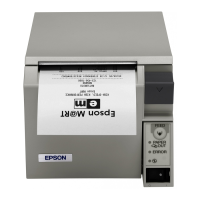
receipt printer listed (e.g. EPSON TM-T70 Receipt
and EPSON TM-T70 Receipt(1), delete all except
the unnumbered listing. Right-click on the
duplicate printer name(s) and select Delete.
3. Select the Ports tab
4. Check the first corresponding port for the
printer that you have (e.g. LPT1, COM1,
ESDPRT001).
5. Select the General tab.
Select Print Test Page if the test page prints
correctly, you can return to the CRE/RPE
software and configure the printer there.
If the test page still does not print correctly,
return to the Ports tab and continue from Step 4
above with the next unchecked corresponding
printer port.



 To Previous Page
 Loading...