Need help?
Do you have a question about the Epson XP-610 Series and is the answer not in the manual?
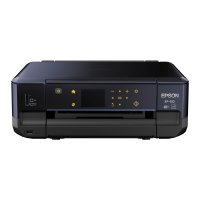
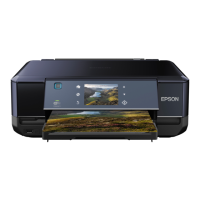
The Epson XP-610/XP-810 is a Small-in-One printer designed for versatile home and office use, offering printing, scanning, and copying functionalities, with the XP-810 model also including fax capabilities. This guide provides essential steps for initial setup, configuration, and basic troubleshooting to ensure a smooth user experience.
The Epson XP-610/XP-810 serves as a comprehensive multifunction device, consolidating several office functions into a single, compact unit. Its primary function is high-quality printing, capable of producing documents and photos with crisp text and vibrant colors. The printer supports various paper types and sizes, making it suitable for a wide range of printing needs, from everyday documents to professional-looking photographs.
Beyond printing, the device integrates scanning capabilities, allowing users to digitize physical documents and images. The scanner unit is designed for ease of use, enabling quick conversion of paper-based content into digital files. This is particularly useful for archiving, sharing, or editing documents electronically.
Copying is another core function, enabling users to duplicate documents directly from the device without the need for a computer. This feature is convenient for making quick copies of important papers, forms, or other materials. The copying function typically offers options for adjusting copy quality and size.
For the XP-810 model, fax functionality is included, providing a traditional method for sending and receiving documents over a telephone line. This feature is beneficial for users who still rely on fax communication for business or personal purposes, offering a dedicated solution within the multifunction device.
The "Small-in-One" designation highlights the printer's compact design, making it suitable for environments where space is a premium. Despite its small footprint, it aims to deliver robust performance across all its integrated functions, catering to the needs of individual users and small offices.
The Epson XP-610/XP-810 is designed with user-friendliness in mind, incorporating several features to simplify its operation and enhance the overall user experience.
The setup process begins with unpacking the printer, which involves removing protective materials and ensuring all components are accounted for. Users are guided to install the ink cartridges, a critical step for preparing the printer for its first use. The guide emphasizes not opening ink cartridge packages until ready to install, as they are vacuum-packed for reliability. After ink installation, paper loading is the next step, with clear instructions on how to properly insert paper into the tray.
Once the physical setup is complete, the printer requires initial configuration, which typically involves selecting language, country, date, and time settings via the product's control panel. These settings can be adjusted later if needed.
The printer offers multiple connectivity options to suit different user environments:
To fully utilize the printer's features, software installation on the computer is necessary. The product includes a CD for this purpose, guiding users through the setup program. For Mac OS X users, installing Software Updater is recommended, which may require an internet connection. The software installation process is designed to be straightforward, ensuring that drivers and utility applications are correctly installed.
For the XP-810, connecting the fax line involves plugging a phone cord into a telephone wall jack and into the LINE port on the printer. This enables the device to send and receive faxes.
The printer features a control panel that provides intuitive access to various functions and settings. This interface allows users to navigate menus, select options, and monitor the printer's status without needing to interact with a computer for every task.
The guide highlights specific instructions for ink cartridge handling, such as shaking the black cartridge only before installation. It also mentions that the included cartridges are for printer setup and priming, with the remaining ink available for printing.
The printer supports standard paper sizes like LTR and A4, and the guide provides visual instructions for loading paper correctly into the tray, ensuring smooth feeding and preventing jams.
The guide includes a section for common problems, offering solutions for issues like unsuccessful network setup, firewall alerts, incorrect network passwords, and error messages on the printer's screen. For more detailed troubleshooting, users are directed to the online User's Guide.
Maintaining the Epson XP-610/XP-810 is crucial for ensuring its longevity and consistent performance. The guide provides insights into several maintenance-related aspects, primarily focusing on ink cartridge management and general care.
A key maintenance feature is the guidance on ink cartridge handling. Users are instructed to store the caps provided with the ink cartridges in the included plastic bag. These caps are designed to recap ink cartridges after they have been removed from the printer for storage or disposal. This practice helps to prevent ink from drying out if a cartridge is temporarily removed, thus preserving its usability. The guide also notes that the cartridges included with the printer are specifically for initial setup and priming. After the priming process, the remaining ink is available for printing. This distinction is important for users to understand the initial ink consumption.
A crucial caution is provided regarding ink waste: "Don't turn off the printer or raise the scanner unit while the printer is priming or you'll waste ink." This instruction emphasizes the importance of allowing the printer to complete its priming cycle undisturbed. Interrupting this process can lead to unnecessary ink consumption, which impacts the cost-effectiveness of printing. This highlights an automatic maintenance routine (priming) that the user needs to respect.
The guide implicitly points to the ongoing need for consumables like ink cartridges and paper. It lists replacement ink cartridges, indicating the specific models (273 for standard-capacity and 273XL for high-capacity) for Photo Black, Black, Cyan, Magenta, and Yellow. This information is vital for users to purchase the correct replacement inks, ensuring compatibility and optimal print quality. The mention of "Claria Premium Ink" suggests the use of a specific ink technology designed for high-quality photo and document printing, implying that using genuine Epson inks is part of maintaining the printer's performance. Similarly, the section "Need paper and ink?" serves as a reminder for users to keep these essential supplies stocked.
While the quick start guide provides essential initial maintenance tips, it frequently directs users to the "online User's Guide" for more comprehensive information. This suggests that the full user's guide contains detailed instructions on various maintenance procedures, such as cleaning print heads, clearing paper jams, and other routine upkeep tasks that are not covered in the brief setup guide. For instance, troubleshooting sections often refer to the online guide for solutions to error messages or complex network issues, which might involve maintenance-related diagnostics.
The guide emphasizes ensuring secure connections for USB cables, stating, "Make sure it is securely connected as shown." While not a direct maintenance task, ensuring proper physical connections prevents potential issues that could be mistaken for hardware malfunctions, thus contributing to the overall reliability and perceived maintenance-free operation.
In summary, the maintenance features outlined in the guide primarily focus on proper ink cartridge handling to prevent waste and preserve cartridge life, along with clear instructions to avoid interrupting critical printer processes like priming. The emphasis on using correct replacement consumables and referring to the comprehensive online User's Guide underscores a proactive approach to keeping the printer in optimal working condition.
 General
| Print Technology | Inkjet |
|---|---|
| Functions | Print, Copy, Scan |
| Max Print Resolution | 5760 x 1440 dpi |
| Scan Resolution | 1200 x 2400 dpi |
| Automatic Document Feeder (ADF) | No |
| Copy Speed (Black) | 11 cpm (ISO/IEC 29183) |
| Copy Resolution | 600 x 600 dpi |
| Maximum Scan Area | 216 mm x 297 mm |
| Duplex Printing | Yes |
| Connectivity | USB, Wi-Fi, Wi-Fi Direct, Ethernet |
| Paper Sizes | A4, A5, A6, B5 |
| Ink Type | Dye Ink |
| Scanner Type | Flatbed |
| Memory Card Support | SD, SDHC, SDXC |
| Mobile Printing | Epson Connect, Apple AirPrint, Google Cloud Print |
| Paper Capacity | 100 sheets |
| Print Speed (Black) | 13 ISO ppm |
| Print Speed (Color) | 10 ISO ppm |


 To Next Page