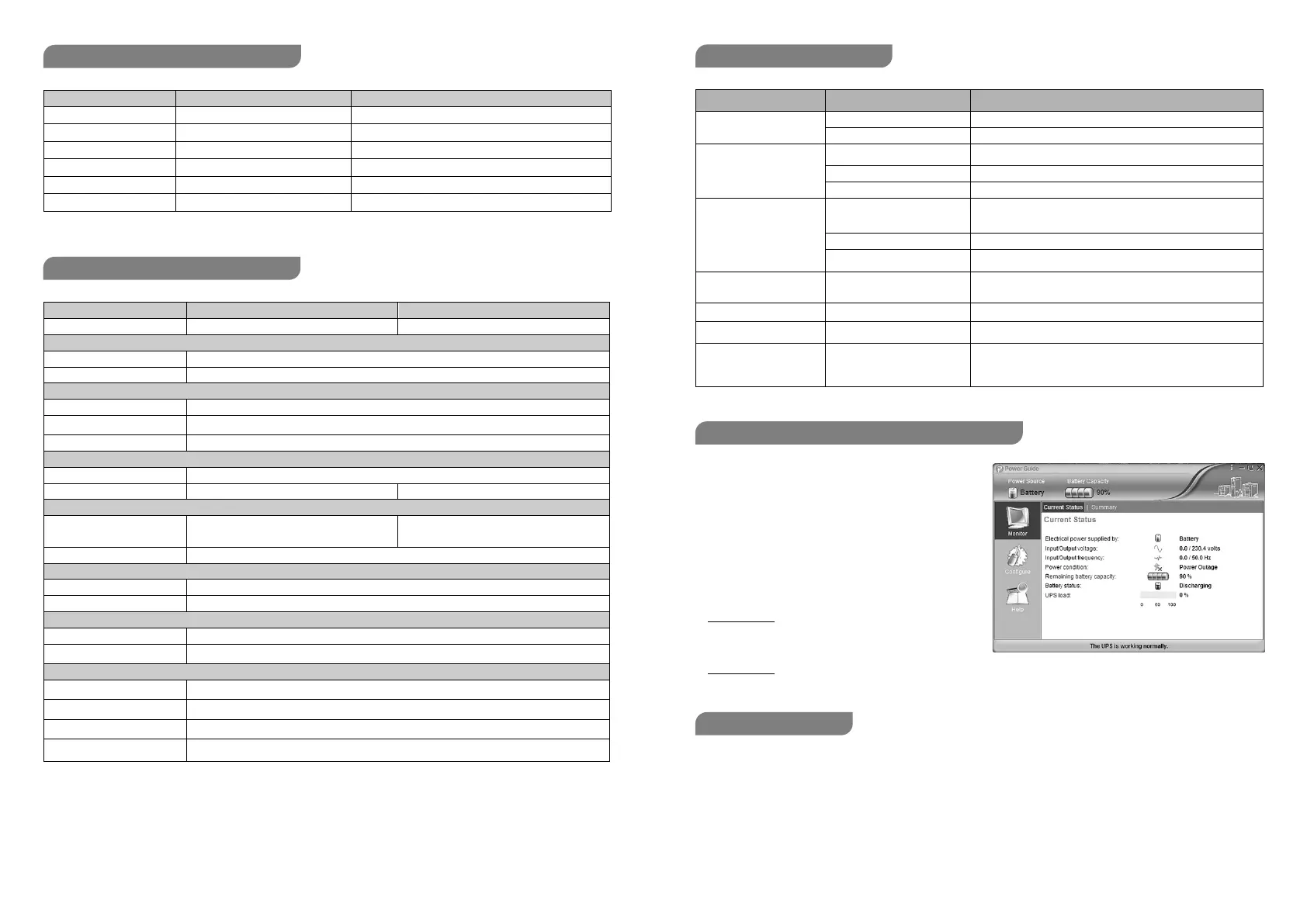
The management software provides a user-friendly
interface for your power systems. The graphic interface
is intuitive and displays essential power informations.
Installation procedure:
1. Download Power Guide software (for Windows or
Linux) or Power Master software (for MacOS) from
the website: www.justepyc.com
2. Double-click the file and follow the installation steps.
3. Power Guide: when your computer restarts, the
Power Guide software will appear as a blue icon
located in the system tray.
Power Master: to access Power Master enter http://localhost:3052 address on your web browser.
Before starting any cleaning operation, be sure that:
1. The AC Input Voltage for the UPS has been removed.
2. The UPS is OFF.
Use a cloth moisteened only with water to externally clean the UPS. Before restarting the UPS be sure it is completely
dry.
If the UPS works in an environmental unusually dusty or dirty, remove the dirty from the ventilation holes
If any liquid gets inside the UPS, do not start the unit and contact Technical Service immediately.
Normal LED lighting Off
Battery discharge LED lighting Beep once every 30 seconds
Battery low LED lighting Beep once every 2 seconds
Overload LED lighting Beep once every 0,5 seconds
Off Charging mode LED off Off
Fault LED off Continuous alarm
Capacity (VA/W) 1500/900 2200/1320
NominalFrequency range 50/60Hz
On Battery Output Voltage 220-240VAC
On Battery Output Frequency 50/60Hz+/-1%
Overload Protection Breaker
Weight 9.1 kg 10.0 kg
Sealed Maintenance Free
Lead Acid Battery
2x 12V/7.5Ah 2x 12V/9Ah
Typical Recharge Time 8 Hours
Indicators Power On
Audible Alarms On Battery, Low Battery, Overload, Fault
Operating Temperature 0°C to 40°C
Operating Relative Humidity 0 to 90%
Auto-Charger Yes
Auto-Restart Yes
USB COMM.Port Yes
RJ45/11Communication
Protection Ports
No
Problem Possible Cause Solution
The UPS does not perform
expected runtime.
Batteries are not fully charged. Recharge the battery by leaving the UPS plugged in.
Battery is slightly worn out. Contact Technical Support for battery replacing.
The UPS will not turn on.
The unit is not connected to an AC
outlet.
The unit must be connected to a 220-240V outlet.
The battery is worn out. Contact Technical Support for battery replacing.
Mechanical problem. Contact Technical Support.
Outlets do not provide
power to equipment
Circuit breaker is tripped
due to overload.
Turn the UPS off and unplug at least one piece connected
equipment. Unplug the power cord of the UPS then press
the circuit breaker knob.
Batteries are discharged Allow the unit to recharge for at least 4 hours.
UPS has been damaged by a
surge or spike.
Contact Technical Support.
Fault code F09
Output short:
output circuit short.
Shutdown the UPS. Your attached equipment may have problems,
please remove them and check again.
Fault code F12 Battery voltage is too low. Shutdown your computer and recharge the battery immediately.
Fault code F13 Battery is overcharged. Contact Technical Support.
Fault code F14
your equipment requires more
power than the UPS can provide.
It twill shutdown.
Shut off non-essential equipment.
If this solves the overload problem, the UPS will transfer
to normal operation.
MANAGEMENT SOFTWARE DOWNLOAD


 To Next Page
 Loading...